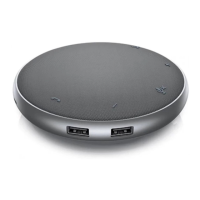
The Dell Speakerphone SP3022 is a portable audio device designed to enhance communication experiences, particularly in professional settings. It serves as a versatile tool for conference calls, online meetings, and general audio playback, integrating seamlessly with various communication software and operating systems. The speakerphone is designed for ease of use, offering quick access to essential control functions through its intuitive button layout and LED indicators.
Function Description
The primary function of the Dell Speakerphone SP3022 is to provide high-quality audio input and output for communication purposes. It acts as an external speaker and microphone, improving clarity and reducing ambient noise during calls. The device connects to a computer or monitor via a USB-A or USB-C port, making it compatible with a wide range of devices. Its plug-and-play functionality ensures a straightforward setup process, allowing users to quickly integrate it into their existing workstation.
The speakerphone is optimized for use with Microsoft Teams, offering dedicated controls that align with Teams' functionalities. This integration allows users to answer, reject, and end calls, as well as manage their microphone status directly from the device. Beyond Teams, the SP3022 is also compatible with other popular communication software, including Skype for Business, Zoom, Google Meet, Cisco Webex, FaceTime, Slack, GoToMeeting, and BlueJeans. While its full range of button functionalities may vary across different applications, it generally provides core controls such as mute/unmute, volume adjustment, and call management.
An important feature of the SP3022 is its echo cancellation capability, which helps minimize and reduce echoes during calls, contributing to a clearer and more professional audio experience for all participants. This is particularly beneficial in environments where echoes might otherwise disrupt communication.
Usage Features
The Dell Speakerphone SP3022 is designed with user convenience in mind, offering several features that simplify its operation:
- Intuitive Controls: The front of the speakerphone features a series of buttons and LED indicators for quick and easy control. These include dedicated buttons for Microsoft Teams, Answer/End/Reject call, Volume Up, Volume Down, and Mute/Unmute.
- LED Indicators: Each button is accompanied by an LED that provides visual feedback on the device's status. For instance, the Teams LED lights up white when Teams is active and blinks when notifications are received. The Answer call LED blinks green for incoming calls, lights up green during an active call, and turns off when the call ends. The Mic LED lights up red when the microphone is muted and turns off when it's active. Volume up/down LEDs light up white when pressed, indicating a change in volume.
- Call Management:
- Answering Calls: A short press of the Answer/End/Reject call button answers incoming Teams calls.
- Rejecting Calls: A long press (one second) of the Answer/End/Reject call button rejects incoming Teams calls.
- Ending Calls: A short press of the Answer/End/Reject call button ends active Teams calls.
- Making Calls: Pressing the Teams button brings the Teams application to the main screen, allowing users to initiate calls through the software.
- Volume Adjustment: The speakerphone includes distinct buttons for increasing and decreasing volume. An audio prompt tone is heard when these buttons are pressed, confirming the volume change.
- Plug-and-Play Setup: The device is designed for easy setup. Users simply unwind the cable from the cable holder, dislodge the USB-A connector from the adapter if needed, and connect it to a USB-A or USB-C port on their computer or monitor.
- Default Sound Device Configuration: Users can easily set the SP3022 as their default sound device in Windows 10/11 settings. This involves navigating to System > Sound and selecting the speakerphone as the preferred output and input device. Alternatively, it can be configured via the sound volume icon in the system tray or through the classic Sound options by running
mmsys.cpl.
- Dell Peripheral Manager Integration: For advanced customization and management, the SP3022 can be used with the Dell Peripheral Manager application. This software allows users to make changes to device settings and access additional customization options, ensuring the speakerphone operates optimally within their workflow. The application can be installed manually or accessed via Dell's support website.
Maintenance Features
While the manual does not detail extensive maintenance procedures, it provides guidance on ensuring the longevity and proper functioning of the device:
- Cable Management: The speakerphone features a cable holder on its back, encouraging users to gently unwind and store the cable to prevent damage. A caution is provided against bending the cable at sharp angles, as this could lead to fraying over time.
- Troubleshooting Guide: The manual includes a comprehensive troubleshooting section to address common issues such as audio performance problems, unresponsive buttons, echo during calls, no audio output, or microphone malfunction.
- Firmware and Driver Updates: Users are advised to check and update their system's BIOS, audio drivers, and the SP3022's firmware from the Dell support website. This is crucial for optimal performance and compatibility, especially with Windows 10/11 64-Bit OS.
- Connection Checks: For detection issues, users are guided to disconnect and reconnect the speakerphone, and to verify that the upstream cable is properly connected from the computer to the Dell monitor when used with a monitor.
- Sound Settings Verification: Troubleshooting steps often involve checking the computer's sound settings to ensure the Dell Speakerphone SP3022 is selected as the correct playback and recording device.
- Volume Adjustment: If the volume is too low, users are instructed to adjust it using the speakerphone's buttons or the software UI, and to remove any obstructions between the device and the user.
- Audio Enhancements: In cases of abnormal sound, users are advised to uncheck "Enable audio enhancements" in the advanced settings of the speakerphone's properties within the Windows Sound control panel. Disabling System Audio Enhancements is also suggested.
- Application Compatibility: For communication applications other than Microsoft Teams, the manual recommends using the in-app controls rather than the speakerphone's buttons, as button functionality may vary or be limited.
- Multiple Conferencing Applications: If multiple conferencing applications are active simultaneously, it is recommended to use the in-app controls to avoid conflicts and ensure proper button response.
By following these guidelines, users can maintain the Dell Speakerphone SP3022 in good working condition and resolve common operational issues, ensuring a consistent and high-quality communication experience.


 To Next Page
 General
 Weight and Dimensions