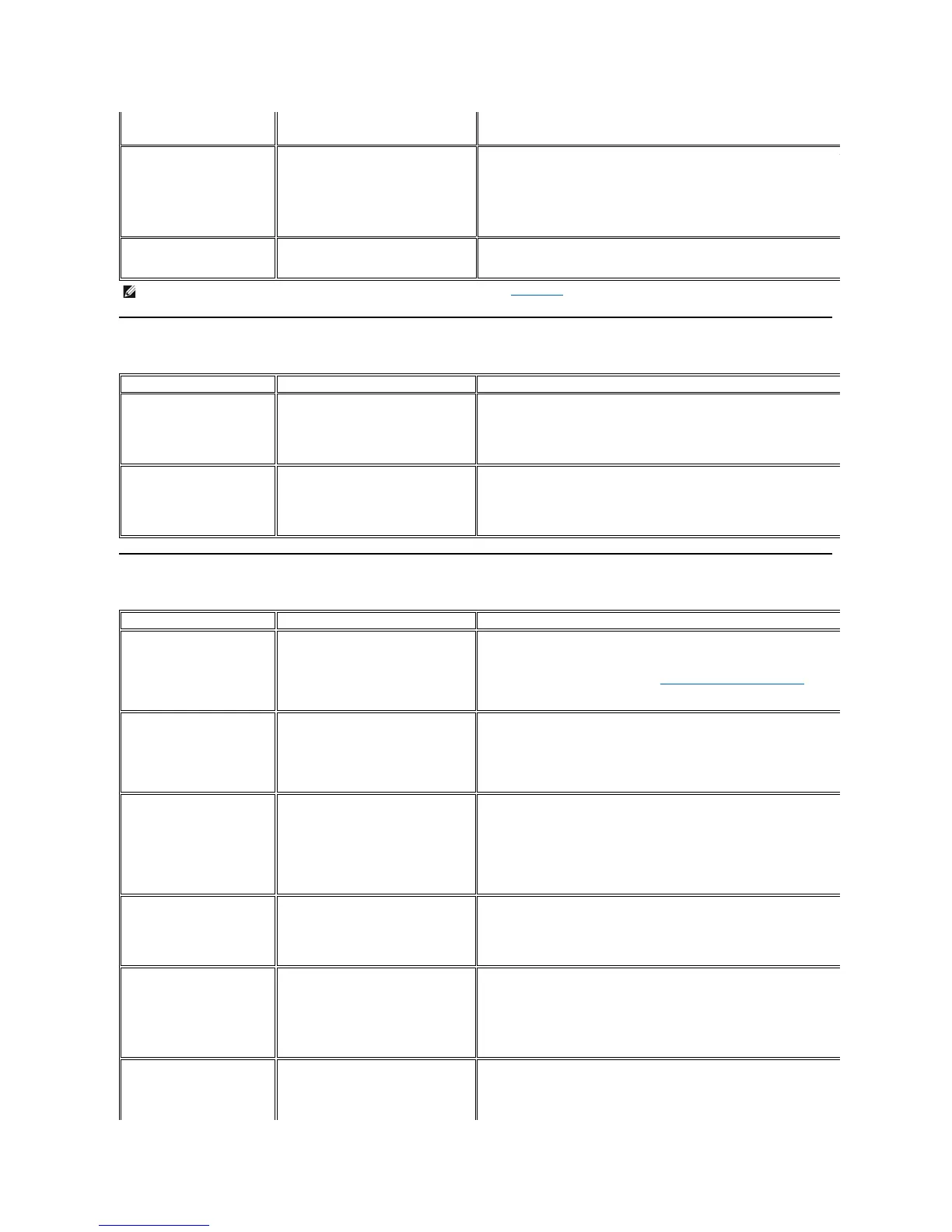
Universal Serial Bus (USB) Specific Problems
TroubleshootingtheDell™Soundbar
press "+", "-" or "Menu" key, the message
"NoCompositeinputsignal"or" No
Component input signal " will appear.
accesstheOSDtosetAudioto"off"state.
No Input Signal when you press
the controls.
No picture, the LED light is blue. When you
press "+", "-" or "Menu" key, the message
" No Composite input signal " or " No
Component input signal " will appear.
Check the signal source Make sure the Computer is not in power saving by moving the
mouse or pressing any key on the keyboard.
l
Check to make sure Video Source to Composite or Component is powered and playing
video media.
l Checkwhetherthesignalcableispluggedinandseatedproperly.Re-
if necessary.
l Re-boot the computer or video player.
The monitor will not fill the entire
screen.
The picture can't fill the height or width of
the screen.
standard formats of DVDs, the monitor may not show the full screen
NOTE: When choosing DVI-D, DisplayPort, HDMI, Composite or Component video, Auto Adjust function is not available.
USB interface is not working
USB peripherals are not working
l Check that your monitor is powered ON.
l Reconnecttheupstreamcabletoyourcomputer.
l ReconnecttheUSBperipherals(downstreamconnector).
l Switch off and then turn on the monitor again.
l Reboot the computer.
High Speed USB 2.0 interface is
slow.
High Speed USB 2.0 peripherals working
slowly or not at all.
l Check that your computer is USB 2.0 capable.
l Verify USB 2.0 source on your computer.
l Reconnecttheupstreamcabletoyourcomputer.
l ReconnecttheUSBperipherals(downstreamconnector).
l Reboot the computer.
No power to Soundbar - the power
indicator is off.
(built-in DC power supply. i.e. U2410)
Turn the Power/Volume knob on the Soundbar clockwise to the middle position; check if the
power indicator (blue LED) on the front of the Soundbar is illuminated.
l
Confirm that the power cable from the Soundbar is plugged into the monitor.
l Confirm that the monitor has power.
l If the monitor has no power, see Monitor Specific Troubleshooting
Soundbar has power - power indicator is
on.
l Plug the audio line-in cable into the computer's audio out jack.
l Set all Windows volume controls to their maximum.
l Play some audio content on the computer (i.e. audio CD, or MP3).
l
Turn the Power/Volume knob on the Soundbar clockwise to a higher volume setting.
l Clean and reseat the audio line-in plug.
l Test the Soundbar using another audio source (i.e. portable CD player).
Computer's sound card is used as the
audio source.
l Clear any obstructions between the Soundbar and the user.
l Confirm that the audio line-
in plug is completely inserted into the jack of the sound card.
l Set all Windows volume controls to their midpoints.
l Decrease the volume of the audio application.
l Turn the Power/Volume knob on the Soundbar counter-
clockwise to a lower volume setting.
l Clean and reseat the audio line-in plug.
l Troubleshoot the computer's sound card.
l Test the Soundbar using another audio source (i.e. portable CD player).
Other audio source is used.
l Clear any obstructions between the Soundbar and the user.
l Confirm that the audio line-
in plug is completely inserted into the jack of the audio source.
l Decrease the volume of the audio source.
l Turn the Power/Volume knob on the Soundbar counter-
clockwise to a lower volume setting.
l Clean and reseat the audio line-in plug.
Sound from only one side of Soundbar
l Clear any obstructions between the Soundbar and the user.
l Confirm that the audio line-
in plug is completely inserted into the jack of the sound card or
audio source.
l Set all Windows audio balance controls (L-R) to their midpoints.
l Clean and reseat the audio line-in plug.
l Troubleshoot the computer's sound card.
l Test the Soundbar using another audio source (i.e. portable CD player).
l Clear any obstructions between the Soundbar and the user.
l
Turn the Power/Volume knob on the Soundbar clockwise to the maximum volume setting.
l Set all Windows volume controls to their maximum.
l Increase the volume of the audio application.
l Test the Soundbar using another audio source (i.e. portable CD player).





 To Next Page