Back to Contents Page
Operating the Monitor
Dell™U2410FlatPanelMonitorUser'sGuide
Using the Front Panel Controls
Using the On-Screen Display (OSD) Menu
Setting the Maximum Resolution
Using the Dell Soundbar (Optional)
Using the Tilt, Swivel and Vertical Extension
Rotating the monitor
Adjusting the Rotation Display Settings of Your System
Using the Front Panel
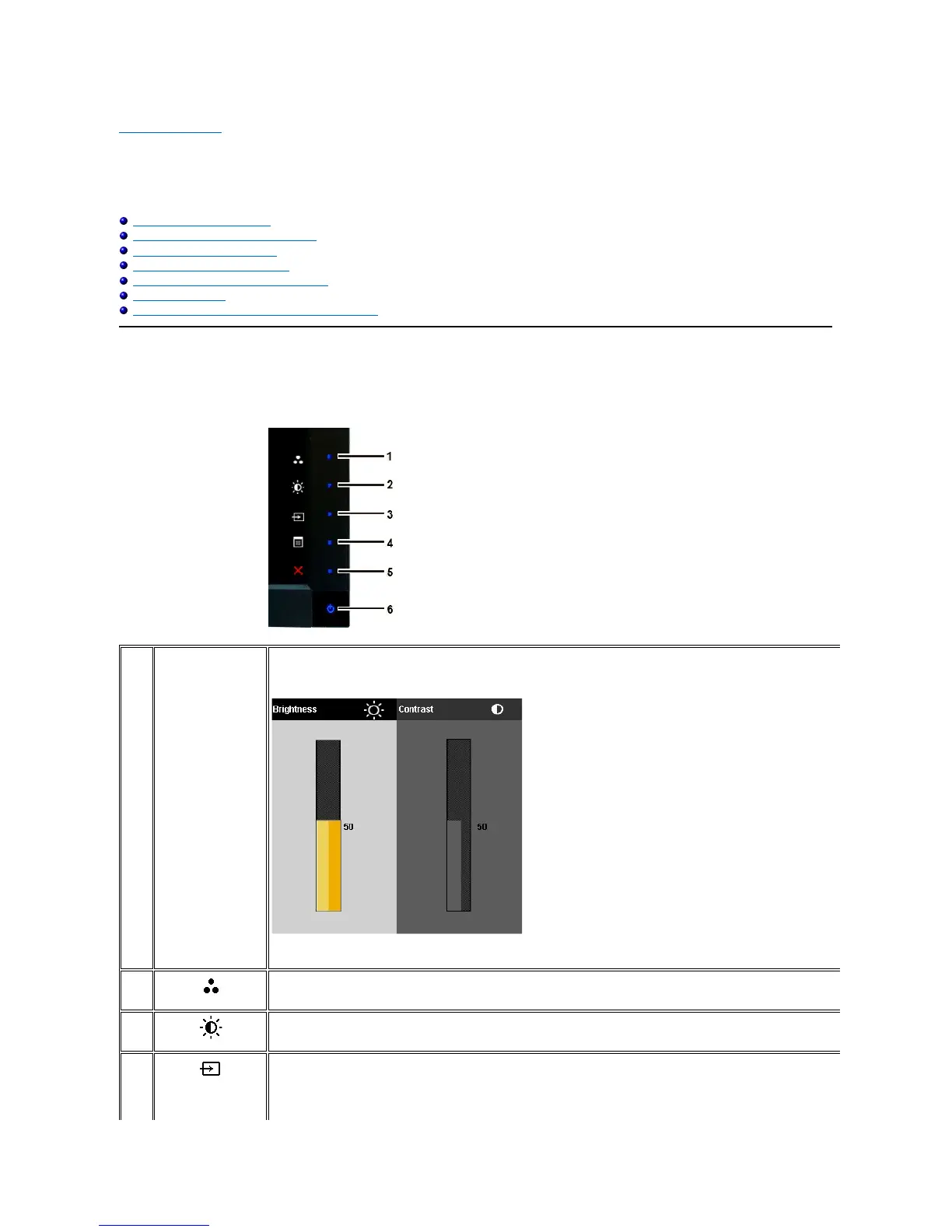
Use the buttons on the front of the monitor to adjust the image settings. 1~5 are capacitive touch sensor keys, activated by placing the finger on the Blue LED
button.
Use this key for direct access to the control menu that you define in the personalize menu.
For example, use the second shortcut key to activate Brightness/Contrast adjustment.
*The default settings are Preset Modes Select, Brightness/Contrast Select and Input Source Select.





 To Next Page