28 | Setting Up the Monitor
Graphics Card must be certified to DP1.2 with MST option.
NOTE: Remove the rubber plug when use DP out connector.
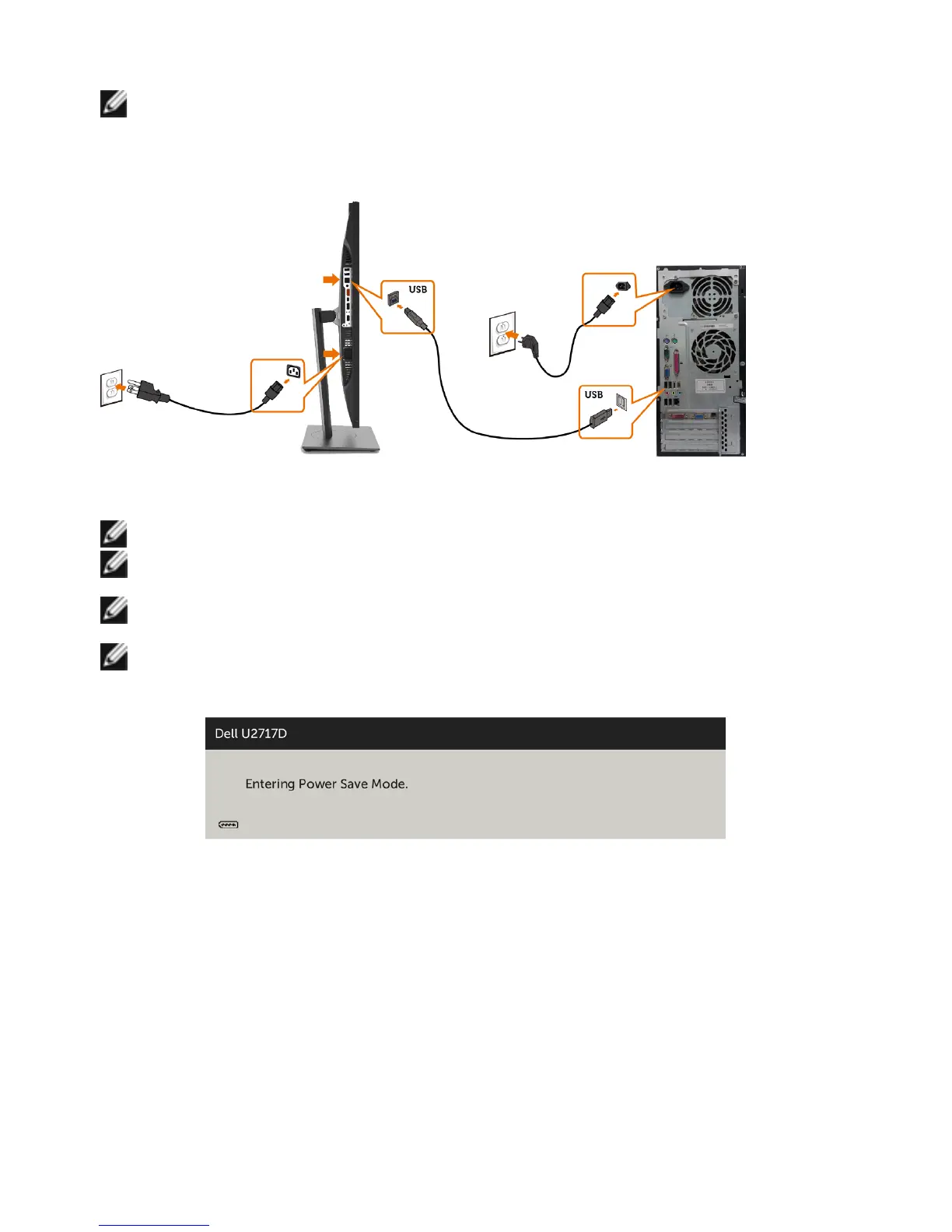
Connecting the USB cable
Using the Mobile-High Definition Link (MHL)
NOTE: This monitor is MHL ready.
NOTE: To use the MHL function, use only MHL certified cable and source devices
that support MHL output.
NOTE: Some MHL source devices may take more than a few seconds or longer to
output an image, depending on MHL source devices.
NOTE: When the connected MHL source device enters standby mode, the monitor
displays a black screen or the message below, depending on MHL source device’s
output.
To enable MHL connection, please perform the below steps:
1 Plug the power cable on your monitor into a AC outlet.
2 Connect the (micro) USB port on your MHL source device to HDMI (MHL) port
on the monitor with a MHL certified cable (see Bottom View for details).
3 Turn on the monitor and the MHL source device.


 To Next Page