14 | About Your Monitor
5
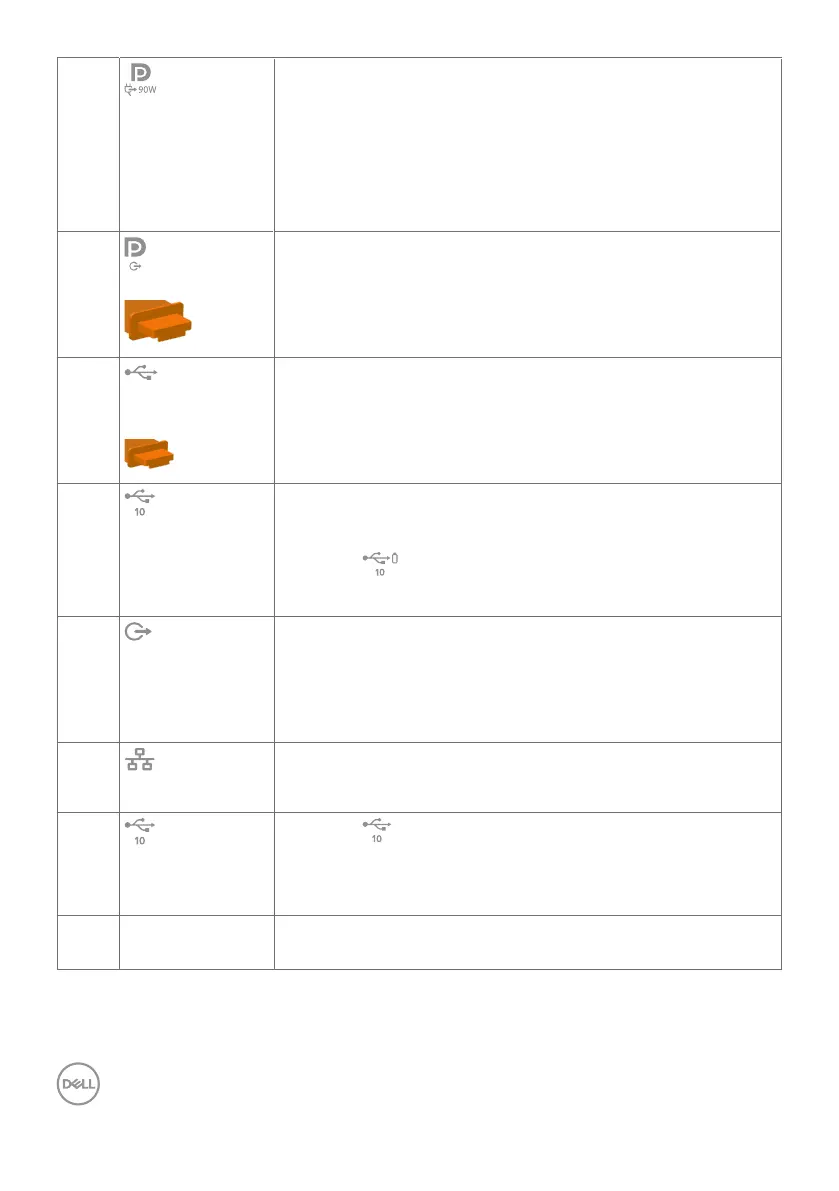
USB-C port
(Video + Data)
Connect to your computer using the USB-C cable.
The USB-C port offer the fastest transfer rate and the
alternate mode with DP 1.4 support the maximum resolution
of 2560 x 1440 at 60 Hz PD 20 V/4.5 A, 15 V/3 A, 9 V/3 A,
5 V/3 A.
NOTE: USB-C is not supported on Windows versions that
are prior to Windows 10.
6
DP port (out)
DP output for MST (Multi-Stream Transport) capable
monitor. To enable MST, refer to instruction on section
“Connecting the Monitor for DP MST Function”.
NOTE: Remove the rubber plug when using DP out
connector.
7
USB-C
upstream port
Connect to your computer using the USB cable (A to C or
C to C). Once the USB cable is connected, you can use the
USB downstream connectors on the monitor.
NOTE: Remove the rubber plug when using USB-C
connector.
8,10,
11,13
Super speed
USB 10Gbps
(USB 3.2 Gen2)
(4)
Connect your USB device. You can use these ports only
after you have connected the USB cable (A to C or C to C)
from the computer to the monitor.
Port with battery icon supports Battery Charging Rev.
1.2.
9
Audio line-out
port
Connect speakers to playback audio through HDMI or
DisplayPort audio channels. Only two-channel audio is
supported.
NOTE: The audio line-out port does not support
headphones.
12
RJ-45 connector
Connect Internet. You can surf Internet via RJ45 only after
you have connected the USB cable (A to C or C to C) from
the computer to the monitor.
14
USB-C
downstream port
Port with icon supports 5 V/ 3 A.
Connect your USB device. You can use this port only after
you have connected the USB cable (A to C or C to C) from
the computer to the monitor.
15 Stand lock Lock the stand to the monitor using a M3 x 8 mm screw
(screw not included).




 To Next Page