Using Your Dell Venue Smartphone 63
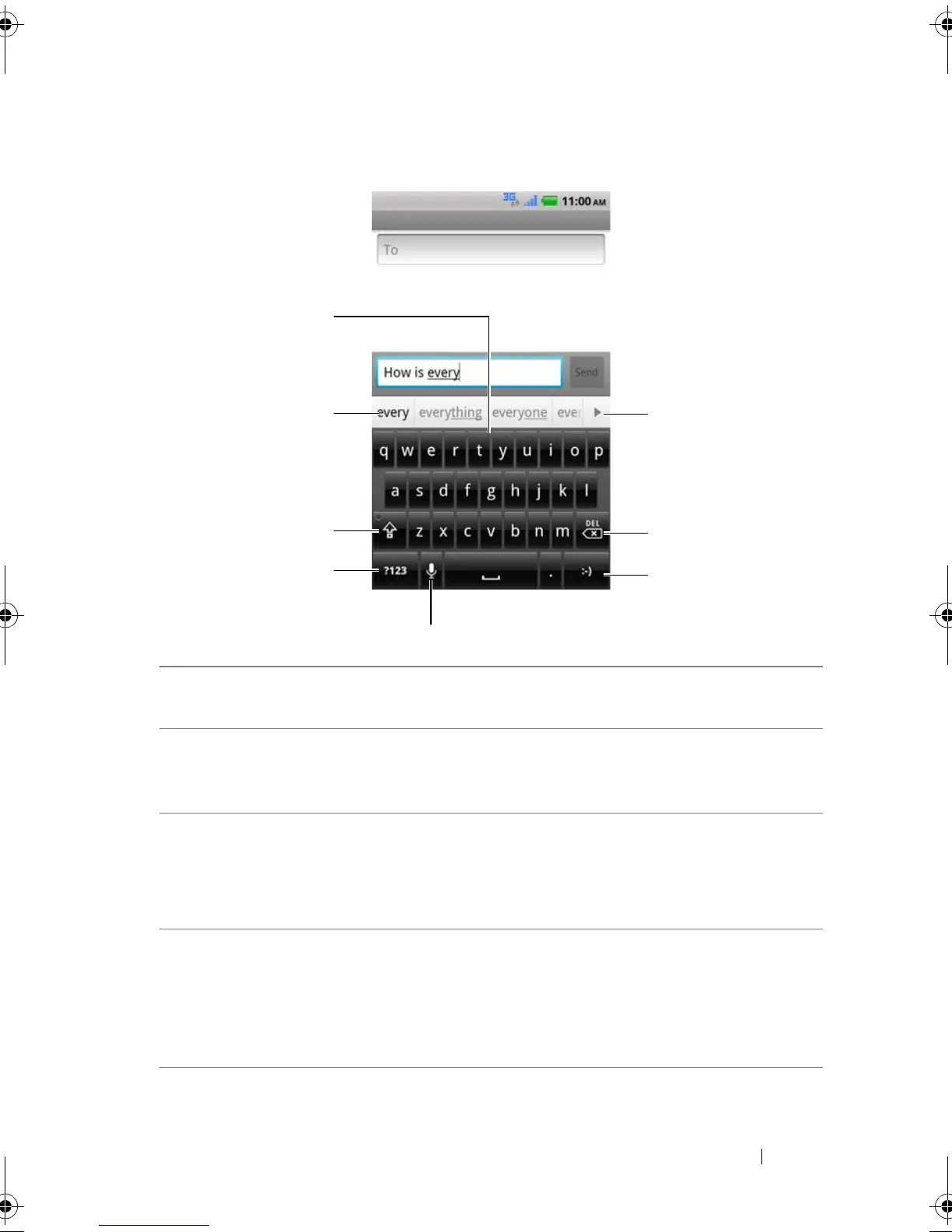
Keyboard controls
1 • Touch to type letters into the field where the cursor appears.
• Touch and hold to type accented letters for applicable languages.
2 • Based on the letters being typed, the keyboard shows suggested
words along the top, the most probable one highlighted in color.
• You can touch a suggested word to enter it into the text field.
3 • Touch once to show the uppercase keyboard for typing an upper
case letter.
• Touch and hold to enable the Caps Lock mode.
• Touch to change back to the lowercase keyboard.
4 • Touch to show the keyboard for typing numbers, punctuation marks,
and symbols other than the period.
• Touch to switch back to the alphabet keyboard.
–Android keyboard settings: Configure the keyboard settings.
–Input method: Choose to use the Swype or Android keyboard.
Thunder_UM.book Page 63 Monday, December 13, 2010 6:53 PM













 To Next Page