76 Internet
NOTE: If the wireless network you want to connect to is not in the list of
detected networks, flick to the bottom of the list to touch Add Wi-Fi
network. Enter the Wi-Fi network settings, and then touch Save.
Disable All Connections Using the Airplane Mode
Selecting the Airplane mode disables all mobile and Wi-Fi connections.
This feature is useful when wireless connectivity is strictly prohibited,
such as on an airplane.
Touch the Home button → Menu button → Settings→ Wireless
& networks→ Airplane mode to enable or disable the Airplane mode.
Browsing the Internet
To open the browser
Touch the Launcher button → Browser .
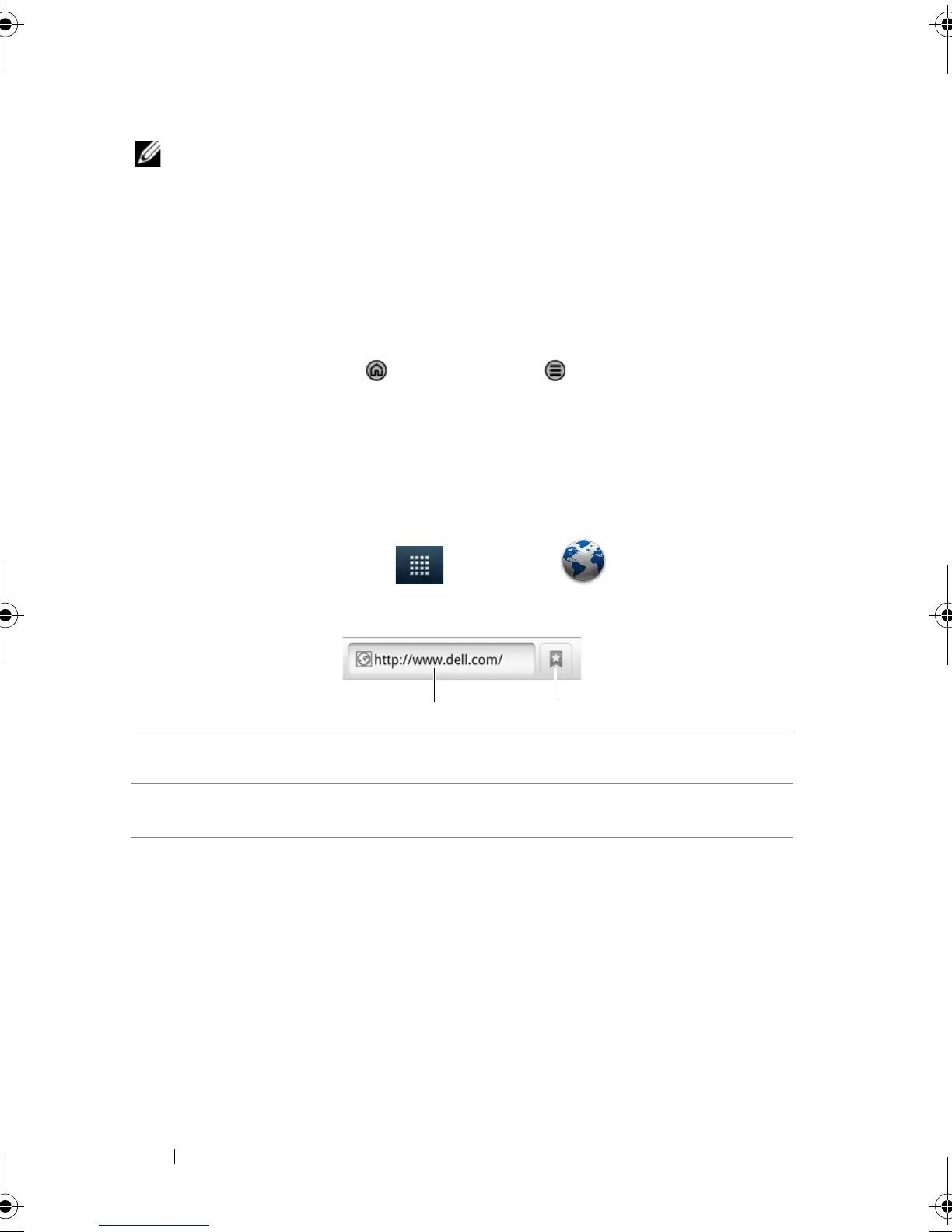
To use the browser controls bar
To go to a web page
1 On the browser screen, touch the web page address field on the
screen.
2 Type the web page address using the on-screen keyboard. As you
type the address, matching web page addresses appear.
3 Touch an address displayed on the screen to go directly to that
web page, or complete typing the web page address, then touch
the Go button.
1 Touch the web page address field and type the address of the web page
you want to go to.
2 Touch to view bookmarks, most visited web pages, and browsing
history.
Thunder_UM.book Page 76 Monday, December 13, 2010 6:53 PM













 To Next Page