Removing and Installing Parts 147
12
Enter system setup (see "System Setup" on page 174) and select the
appropriate
Drive
option.
13
Verify that your computer works correctly by running the Dell Diagnostics
(see "Dell Diagnostics" on page 86).
Installing a Second Optical Drive
1
Follow the procedures in "Before You Begin" on page 101.
2
Remove the computer cover (see "Removing the Computer Cover" on
page 103).
3
Remove the bezel (see "Removing the Bezel" on page 123).
4
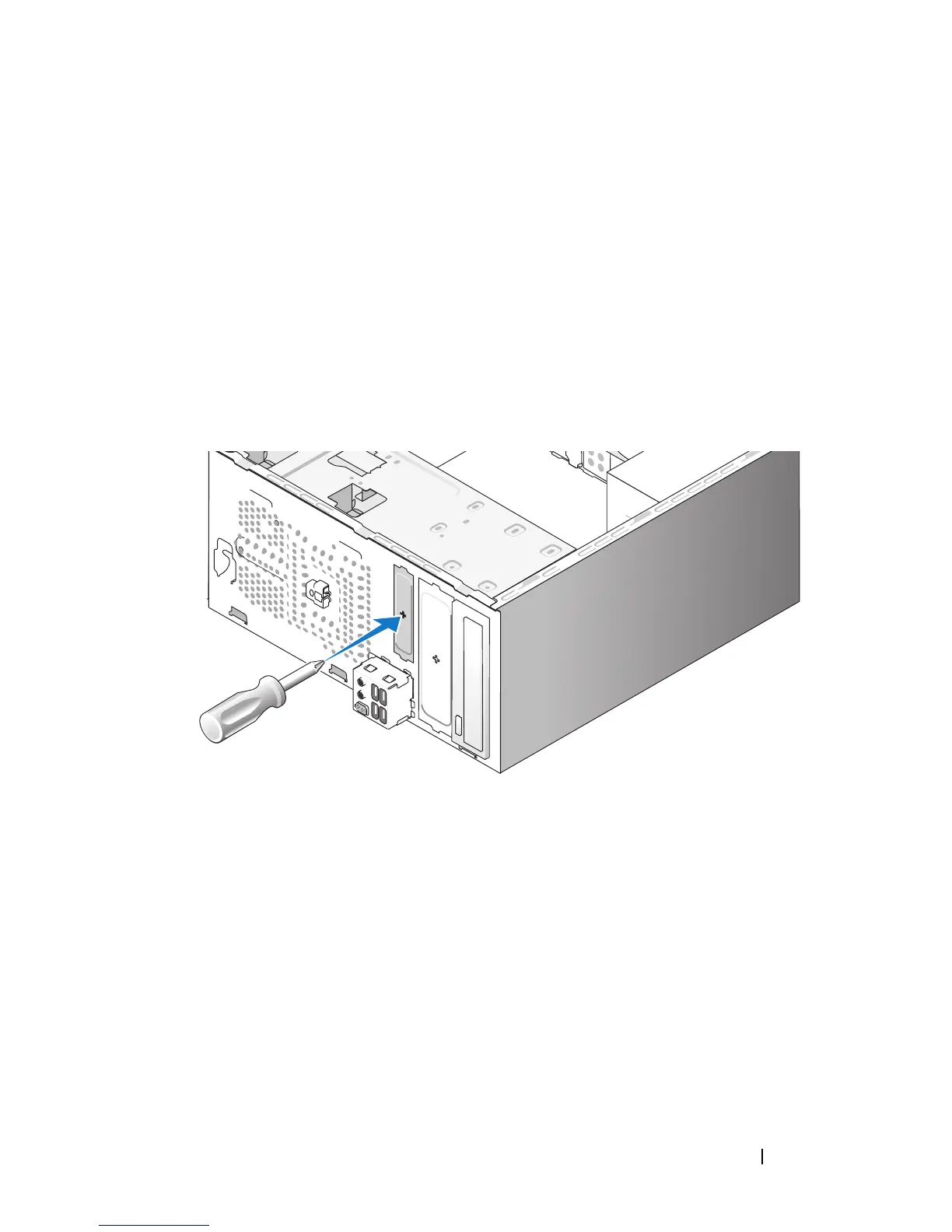
Align the tip of a Phillips screwdriver with the slot on the break-away metal
plate and rotate the screwdriver outwards to break the metal plate.
5
Gently slide the drive into place.
6
Align the screw holes in the optical drive with the screw holes in the optical
drive bay.
7
Replace and tighten the two screws securing the optical drive.
8
Connect the power and data cables to the drive.
9
Connect the data cable to the system board connector on the system
board.


 To Next Page
 Loading...