Need help?
Do you have a question about the Dell Wyse 3010 and is the answer not in the manual?
Instructions for mounting the device using the horizontal stand.
Instructions for mounting the device using the VESA mount.
Connecting the device to a network using a wired connection.
Connecting an optional wireless antenna for network access.
Connecting input devices like keyboards and mice via USB.
Connecting the client device to a display using DVI-I or VGA.
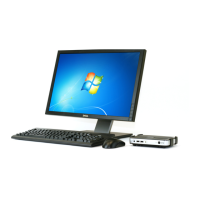
Connecting the power adapter to the client device and display.
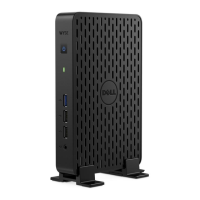
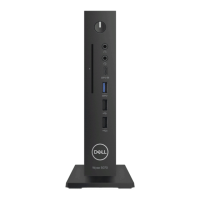
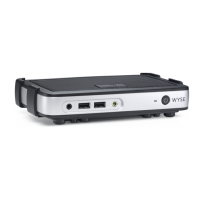
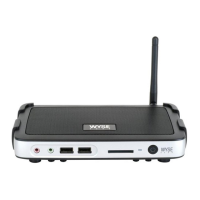
Identification of ports, indicators, and controls on the device.
Instructions for powering on the client device and display.
The Dell Wyse Cloud Client Wyse 3010 is a compact and versatile thin client designed for efficient and secure access to cloud-based applications and virtual desktops. This quick start guide outlines the essential steps for setting up and using the device, ensuring a smooth and productive user experience. The device is engineered for simplicity, making it easy to deploy and manage in various IT environments, from corporate offices to educational institutions. Its design prioritizes ease of use, allowing users to quickly connect and begin working with minimal setup time.
The Dell Wyse Cloud Client Wyse 3010 serves as an endpoint for accessing virtualized environments, enabling users to connect to remote desktops, applications, and data stored in the cloud or on servers. It acts as a gateway, providing a secure and streamlined interface to these resources without requiring the extensive local processing power or storage of a traditional PC. This design reduces the total cost of ownership by centralizing data and application management, simplifying IT operations, and enhancing security. The device supports various display configurations, network connections, and peripheral devices, making it adaptable to different user needs and workspace setups. Its primary function is to facilitate a secure, reliable, and consistent user experience in a virtualized computing environment, offloading the heavy lifting of processing and storage to the server side. This approach not only improves security by keeping sensitive data off the local device but also simplifies maintenance and upgrades, as most changes can be managed centrally.
The Wyse 3010 offers a range of features designed to enhance usability and connectivity.
The setup process begins with installing the horizontal stand or mounting the device using a VESA mount. The horizontal stand provides a stable base for desktop use, while the VESA mount allows for attachment to the back of a monitor or a wall, saving desk space and creating a cleaner workspace. This flexibility in mounting options ensures that the device can be integrated seamlessly into various office layouts.
Connecting to the network is a crucial step. The device supports both wired and wireless connections. For wired connections, an Ethernet cable is plugged into the network connector. For wireless connectivity, the device features a wireless antenna port, allowing users to connect to Wi-Fi networks. This dual connectivity option provides flexibility, enabling deployment in environments where wired connections are not feasible or where mobility is desired. The network port supports 10/100/1000 Base-T, ensuring high-speed data transfer for demanding applications.
The Wyse 3010 offers versatile display options. It includes a DVI-I connector, which can be used directly with DVI-I compatible monitors or adapted for VGA displays using a VGA adapter. This dual-mode DVI-I port (1x DVI-D/1x VGA) allows for connection to a wide range of monitors, accommodating existing hardware and reducing the need for new display purchases. The ability to connect to different display types ensures compatibility and ease of integration into various setups.
The device provides ample connectivity for peripherals. It features multiple USB 2.0 ports, with two located on the front and two on the rear, allowing for easy connection of keyboards, mice, and other USB devices. A dedicated USB connector is provided for the keyboard and mouse, ensuring that these essential input devices are readily supported. The inclusion of multiple USB ports enhances user convenience, allowing for the connection of various accessories without the need for external hubs.
For audio input and output, the Wyse 3010 includes a microphone-in port and a headphone-out port. These ports enable users to connect headsets for video conferencing, voice calls, or multimedia consumption, supporting a complete communication and entertainment experience.
Some models of the Wyse 3010 include an SD card slot, providing an option for local storage expansion. This feature can be useful for temporary file storage or for specific applications that require local data access, although the primary function of a thin client is to rely on network-based storage.
The device is powered by a +12V DC power adapter, which connects to the dedicated power input port. The power cable connects to both the client device and the display, ensuring that both components receive the necessary power. An activity light indicates the operational status of the device, turning off when the client device is ready to use, providing a clear visual cue for users.
For physical security, the Wyse 3010 includes a lock receptacle, allowing users to secure the device with a cable lock. This feature helps prevent theft in public or shared environments, adding an extra layer of protection for the hardware.
The Dell Wyse Cloud Client Wyse 3010 is designed with minimal maintenance in mind, consistent with the principles of thin client computing.
One of the primary maintenance benefits of a thin client is its ability to be centrally managed. Software updates, security patches, and configuration changes can be deployed across multiple devices from a central server, significantly reducing the time and effort required for individual device maintenance. This centralized approach minimizes on-site IT support needs and ensures consistency across all deployed units.
With most processing and data storage handled on the server side, troubleshooting issues on the client device is often simpler. Many problems can be resolved by checking network connectivity or basic hardware functionality, rather than delving into complex software conflicts or local storage issues. The activity light provides a quick visual indicator of the device's status, aiding in initial diagnostics.
The compact and robust design of the Wyse 3010 contributes to its low maintenance profile. With fewer moving parts than a traditional PC, there is less risk of mechanical failure. The device is built to withstand continuous operation in various environments, ensuring long-term reliability.
While the internal components are not typically user-serviceable, the external ports are clearly labeled and easily accessible, simplifying the connection and disconnection of peripherals. The product information tab provides essential details for support and identification, streamlining any necessary service requests.
Firmware updates, when necessary, are typically managed centrally and can be deployed efficiently, ensuring that the device operates with the latest security enhancements and performance improvements without requiring manual intervention at each endpoint.
In summary, the Dell Wyse Cloud Client Wyse 3010 is a robust, user-friendly, and easily manageable thin client solution. Its comprehensive connectivity options, flexible mounting solutions, and focus on centralized management make it an ideal choice for organizations seeking to optimize their IT infrastructure, enhance security, and reduce operational costs in a virtualized computing environment. The device's design prioritizes ease of use and reliability, ensuring a consistent and productive experience for end-users while simplifying maintenance for IT administrators.
 General
| Storage | 4 GB Flash |
|---|---|
| Memory | 2GB DDR3 |
| Operating System | Wyse ThinOS |
| Weight | 0.7 kg |
| Networking | Gigabit Ethernet |
| Power | 12V DC |

 To Next Page