3
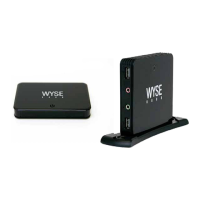
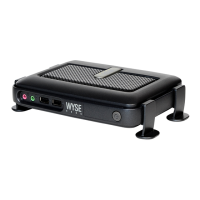
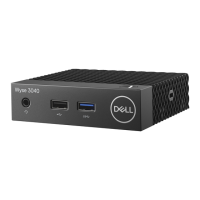
Wyse 3040 thin client on ThinOS
This section provides the instructions on how to easily congure and eciently manage Wyse 3040 thin client that runs on ThinOS.
Logging on to the Wyse 3040 thin client running Wyse ThinOS
What you see after logging on to the server depends on the administrator congurations.
• Users with a Classic Desktop - will see the classic ThinOS desktop with full taskbar, desktop, and Connect Manager familiar to
ThinOS users. This option is the default out-of-the-box experience and is recommended for terminal server environments with
published applications and for backward compatibility with ThinOS 6.x versions.
• Users with a Zero Desktop - will see the Zero Desktop with the Zero Toolbar showing the assigned list of connections from
which to select. This option is recommended for VDI and any full-screen only connections.
In any desktop case, you can select the desktop option you want (Classic Desktop or Zero Desktop) and create the connections you
need using the Visual Experience tab on the Remote Connections dialog box.
To open the Remote Connections dialog box, perform one of the following tasks:
• Classic Desktop — Click User Name , and then select System Setup → Remote Connections.
NOTE: User Name is the user who is logged-on and is located at the lower-left pane of the taskbar
• Zero Desktop — Click the System Settings icon on the Zero Toolbar, and then select Remote Connections.
Conguring the dual head display settings on Wyse ThinOS
To congure the dual head display settings:
1. From the desktop menu, click System Setup, and then click Display.
The Display dialog box is displayed.
2. Click Dual Head tab, and use the following guidelines:
5


 To Next Page