EasyManua.ls Logo

Denon DVD-1600 - User Manual

Denon DVD-1600
140 pages
Print Icon
To Next Page IconTo Next Page
Loading...
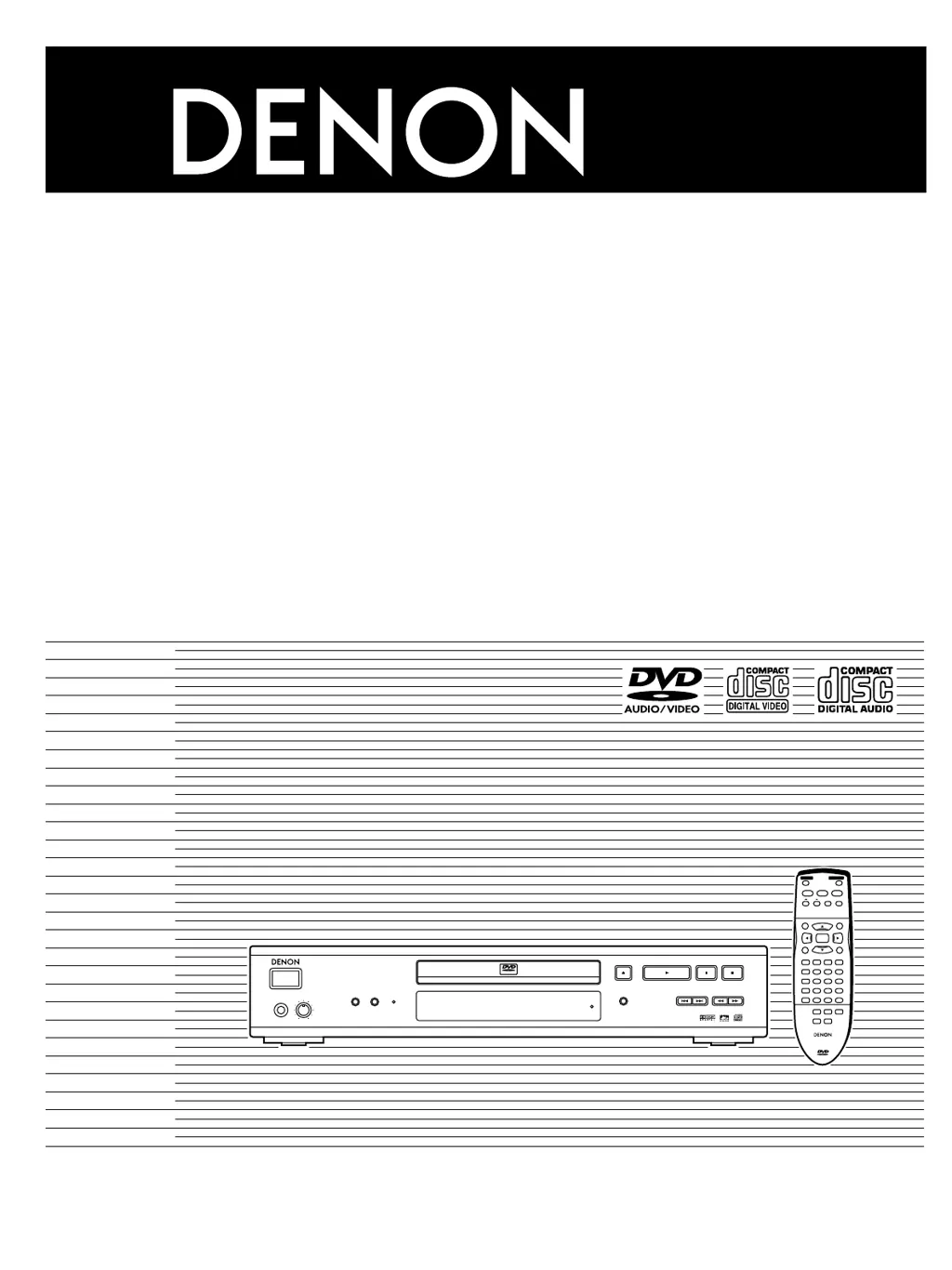
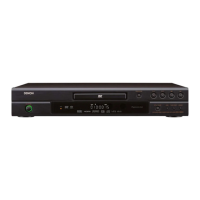
PCM AUDIO TECHNOLOGY / DVD AUDIO / VIDEO PLAYER DVD-1600
STANDBY
GROUP
OPEN/CLOSE PLAY
SKIP SLOW / SEARCH
STILL / PAUSE STOP
PHONES PHONES LEVEL
HP V.S.S.
192kHz / 24bit DVD Audio
AUDIO ONLY
MIN MAX
AUDIO
/
VIDEO
ON / STANDBY
REMOTE SENSOR
ENTER
POWER
STOP
STILL / PAUSE
PLAY
OPEN/CLOSE
SKIP
TOP MENU
MENU
DISPLAY
RETURN
GROUP PAGE
AUDIO ONLY
HP-V.S.S. SP-V.S.S.
6:9 5
∫;
SLOW / SEARCH
PLAY MODE SUBTITLE
AUDIO ANGLE
123
A-B REPEAT
456
789
SET UP CLEAR
0
S
10
CINEMA
REPEAT MODE
1
REMOTE CONTROL UNIT
RC-551
AUDIO
/
VIDEO
DVD AUDIO/VIDEO PLAYER
DVD-1600
OPERATING INSTRUCTIONS
BEDIENUNGSANLEITUNG
ISTRUZIONI PER L’USO
MODE D’EMPLOI
GEBRUIKSAANWIJZING
INSTRUCCIONES DE FUNCIONAMIENTO
BRUKSANVISNING

Table of Contents

Other manuals for Denon DVD-1600

Questions and Answers

  • C
    Charles Zimmerman DVMAug 16, 2025
    Why is the picture distorted on my Denon DVD-1600 DVD Player?
    • S
      Steven SanchezAug 16, 2025
      If the picture from your Denon DVD Player is distorted, or there's no picture, or the picture quality is poor, ensure that all equipment is connected properly and that your television is turned on and set to the correct video input. Check that the unit is connected directly to the television and not through a video cassette recorder. Adjust the “TV Aspect” setting in the Video menu to match your television. Also, check the settings in the GUI screen’s video menu. Note that some distortion is normal during SEARCH. If the unit and television are using different video systems, use a multi-system or PAL television.
  • J
    jeffreyobrienAug 19, 2025
    What to do if my Denon DVD-1600 DVD Player is not responding to remote or button presses?
    • C
      cwatsonAug 19, 2025
      If your Denon DVD Player isn't responding when buttons are pressed, first ensure the batteries in the remote are correctly installed and not depleted; replace them if necessary. Point the remote control directly at the remote control sensor. Reset the unit by switching it to standby mode and then back on, or disconnect the AC mains lead and reconnect it. If condensation has formed, wait 1 to 2 hours for it to evaporate. If the unit is outputting bitstream signals, initialize the unit by pressing and holding [:] and [;] on the unit and then also pressing and holding [
  • J
    Jacob ClarkAug 23, 2025
    How to fix a Denon DVD-1600 that won't power on?
    • K
      Kayla MartinezAug 25, 2025
      If your Denon DVD Player has no power or switches to standby mode automatically, ensure the AC mains lead is securely inserted into the household mains socket. To conserve power, the unit automatically switches to standby after approximately 30 minutes in stop mode. Turn the power back to ON.
  • J
    Jason KelleyAug 27, 2025
    What does 'Error' mean on my Denon DVD-1600 DVD Player and how can I fix it?
    • M
      mtranAug 27, 2025
      If “ERROR” appears on your Denon DVD Player's display, reset the unit by pressing [POWER] to switch it to standby mode and then back to ON. Alternatively, press [POWER] to switch the unit to the standby mode, disconnect the AC mains lead, and then reconnect it.
  • R
    ryan10Aug 31, 2025
    Why does my Denon DVD-1600 say 'No Disc'?
    • W
      wlopezAug 31, 2025
      If “NO DISC” appears on your Denon DVD Player's display, make sure you have inserted a disc correctly.
  • S
    Steven OrtegaSep 3, 2025
    What does 'Check the Disc' mean on my Denon DVD-1600 DVD Player?
    • M
      Matthew HenrySep 3, 2025
      If “CHECK THE DISC” appears on your Denon DVD Player's display, it indicates that the disc is dirty. Wipe the disc clean.
  • D
    Dana MartinSep 7, 2025
    Why does my Denon DVD-1600 DVD Player say 'No Play'?
    • M
      Matthew DavisSep 7, 2025
      If “NO PLAY” appears on your Denon DVD Player's display, it means you've inserted a disc the unit cannot play; insert one it can.
  • V
    vwilsonNov 11, 2025
    Why is there no sound or distorted sound from my Denon DVD-1600?
    • T
      thompsonaprilNov 11, 2025
      If you're experiencing no sound, distorted sound, or piercing noise from the speakers when using your Denon DVD Player, first check the connections and the volume on all connected equipment. Ensure the input settings for your television and stereo system are correct. If you've connected the unit to an amplifier through the AUDIO OUT (5.1 ch) terminals, adjust the “Speaker Setting” in the Audio menu to match your speaker setup. If V.S.S. is on and causing distortion, turn it off. Also, if you have connected this unit to other equipment through the DIGITAL OUT terminal, ensure you have selected the correct settings for “Dolby Digital”, “DTS Digital Surround” and “MPEG” in the SETUP menu’s Audio menu. If the “D.MIX” indicator on the FL display goes out while playing a multi-channel DVD-Audio ...

Summary

Connection to a Television

Video Output Terminals

Explains S-Video and SCART output connections for better picture quality.

The Remote Control

Selecting TV Screen Type

Adjusts picture aspect ratio to match your television screen type.

Safety Precautions

General Safety Guidelines

Covers placement, voltage, foreign matter, and maintenance advice.

Disc Information

Disc Compatibility and Handling

Details playable discs, handling precautions, and region number information.

Basic Playback

Starting and Pausing Playback

Guides on turning on the unit, opening the disc tray, starting, and pausing play.

Playback Operations

Skipping, Searching, and Slow Motion

How to skip tracks, search, view frame-by-frame, and use slow-motion playback.

Advanced Playback Features

Virtual Surround Sound (V.S.S.)

Using V.S.S. for immersive audio with speakers or headphones.

Changing the Play Sequence

Program and Random Play

How to create custom playback orders or play tracks randomly.

Repeat Playback Modes

Repeat Play and A-B Repeat

Instructions for repeating sections, chapters, titles, or entire discs.

Disc Content Options

Soundtracks, Subtitles, and Angles

How to select different audio tracks, subtitle languages, and camera angles.

Using Graphical User Interface (GUI) Screens

Common GUI Procedures

How to display disc/unit information and navigate GUI menus.

Unit Information and Menus

Play and Audio Menus

Options for repeat play, virtual surround, cinema mode, and audio language.

Home Theater - Enjoying Powerful Sound

5.1-Channel Surround Sound Connections

Guides on analog and digital connections for surround audio setup.

Audio and Recording Connections

Analog and Digital Audio Connections

Steps for connecting amplifiers via analog or digital audio outputs.

Changing Settings

Disc, Video, and Audio Settings

Options for language, ratings, aspect ratio, speaker setup, and disc output.

System Configuration

Entering a Password (Ratings)

How to set and manage parental control passwords for DVD playback.

Audio and Output Configuration

Digital Output Settings

Configuring PCM down conversion and digital signal output.

Troubleshooting Guide

Power, Operation, and Remote Control Issues

Solutions for power problems, button response, and remote control errors.

Troubleshooting Guide

Picture and Display Problems

Solutions for distorted pictures, no display, incorrect GUI, and disc error messages.

Technical Specifications

Signal System and Disc Compatibility

Details signal systems, operating conditions, and compatible disc formats.

Video and Audio Output Specifications

Specs for video signal levels, terminals, and audio output characteristics.

Audio Performance and Digital Output Specs

Technical data on frequency response, S/N ratio, and digital outputs.

Denon DVD-1600 Specifications

General IconGeneral
Progressive ScanYes
Dolby Digital DecodingYes
DTS DecodingYes
Video OutputComposite, S-Video, Component
Remote ControlYes
Weight8.2 lbs
Disc FormatsCD, CD-R/RW, DVD-Video
Video Formats SupportedMPEG2
Audio D/A Converter24-bit
Audio OutputAnalog (stereo), Digital Coaxial, Digital Optical
OutputsComposite video, S-Video, Component video, Analog audio (L/R), Coaxial digital audio, Optical digital audio
Dimensions (W x H x D)434 x 81 x 307 mm

Related product manuals