Step 2: Pairing through the “Denver SW-650” app to synchronize data
and notifications etc.
a. Pair the watch with your smartphone as described in step 1.
b. Open the Fundo app on your smart phone, and tap “More” in the
bottom right corner.
c. Tap “Add device” on the top.
d. Select and tap SW-650 to connect.
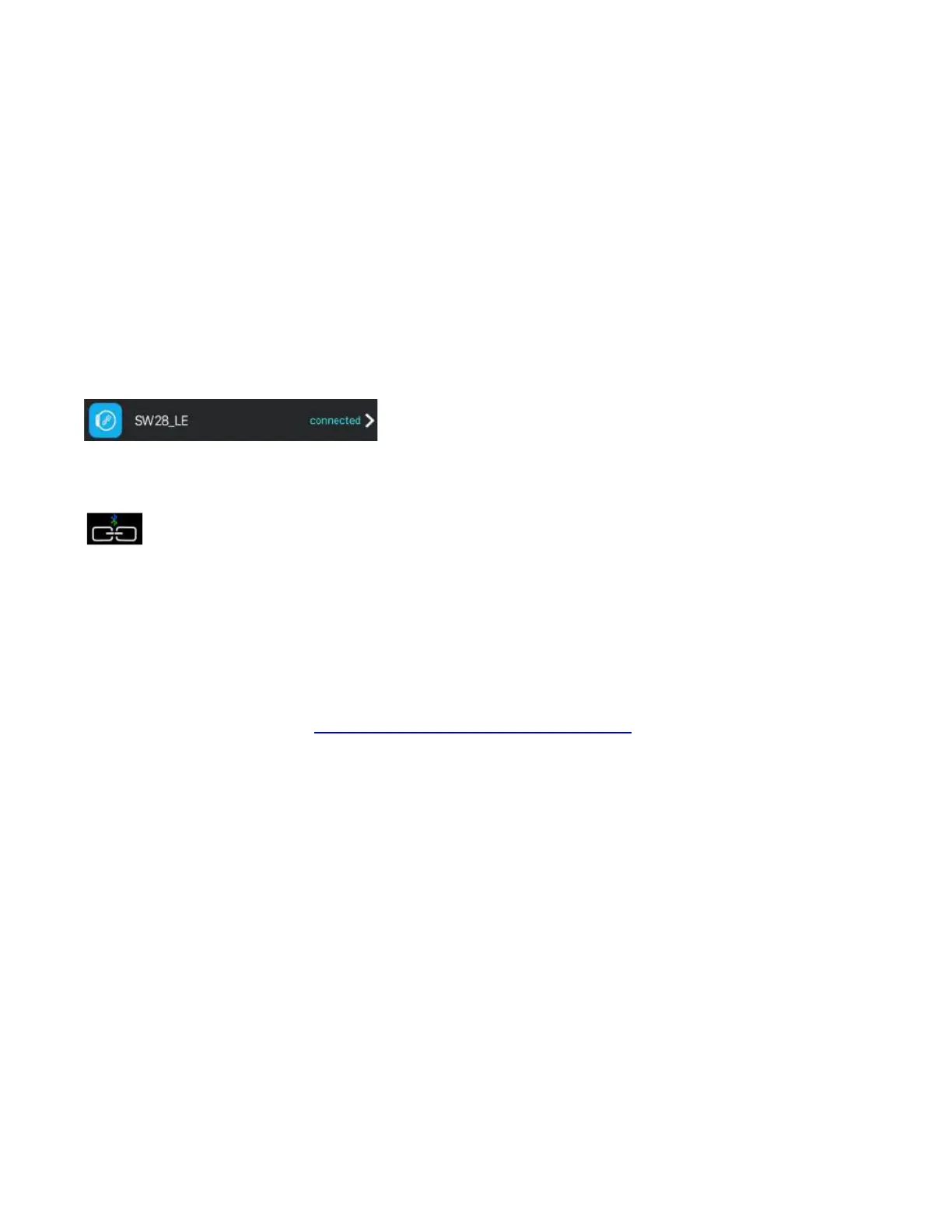
e. If the connection is successful, “Connected” appears next to SW-650
device name, and the app will synchronize data from the smart
watch.
The Bluetooth icon on the watch screen shows both blue and green
.
Your phone is now connected to the watch and you are free to explore
all the functions of the watch in the various interfaces, directly by
swiping the touch screen of the watch.
For the full user manual in English, please visit our website and find the
product “SW-650” at www.denver-electronics.com


 To Next Page