06
000:00:15 17:11:42
2017/05/04 201927 17:11:24
PID:000000
N:8888888S
GETTING STARTED
8. Video Recording
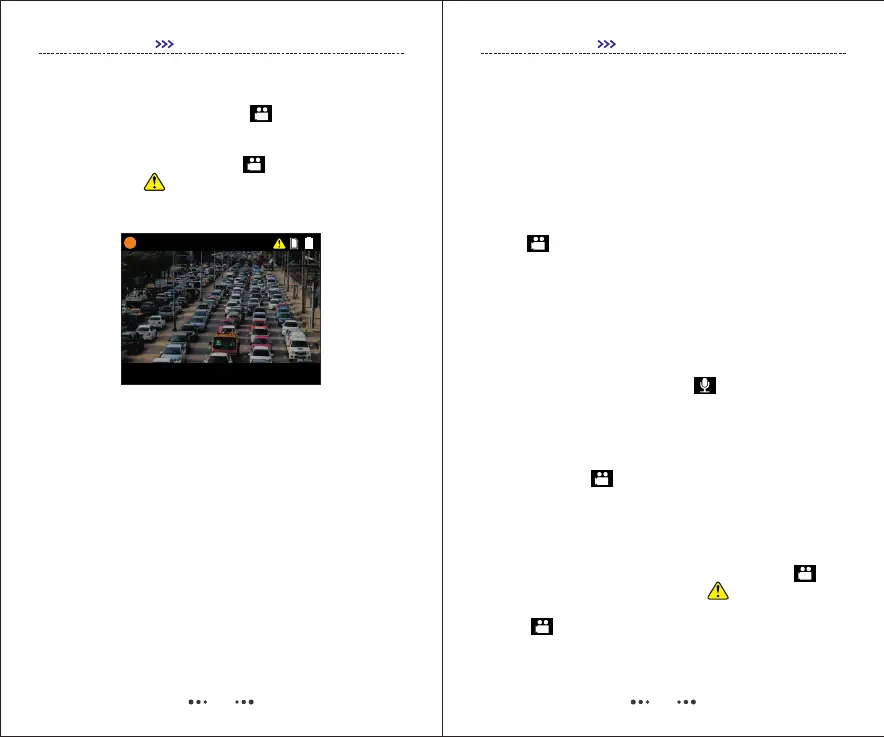
In Preview Mode, single-press to start recording
video, press the button again to stop recording.
When using “Press and Hold” to start recording,
there will be a “ ” icon appeared, and the video will
be saved in a special “Event” folder.
9. Video Splitter
To set “Video File Duration” in SETUP menu, videos
recorded will split into clips in different length.
10. Pre-recording
In SETUP-Video menu, turn on Pre-record, the unit will
pre-record 5-30 seconds prior to pressing “Video
Recording” button.
07
11. Post-recording
In SETUP-Video menu, set Post-record with a
specified length, the unit will automatically extend
recording with the specified length.
GETTING STARTED
12. Motion Detection
In SETUP-Video menu, turn on Motion Detect, single-
press , the unit will start motion detecting, once
the video scene moves or changes,
camera will start recording. Then, if the video scene
has not been moved or changed over 20 seconds,
camera will stop recording.
13. Audio Recording
In Preview Mode, single-press to record a audio
file, press again to stop recording.
14. One Button Recording
Press and hold in OFF-mode, camera will power
on and start recording video immediately.
15. File Tagging
While video is being recorded, press and hold for
about 3 seconds, there will be a “ ” icon appeared,
video recorded will be saved in “Event” folder. Single-
press again to cancle tagging.


 To Next Page
 Loading...