2726
1
2
3
4
5
7
6
8
4
5
6
7
8
Install two AAA type batteries into remote control.
In areas around charging home base and virtual wall, product may not receive command from remote control.
If not used for long time, please pull the batteries out.
3
1
2
Product Parts
Name of each part
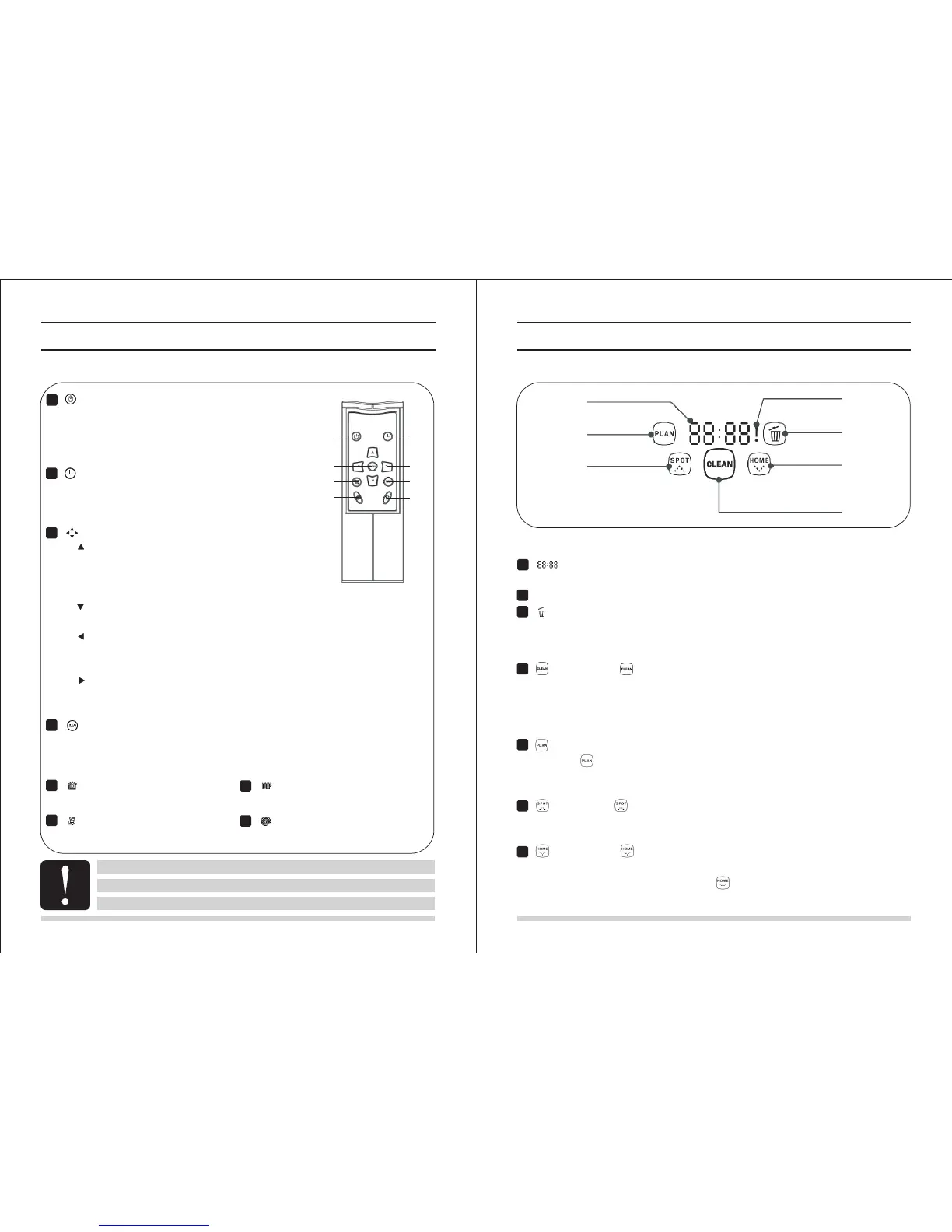
“ ” Power
A. Press this button to exchange from sleeping mode to
selected mode, or from selected mode to sleeping mode.
B. Press this button to cancel scheduling in scheduling mode.
C. Press this button to make the robot pause when it’s cleaning.
Directional Buttons
A. button:
(1)Press this button to increase number in scheduling mode;
(2)Press this button to make robot move forward in selected mode or
make robot stop when robot is moving forward.
B. button:
Press this button to decrease number in scheduling mode.
C. button:
Press this button to exchange from minute to hour in scheduling mode;
Press this button to make robot turn left in selected mode.
D. button:
Press this button to exchange from hour to minute in scheduling mode;
Press this button to make robot turn right in selected mode.
“ ” Scheduling
A. Press this button to enter scheduling mode when in selected mode.
B. Press this button to exchange between hour and minute in
scheduling mode.
“ ”
“ ”
“ ”
“ ”
“ ”
“ ” Clean
A. Press this button to start cleaning in selected mode.
B. Press this button to confirm scheduling in scheduling mode.
C. Press this button to make the robot stop when it’s cleaning.
Product Parts
Name of each part
3
1
2
1
2
3
4
5
6
7
4
5
6
7
Display part
Button part
“ ”
“ ! ” :
“ ” :
Number display: Shows the timer display, progress status, charging status, and error
codes by using numbers, letters and graphies.
display Shows the error that occurs.
display It flashes contantly when dust bin is full or when suck passage is blocked.
“ ” Home: Press this button to return
robot to charging home base in selected mode.
“ ” : Edge Press this button to make
robot clean along wall in selected mode.
“ ” : Zigzag Press this button to make
robot zigzag in selected mode.
“ ” : Spiral Press this button to make
robot start spot cleaning in selected mode.
“ ” Clean: Press “ ” to finish below operations:
A. To change from sleeping mode to selected mode;or keep press this button to change from
selected mode to sleeping mode.
B. To confirm scheduling in scheduling mode.
C. To start cleaning in selected mode.
“ ” Scheduling
A. Press “ ” to enter scheduling mode.
B. Press this button to exchange between hour to minute in scheduling mode.
C. Keep pressing this button for 5 seconds to cancel scheduling in scheduling mode.
“ ” Spot: Press “ ” to finish below operations:
A. Press this button to increase number in scheduling mode.
B. When robot is in selected mode, press this button to make robot start spot cleaning.
“ ” Home: Press “ ” to finish below operations:
A. Press this button to decrease number in scheduling mode.
B. When robot is in selected mode, pressing “ ” to return the robot to charging home base.


 To Next Page