20
PowerMic™ Microphones Installation Guide
2. If the text box under Current Device Selection
displays ‘No Device Present’, skip this step and
continue with Step 3. If the text box displays the
name of a device other than your microphone,
click the Clear Device Selection check box to put
a check mark in it.
3. Click OK. Another dialog box opens.
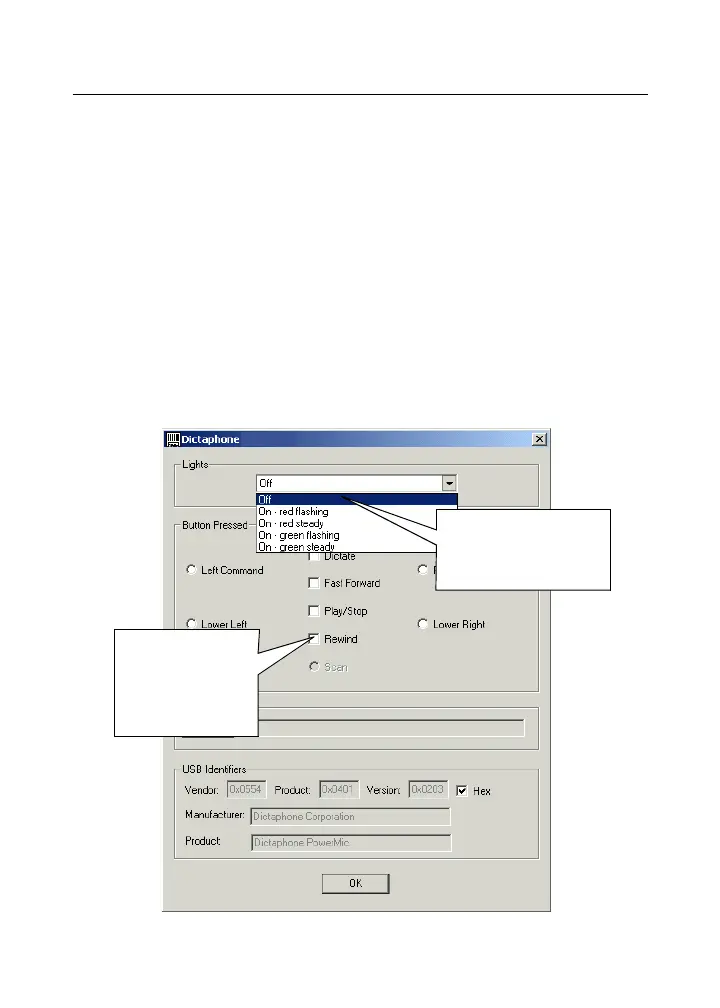
4. Select each of the items in the Lights drop-down
list in turn. As you select each item, watch the
microphone’s light. The light’s behavior should
match the item selected.
Select each option
and watch the
microphone’s light.
(Step 4)
Press each
button and
confirm that the
corresponding
item is selected.
(Step 5)



 To Next Page