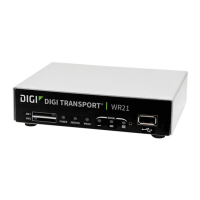
How to test a WR31 router step by step.
Page | 6
3 STEP BY STEP INSTRUCTIONS
3.1 Install FlashWriter
Install the latest version of FlashWriter from the following link:
http://ftp1.digi.com/support/firmware/FlashWriter.msi
3.2 Download the .ALL file:
Download the following zip file to your PC and extract all the contents to a single folder
http://ftp1.digi.com/support/firmware/transport/flashwriter/latest/wr31-flashwriter-x.x.x.x.zip
Click: http://ftp1.digi.com/support/firmware/transport/flashwriter/latest/
where X.X.X.X is the current firmware version.
Open the .ini file extracted and add the following text to the second line (be sure to include
the comma at the end).
bootimx28,
3.3 Make the initial connections
1. Connect the “straight-through” serial cable between the PC and the “Serial 0” on the WR31.
2. Connect the WR31’s Ethernet (LAN 0) port to your “office network”.
3. Ensure the PC is also connected to the same “office network”
4. Connect one end of the “USB A to USB A” lead to your PC. Do NOT connect to the other end to
the WR31 yet.





 To Next Page