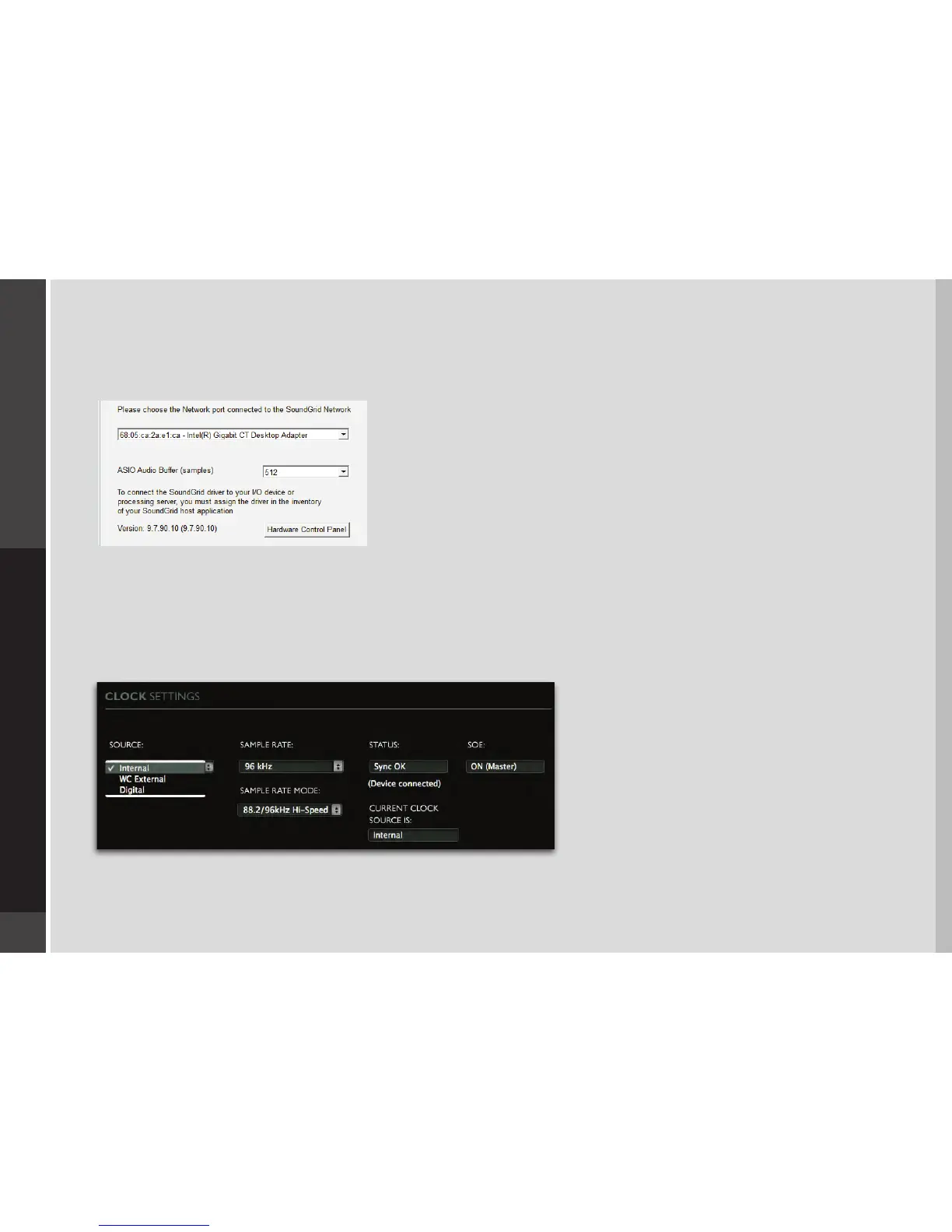
3. MGB/MGO CONTROL PANEL
If you are working with MultiRack SoundGrid, access the MGB/MGO Control Panel via the Inventory window.
If you are using SoundGrid Studio, click on the Gear symbol in the device slot to open the MGB/MGO Control Panel.
Pressing the “Hardware Control Panel” button on the Driver Control Panel app will
open the control panels of all I/O devices assigned to your SoundGrid application. If
none are assigned, nothing will happen.
The Driver Control Panel app is located here:
PC: C:\Program Files (x86)\Waves\SoundGrid\Driver Control Panel
Mac: System HD/Applications/Waves/SoundGrid
3.1 Clock Page
When you launch the DiGiGrid MGB/MGO driver Control Panel, it will load the Clock page. The following settings are available in the
Clock Settings window:
■
SOURCE sets the clock source.
- Internal: The interface itself provides the clock.
- External WC: The interface has a Word Clock Input
connector
to connect an external clocking source in order to
sync all devices in your network to the external clock.
- Sync over Ethernet: Send or receive word clock/
sample rate over an Ethernet cable between DiGiGrid
network devices.
- Digital: Syncs via the BNC or optical MADI
connection on MADI Port 1 or Port 2 (selectable).
The MGB/MGO interfaces sync to the incoming MADI
from the console.


 To Next Page