2. INSTALLATION AND CONFIGURATION OVERVIEW
After you register your new MGB/MGO, you can download the installer from the Download section of the Waves website.
Since SoundGrid enables you to access an I/O device from any computer in the network, you will need to install the software on
each computer.
The MGB/MGO installer consists of:
> The MGB/MGO I/O hardware driver.
> The SoundGrid ASIO/Core Audio driver, which serves as a bridge between the DAW and the SoundGrid network.
> The SoundGrid Studio Application, which manages all SoundGrid network resources and assigns devices to computers.
> StudioRack, a software plugin rack, or chainer, that hosts up to eight plugins and can move their processing from the DAW to an
external SoundGrid server (External server not included).
> eMotion ST, a software mixer that provides low-latency plugin processing and monitor mixing. Requires an external server.
In order to use MultiRack SoundGrid, please install it.
2.1 Configuring the MGB/MGO in MultiRack SoundGrid
Access the MGB/MGO control panel via the Inventory window
in the MultiRack SoundGrid application.
1. Launch the MultiRack SoundGrid Application.
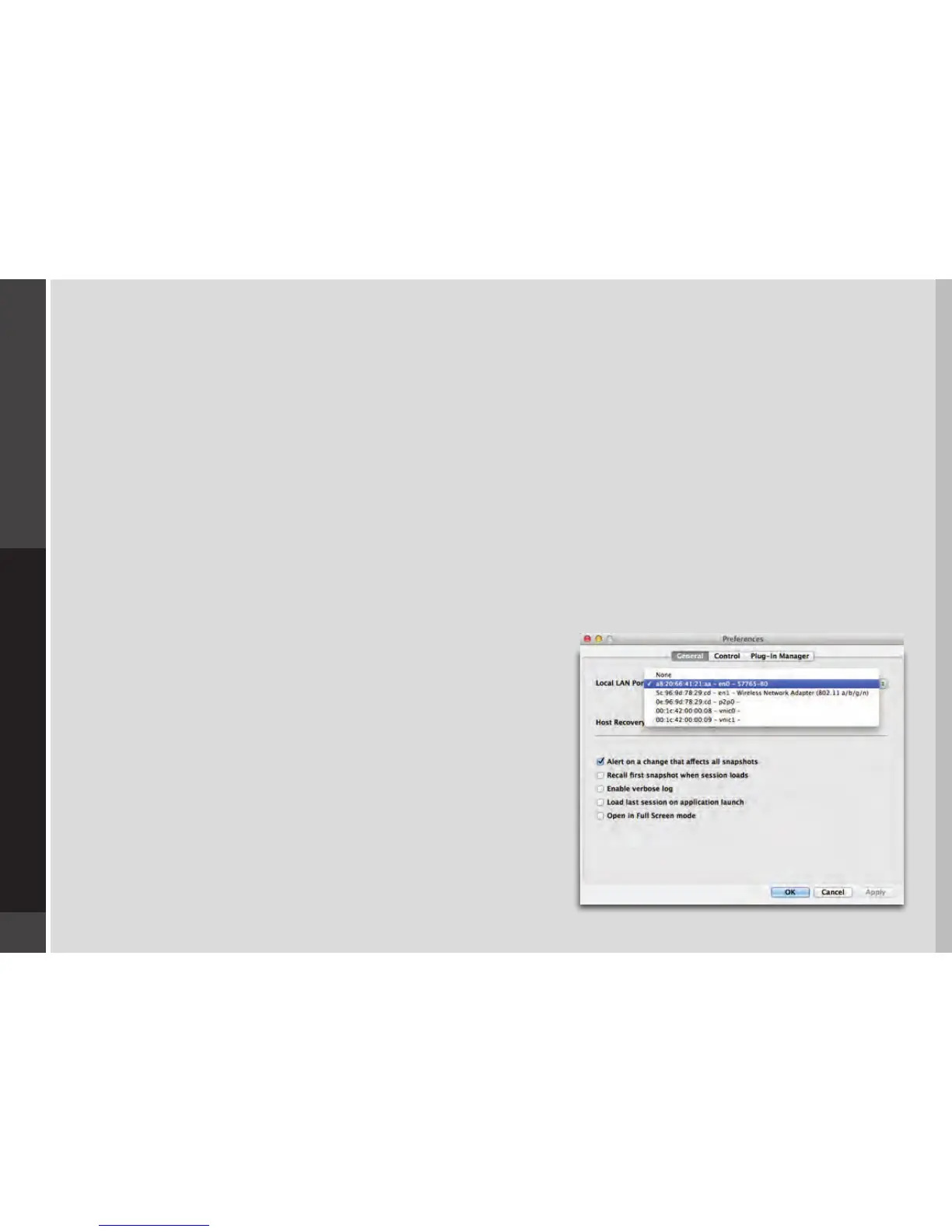
2. Enter the Preferences window by typing Ctrl+P (Windows) or
Cmd+P (Mac), or from the appropriate application menus.
3. Under Local LAN Port, choose the adapter that is connected to the
SoundGrid network/MGB/MGO. Network adapters are displayed as MAC
addresses and port names.


 To Next Page