This document is a user manual for DIGINI Digital Displays, specifically models DDT, DAB, and DDW. It outlines the functions, settings, and maintenance procedures for these digital signage totems.
Function Description
The DIGINI Digital Displays are designed for displaying various media content, including photos and videos, with extensive customization options for playback, display appearance, and scheduling. The devices can operate autonomously, playing content from internal storage or a USB drive, and offer features like split-screen display, rolling subtitles, and timed power on/off.
Remote Control Keys:
The manual details the functions of the remote control keys:
- Power: Turns the device on and off.
- Mute: Silences the totem.
- Fast-forward/rewind: Skips content by 3 seconds.
- PLAY/PAUSE: Controls media playback.
- Navigation arrows (up, left, right, down): Moves the pointer within menus.
- Menu: Enters the settings menu.
- Vol + / Vol -: Adjusts volume.
- Next/Previous item: Navigates between photos or videos during playback.
- Exit: Escapes from menus and playing states.
- Delete: Deletes selected files.
General Settings:
- OSD Language: Allows selection of English, Korean, Simplified Chinese, or Traditional Chinese for the on-screen display.
- Local ID: Sets a unique identifier for the machine, changeable via menu navigation.
- No Files Auto Off: If enabled, the machine powers off when no playable files are available.
- Banner Setting: Enables a banner display on the left or right side of the screen. The banner image must be named "banner.png" and have a resolution of 280x100 pixels.
- Time Volume: Sets specific timers for volume adjustments.
- System Reset: Resets all machine settings to default.
Play Settings:
- Photo Show Time: Configures the duration each photo is displayed in a slideshow.
- Play Type: Determines the type of content to play:
- Picture: Plays only picture files from the root directory.
- Picture-Music Sync: Plays pictures with background music.
- Video: Plays only video files from the root directory.
- Pic Video: Plays both picture and video files.
- As list: Plays content according to a predefined list.
- Split Screen: Plays content according to a split-screen configuration.
- All: Plays all identifiable files (root and split files, excluding playlist files).
- Photo Slide Mode: Sets the transition mode between pictures.
- Scaler Mode: Sets the display scaler mode for pictures.
- Split Setting: Configures split-screen display modes.
- Split Mode (User, Mode1-Mode4): "User" plays files from a "split" folder created by a split tool. "Mode1-Mode4" are pre-designed modes, allowing up to five images simultaneously.
- Frame Layer: Sets the layer for the frame (e.g., Bottom).
- Photo Show Time: Sets the display duration for photos in split mode.
- Split Update: Saves the selected split mode.
- Powerup Resume: Determines if playback resumes after power loss.
- Repeat Mode: Sets content to repeat (e.g., All).
Subtitles Setting:
- Subtitles OnOff: Toggles rolling subtitles on or off.
- Font Color: Sets the color of the subtitles (e.g., Red).
- Font Size: Sets the size of the subtitle fonts (e.g., Middle).
- Subtitles Speed: Sets the rolling speed of the subtitles (e.g., Normal).
- Background Color: Sets the background color of the subtitles (e.g., Transparent).
- Subtitles Position: Sets the display position of subtitles (top, center, or bottom).
Clock Setting:
- Time Setting: Sets the current time of the machine and updates it.
- Time Position: Sets the display position of the clock on the screen (e.g., Top Right).
- Time Display: Sets the mode for time display.
- Time Color: Sets the color of the time display (e.g., White).
- Timer Setting (Timer1-Timer5): Configures up to five independent timers for power on/off.
- Timer Mode: Activates or deactivates a specific timer.
- On Time (Hour, Min): Sets the time for the totem to power on.
- Off Time (Hour, Min): Sets the time for the totem to power off.
- Prohibit Manual Off: Prevents manual power off via IR remote or keypad when a timer is active.
- Note: Power off time should be later than power on time, and time options should be ordered from earliest to latest.
Display Setting:
- Update Desktop: Allows changing the menu background picture. The new image (named "menu_bg_h.jpg" for horizontal or "menu_bg_v.jpg" for vertical) must be copied to a USB drive with "priority storage" set to USB.
- Backlight Setting: Adjusts the machine's backlight.
- Brightness: Adjusts screen brightness (0-100, default 50).
- Contrast: Adjusts screen contrast (0-100, default 50).
- Saturation: Adjusts saturation levels (0-100, default 50).
- Sharpness: Adjusts sharpness levels (0-100, default 16).
- Color Temp.: Selects the color temperature.
- Time Backlight Set: Configures backlight settings for daytime and night-time.
- Daytime Backlight (0-10): Sets backlight intensity for daytime.
- Hour/Min: Sets the start time for daytime backlight.
- Backlight Night (0-10): Sets backlight intensity for night-time.
- Hour/Min: Sets the start time for night-time backlight.
Storage Manage:
- File Manage: Allows viewing, playing, and deleting files in storage using the remote control.
- Update Storage:
- Del. Old Files: Deletes existing files in storage and copies new ones from USB.
- Add Files: Copies files from USB to storage without deleting old files.
- Format Local Disk: Formats the internal storage.
- Priority Storage:
- Internal Disk: Plays files from local storage.
- U Disk: Plays files from an inserted USB drive. If no playable files are on the USB, it defaults to local storage.
- Copy By Local ID: If enabled, copies files from a USB drive that are placed in a folder matching the machine's Local ID (e.g., "00001" folder for Local ID "00001").
- Play Log Setting:
- PlayLog On/Off: Records the time and name of played files to "T10_PLAYLOG.TXT" on the internal disk.
- Del. Play Log: Deletes the play log file.
- Export Play Log: Copies the "T10_PLAYLOG.TXT" file to a USB drive (if a file named "T10_EXPORT_PLAYLOG.TXT" exists on the USB) for PC viewing. The log file has a max size of 100MB; if exceeded, it is deleted and recreated.
Clone Parameters With USB:
- Export Local Config: Saves the system configuration to "T10_usb_setting.txt" on a USB drive.
- Del. Config in Udisk: Deletes "T10_usb_setting.txt" from the USB drive.
- Import Config: Loads configuration from "T10_usb_setting.txt" on a USB drive to the local system.
- Display Parameters: Includes brightness, contrast, saturation, sharpness, and color temperature settings in "T10_usb_setting.txt".
- Panel Parameters: Includes panel-specific settings in "T10_usb_setting.txt".
Additional Features:
- Scroll Caption Making: Create a text file named "SCROLL.TXT" (in capitals) with up to 450 characters, saved as "UTF-8", to display rolling subtitles.
- USB Copy & File Requirements: File names can contain numbers (0-9), capital, and lowercase letters, and must be less than 45 characters. Important: Do not remove the USB or power off the machine during file copying.
Factory Setting:
- Panel Type: Sets the panel pixel resolution (e.g., 1920x1080).
- Display Setting: Configures panel parameters.
- PassWord Setting:
- Password Setting On/Off: If on, requires a password upon startup and after three minutes of inactivity.
- Change Password: Sets a new password (default is 000000).
- Password Type: Chooses when the password is required.
- Low-Level Format Disk: Performs a complete format of the local storage.
- Enter PC Update: Updates software via PC.
- Factory Reset: Resets all menu settings to factory defaults.
System Update:
To update the system, copy the update file and "config.txt" to the root directory of a U-disk. Insert the U-disk, wait 10 seconds (or press any key to quit), and the update process will take approximately two minutes, followed by a board restart. Crucially, do not cut off power during the update.
Important Technical Specifications
- jpg/jpeg: Max resolution 1920x1080, RGB color, <8MB size, Baseline standard attribute.
- png: Max resolution 1920x1080, RGB color, <8MB size, No interleaving attribute.
Audio Format: mp3, wav, wma, mp2
The manual provides a comprehensive table of supported video formats, including:
- AVI: Mpeg4, Divx3,4,5,6, H264. Resolution: 1920x1080. Frame Rate: 25fps. Bit Rate: 18M/s. Audio: Mp2,Mp3, Aac,Ac3, Pcm.
- DAT: Mpeg1,2. Resolution: 1920x1080. Frame Rate: 25fps. Bit Rate: 18M/s. Audio: Mp2,Mp3.
- VOB: Mpeg1,2. Resolution: 1920x1080. Frame Rate: 25fps. Bit Rate: 18M/s. Audio: Mp2,Mp3.
- 3GP: Mpeg4, Divx3,4,5,6, H264. Resolution: 1920x1080. Frame Rate: 25fps. Bit Rate: 18M/s. Audio: Mp2,Mp3, Aac,Ac3, Pcm.
- MKV: Mpeg4, Divx3,4,56, H264. Resolution: 1920x1080. Frame Rate: 25fps. Bit Rate: 18M/s. Audio: Mp2,Mp3, Aac,Ac3, Pcm.
- MOV: Mpeg4, Divx3,4,56, H264. Resolution: 1920x1080. Frame Rate: 25fps. Bit Rate: 18M/s. Audio: Mp2,Mp3, Aac,Ac3, Pcm.
- MP4: Mpeg4, Divx3,4,56, H264. Resolution: 1920x1080. Frame Rate: 25fps. Bit Rate: 18M/s. Audio: Mp2,Mp3, Aac,Ac3, Pcm.
- FLV: H264. Resolution: 1920x1080. Frame Rate: 25fps. Bit Rate: 18M/s. Audio: Mp2,Mp3, Aac,Ac3, Pcm.
- MPG: Mpeg1,2. Resolution: 1920x1080. Frame Rate: 25fps. Bit Rate: 18M/s. Audio: Mp2,Mp3, Aac,Ac3, Pcm.
- RM/RMVB: rm. Resolution: 1920x1080. Frame Rate: 25fps. Bit Rate: 18M/S. Audio: Mp2,Mp3, Aac,Ac3.
Usage Features
The DIGINI Digital Displays offer a high degree of flexibility in content management and display customization. Users can:
- Schedule Content: Utilize timers for automated power on/off, allowing for energy saving and targeted content delivery during specific hours.
- Dynamic Content Display: Implement split-screen layouts to show multiple images or videos simultaneously, enhancing visual engagement.
- Personalized Branding: Display custom banners and change the menu background to align with brand aesthetics.
- Multi-language Support: Cater to diverse audiences with OSD language options.
- Remote Management: Control device settings and content playback using the provided remote control.
- Content Prioritization: Choose between internal storage or USB for content playback, with fallback options.
- Detailed Logging: Track content playback history for analytics and compliance purposes.
- Configuration Cloning: Easily replicate settings across multiple devices using a USB drive, streamlining deployment.
Maintenance Features
The manual outlines several features for maintaining the device's performance and software:
- System Reset: Allows for a quick return to default settings if configuration issues arise.
- Low-Level Disk Format: Provides a thorough way to clear internal storage, useful for troubleshooting or preparing the device for new content.
- Software Updates: Supports system updates via USB, ensuring the device can run the latest firmware and features. Users must follow specific instructions to avoid power interruptions during updates, which could damage the device.
- Play Log Management: The ability to delete or export play logs helps manage storage space and allows for external analysis of content performance.
- Configuration Backup/Restore: Exporting and importing configurations via USB simplifies device setup and recovery, reducing downtime.
- Password Protection: Secures access to device settings, preventing unauthorized changes.

 Need help?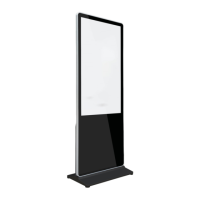

 To Next Page
 General