3. Updating Content via USB
1
)
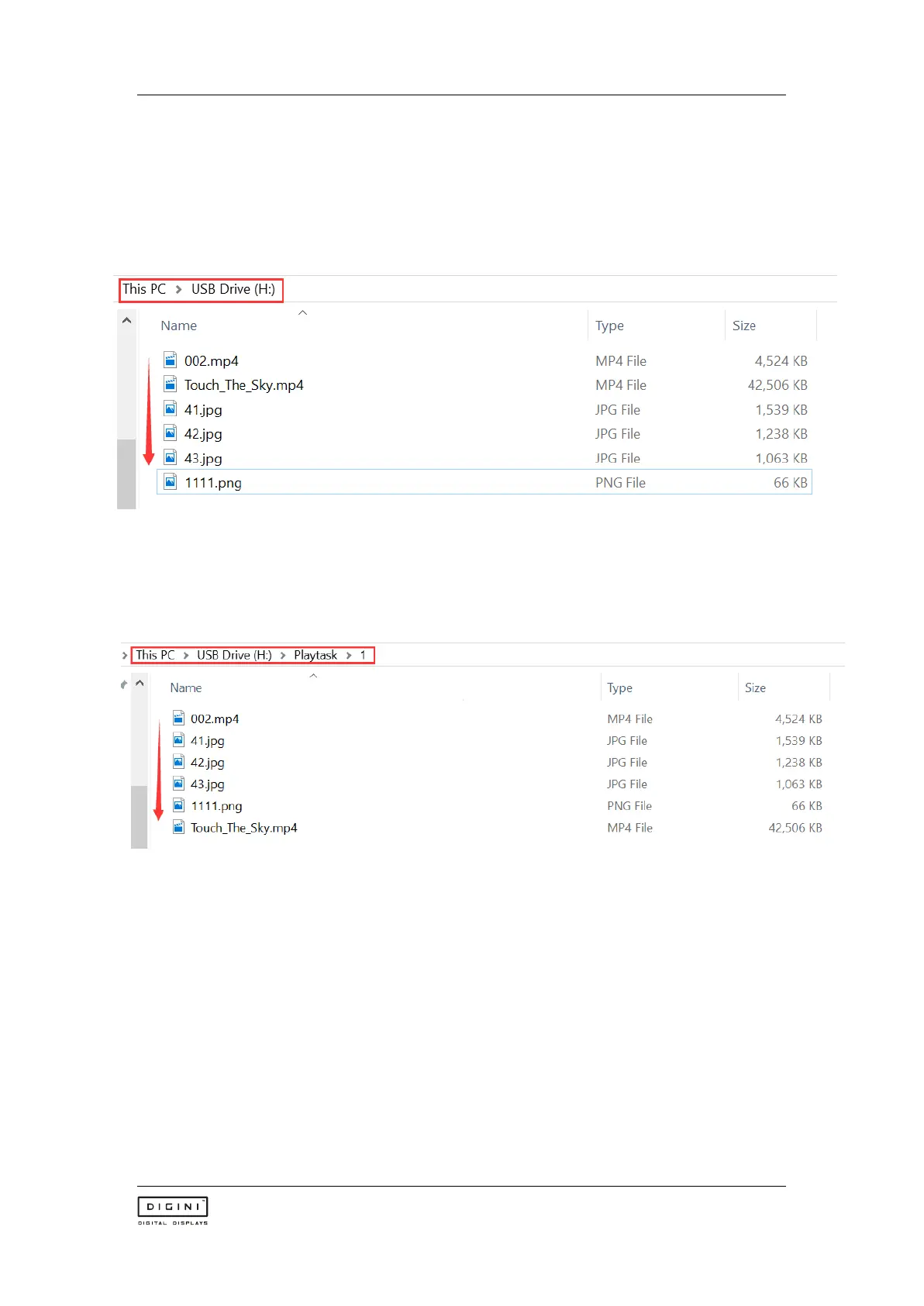
One area full screen playback
Videos/images are stored in the root directory of your USB stick, and they will automatically
play in a loop.
→ Create a "Playtask" folder in the root directory of the USB
→ Create a folder titled "1"
→ Add videos/images to this folder, and they will automatically play in a loop.
Split screen playback
→ Create a "Playtask" folder under the root directory of the USB
→ Create a folder of "1"→ create a folder of "1 (XYWH)" and "2 (XYWH)", corresponding to
areas 1 and 2 superimposed playback, where X represents the abscissa and Y represents
On the ordinate, W represents the width of the area, and H represents the height of the
area. If there is no (X-Y-W-H), it means full screen playback by default.



 To Next Page