Page 6 of 6
Connecting to an Ethernet Network
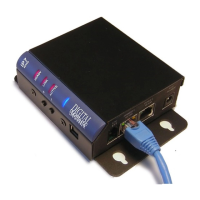
The Ethernet 10/100 connector allows the unit to be attached to a
standard Ethernet 10/100 network.
• Plug a Cat5 cable into the RJ-45 connector labeled Ethernet
10/100 and connect the other end to a 10/100 switch
• The Ethernet 10/100 connector supports auto “MDIX” and can
be plugged directly into a PC for diagnostic purposes
Connecting Power
External Power
• The 2.1mm Power Jack (center tip positive) accepts 9VDC
PoE
Plug a Cat5 cable from an 802.3af compliant switch or injector into the
Ethernet 10/100 connector. 7 watts will be requested from PoE
(802.3af compatible) Power Source Equipment (PSE).
Connecting Mic In or Audio Out
Mic In
• The 3.5mm Mic In jack accepts a standard electret or dynamic
mic. Use of this jack overrides the integrated mic
• Mono Jack required
Audio Out
• The 3.5mm Audio Out Jack is capable of driving headphones or
an external amplifier. Use of this jack overrides the integrated
speaker
• Mono Jack required
Setting Volume Levels
The IP7 Desktop supports seven volume levels for the internal speaker.
• Press the “Volume Up” or “Volume Down“ button one time to
increase or decrease the speaker volume
• Pressing the “Volume Up” or “Volume Down “ button seven times
sets the unit at its highest or lowest setting
• Refer to the software manuals for setting the volume via
software



 To Next Page