● Note: Digital Check does not provide the
required device drivers or scanning software.
Please contact your bank, IT department or
other solution provider for further assistance
with installing the driver or getting the scanning
software set up or installed.
Do not connect the USB cable from the scanner
to your PC before installing the drivers or the
scanning application / software.
www.digitalcheck.com
BranchXpress
®
BX7200 Easy Installation Guide
What’s Included Installing the Ink Cartridge Getting Started
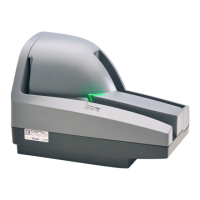
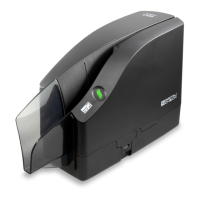
▪ BranchXpress BX7200 scanner
● The label that is located on the bottom of the
scanner contains the exact model description.
● Open the ink cartridge package and remove
the protective seal.
● Insert the nozzle end of the cartridge into the
platform while keeping the end of the cartridge
tilted slightly upward. Push down on the rear of
the cartridge until it clicks twice and snaps
into position.
▪ USB 2.0 cable
▪ Power supply with electrical supply cord
▪ Ink cartridge
● The cartridge should appear tilted at a slight
angle when it is fully seated. Reinstall cover.
● Lift up on the ‘Camera 1 Cover’ to remove it
and provide access to the ‘Ink Cartridge
Platform’.
Rev 120712

 Need help?
 General

 To Next Page