27
c. When a video file is displayed you will be asked “Play AVI-- Yes/No”. Select “Yes” to view
the entire video you recorded.
2. View Thumbnails:
a. Press the Display button to get to the Thumbnail view.
b. Press the Navigation buttons to the left or to the right in order to view the thumbnails of
the images in the memory.
3. View a Specific Image:
a. Press the Display button to get to the Thumbnail view.
b. Press the Navigation buttons to the left or to the right in order to view the thumbnails of
the images in the memory.
c. When you find the image you want to view press the Display button and the selected
image will appear in Full Screen view.
Note: Each image taken is given a number that is displayed on the LCD monitor. The image number and the
total number of images saved is displayed in the lower left part of the LCD monitor.
I.E. “002/006” indicates that you are viewing image #2 out of a total of 6 images.
Deleting Still Images
You can delete unwanted Photos and Videos at any time to free up memory. You can delete one photo or
Video at a time or delete all the Photos and Videos that are currently recorded on the memory card all at once.
1. Set camera to Playback mode.
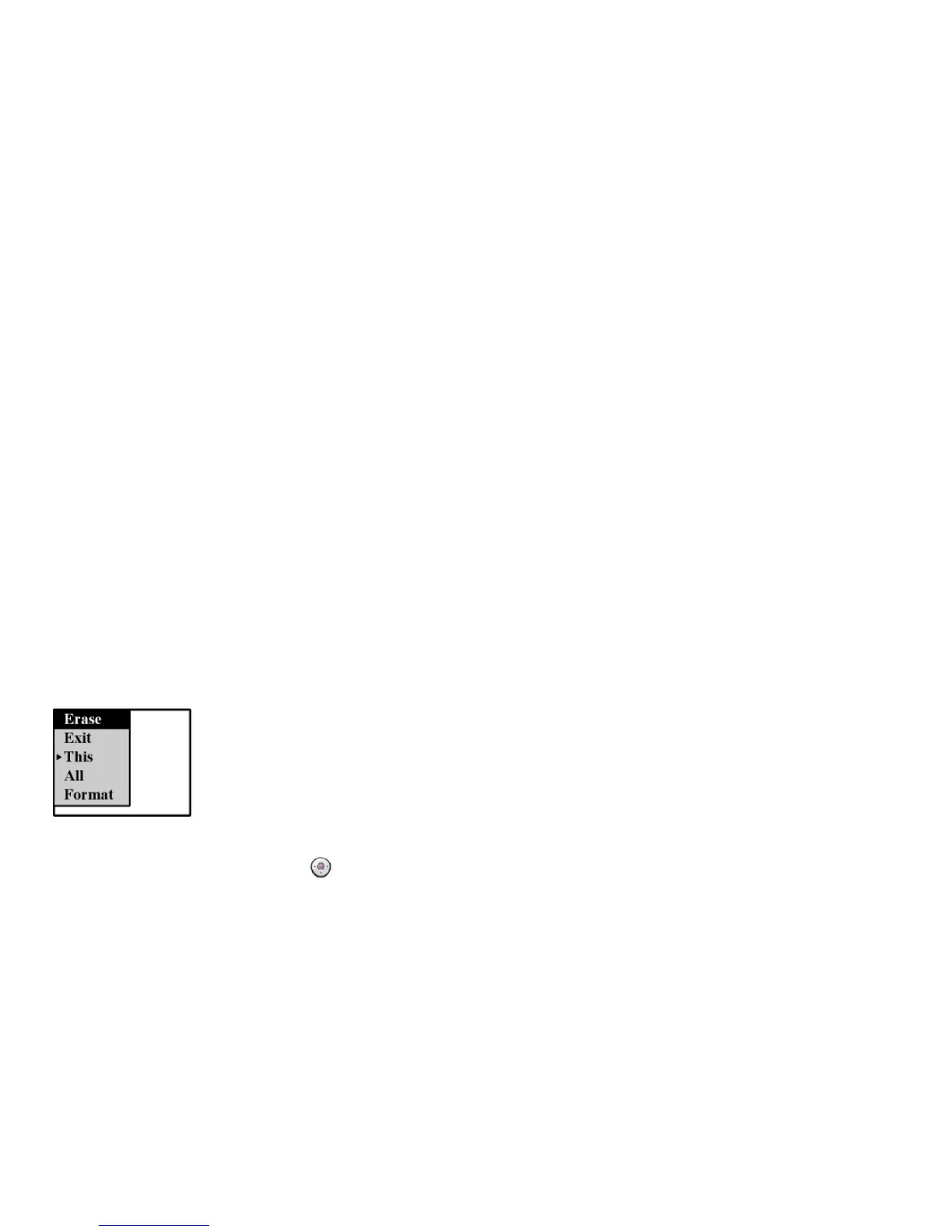
2. Press the Menu button
to enter the camera’s Erase menu.
3. Select the function you want from the menu by pressing the Navigation buttons up or down:
a. This: Delete the current still Image. The image displayed in the LCD monitor will be


 To Next Page
 Loading...