6
5. Recording
5.1 Recording in manually mode:
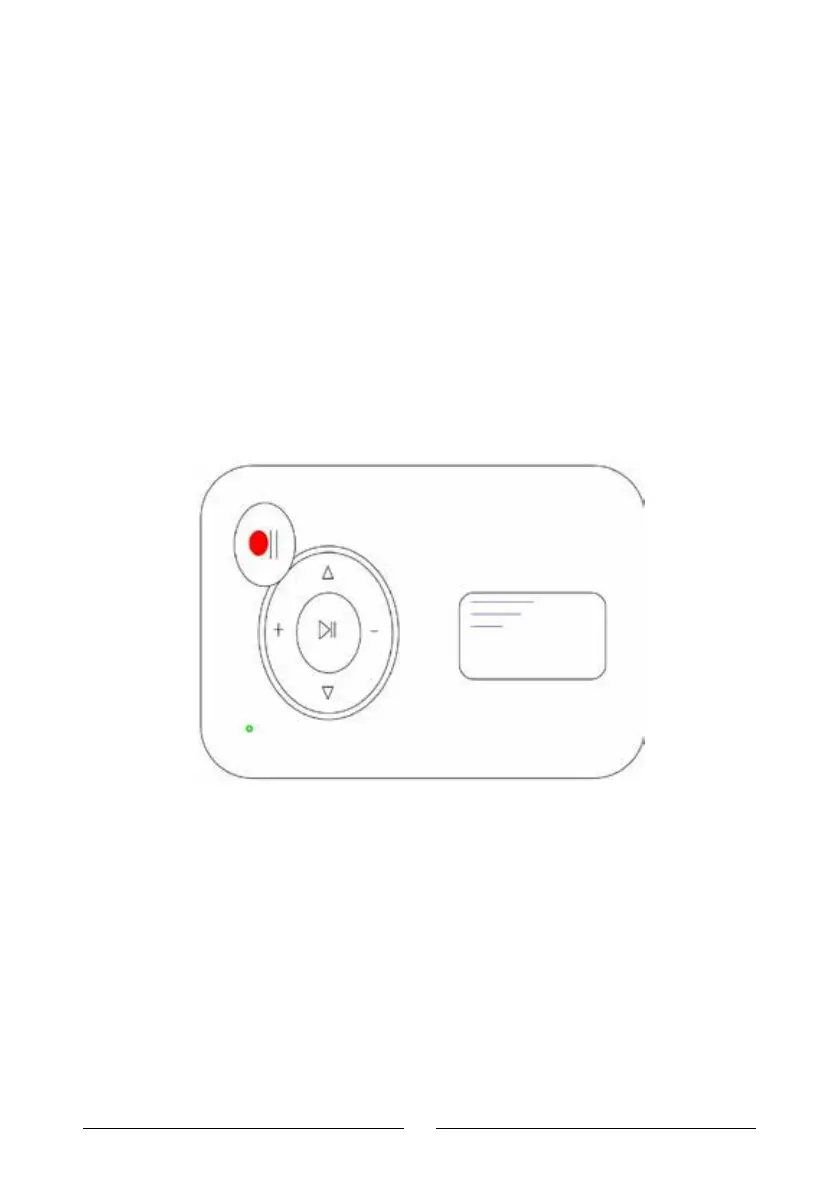
When the cassette playing and an USB flash is connecting, and the device is
under standby mode (indicator keep on), and the color of indicator is green
shows it at default manually mode. Just simply press the recording button then
the device will start to recording (converting) the playing music to MP3 format,
the green indicator will be quick flashing (if not, means not recording, re-plug
your USB flash and try again). Press the recording button again to stop recording
and save a MP3 file in USB flash.
At the interval between two songs where you want to save in another file, short
press “Down” button, the flashing green indicator will be o about 2 seconds,
then quick flash again to save in another file.
If you want do it at auto mode, simple at standby mode long press “Down” button
3~5 seconds, till you see the indicator from green to blue.
5.2 Recording in auto mode:
On auto mode, Cassette to MP3 Converter will detect each interval between two
songs, and will save them in two files. So normally, if you have 6 songs at side
A(or B) of your cassette, just put cassette in and play, then press record button,
after 6 songs played, will automatic save 7 mp3 files in your USB flash.(There will
be 7 files for a 6 songs tape, the FV0001~FV0006 will be the eective MP3 files
for 6 songs, the last one FV0007 is an empty one due to the short space between
the end of 6th song to the end of whole tape.)
Device will create a new folder name “TAPEMP3” in your USB disk, and save each
MP3 name “FV0001 to FV9999”
If you want to switch back to manual mode from auto mode, stop recording (or
playback) to standby mode (blue indicator keeps on), long press “Down” button


 To Next Page
 Loading...