EasyManua.ls Logo

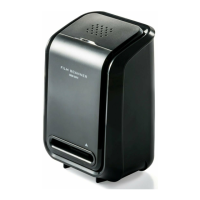
DigiTech XC4881 - User Manual

DigiTech XC4881
30 pages
Print Icon
To Next Page IconTo Next Page
Loading...
-1-

Questions and Answers

  • T
    tmeyersJul 30, 2025
    Why does my DigiTech XC4881 Scanner say 'device not recognized'?
    • T
      tuckergeraldJul 30, 2025
      The 'device not recognized' message appears because the DigiTech Scanner isn't plugged into a high-speed USB port. Your computer needs USB 2.0 to communicate with the scanner. Verify if USB 2.0 is installed; if not, you can upgrade your USB ports, available at most electronics stores.
  • M
    Mrs. Barbara FordAug 4, 2025
    What to do if my DigiTech XC4881 Scanner slides look overexposed?
    • B
      Brittany JacksonAug 4, 2025
      If your DigiTech Scanner slides or negatives appear overexposed, it's because the auto exposure time varies depending on your computer. Allow the live view window to finish adjusting the exposure before clicking “Capture”. Also, check if the slides or negatives were overexposed during development. You can use the MediaImpression software to improve the image quality.
  • T
    tnewtonAug 8, 2025
    What to do if DigiTech XC4881 Scanner software will expire?
    • B
      Brian RamseyAug 8, 2025
      If your DigiTech Scanner software displays an expiration message, it's likely because you downloaded a trial version from the ArcSoft website. Uninstall that version of MediaImpression and reinstall the software using the CD provided.
  • M
    millerjessicaAug 12, 2025
    What to do if DigiTech XC4881 Scanner installation disc will not auto start?
    • K
      kellyjimenezAug 12, 2025
      If the DigiTech Scanner installation disc doesn't auto-start, the problem might be with the CD itself or your CD drive. Ensure your CD drive is working correctly, and test the disc on another computer if possible. Also, some antivirus systems might block the auto-start function, so install manually.
  • M
    Michael HullAug 17, 2025
    How to fix black edge in DigiTech XC4881 Scanner preview mode?
    • M
      mrichardsonAug 17, 2025
      If you see a black edge in the DigiTech Scanner's preview mode, it's probably because the slide isn't centered in the holder. Try tilting the scanner left or right to adjust the slide's position and then check the preview photo again.
  • D
    Douglas OwensAug 21, 2025
    How to fix black edge when seeing DigiTech XC4881 Scanner photo?
    • J
      James ClaytonAug 21, 2025
      If you notice a black edge when viewing the photo from your DigiTech Scanner, it's due to film/slide size tolerance. Crop the photo using software. Refer to the manual, specifically section “1.4 Crop” under “Edit the picture”, for a detailed user guide.
  • M
    Mr. Travis GarciaAug 26, 2025
    Why my DigiTech XC4881 Scanner doesn't work with Mac computer?
    • D
      Derrick BrownAug 26, 2025
      If your DigiTech Scanner isn't working with your Mac, it could be because your Mac OS is version 10.4 or earlier. Some older Mac versions don't support UVC. Please upgrade to the latest version 10.4.11 or above.

Summary

Safety Precautions

Device Preparation and Components

Standard Accessories List

Lists all items included in the package, such as the scanner, manual, CD, and holders.

Device Parts Identification

Identifies key external components of the digital image copier with their functions.

Software Installation Guide

Windows Software Installation

Step-by-step instructions for installing the scanning software on Windows operating systems.

Mac OS Software Installation

Step-by-step instructions for installing the scanning software on Mac OS operating systems.

Loading Film and Slides

Connecting the Scanner

Acquiring Images

Acquire Images on Windows

Procedure for capturing images from the scanner using the software on Windows.

Acquire Images on Mac OS

Procedure for capturing images from the scanner using the software on Mac OS.

Image Editing and Enhancement

Adjust Image Properties

How to adjust brightness, contrast, saturation, hue, and sharpness for scanned photos.

Photo Retouching Tools

Using tools like Healing Brush, Clone, Smudge, Sharpen, and Blur for photo correction.

Image Clipboard Operations

Using selection tools (Rectangular, Elliptical, Freehand) for image clipping.

Appendix and Support

Scanner Specifications

Detailed technical specifications of the DIGITECH XC4881 scanner.

Troubleshooting Common Issues

Solutions for common problems encountered during setup and operation of the scanner.

System Requirements

Minimum PC and Mac system requirements for installing and running the scanner software.

DigiTech XC4881 Specifications

General IconGeneral
Image SensorCCD
Optical Resolution1200 x 2400 dpi
Color Depth48-bit
TypeFlatbed
Max. Scan Size8.5" x 11.7"
InterfaceUSB

Related product manuals