EasyManua.ls Logo

Diivoo WT-04 - User Manual

Diivoo WT-04
12 pages
Print Icon
To Next Page IconTo Next Page
Loading...
Dual water timer
More effectively manage your garden
USER MANUAL
Press the " ", the " " points to Auto and the
program will be running as you set before.
WT-04
The default display of Start time is OFF. Press the
" " button to set the time to start water-
ing, and press" " button to confirm.
Start Time
Press the " " to set the time of watering duration,
and press " " to confirm.
Watering can be customized to run from 1 min to
23hours 59 mins.
How long
1. Press the " ", the " " points to Set Time.
2. Press the " " to set the current hour and
minute. Press " " to confirm.
3. Press the " " to set the current day of the
week. Press " " to save changes and moving
to next setting, Program.
Please make sure the timer is in AutoRun states
when set Rain Delay or Children Lock.
2
3
Need Help?
Thank You!
1. Product Appearance 3. Automatic Watering Program Setting
Attention
Program Logic
2. Indicators Introduction
Children Lock
Rain Delay
Watering State
Battery Indicator
Select P1/P2/P3
For Watering
Select Zone
For Watering
The Next
Watering Time
· The watering duration ranging from 00:00-23:59
If the hour of watering duration is set to 00aer
switching, the program is OFF.
Note:
Note:
1
Set Time - Set the current week and time
4
Auto
1. Press the " ", the "▲" points to Program. And
press the button to set Zone1/Zone2press
" " to confirm.
2. P1 have been selected and Press " "if
switch to P1/P2/P3.
1. Press the " ", OFF is displayed. By pressing
" ",the time can be changed.
2. Hours/minutes can be switched cyclically.
Program 1 State
1
2
Set Z1/P1
Follow the steps likes Z1/P1 setting to set Z1/P2,Z1/P3.
(Set Zone/Program-start time-How long-water days)
3
Z1/P2,Z1/P3... Setting
Step1: SET TIME
Step2: SET PROGRAM
Step3
AutoRun
Set Z1-Set the Zone for watering
Set P1-Set the Program for watering
How long: Minutes or hours
Set Water Days-Set the days of the
week to run
Start
Set the current time and week
support@diivoosmart.com
If you have any questions, please feel free to contact us first.
We are always here for you.
Press the " " button, the " " points to OFF, the
screen shows OFF and the battery level.
All program are saved but the timer stop working.
5
OFF
·The Water days can be cancelled when press " "
button again if the week has been selected.
·The day will come with a 【】 if be selected.
Set Water Days
4
Press the " " to choose the day of the week
you would watering, and press " " to confirm.
Note:
Start time: 00:00-23:59
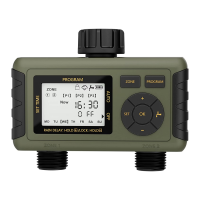
Manual Watering
Button
3 Separate Watering
Programs Button
2 Independent
Controlled Outlets
Decrease Button
Confirm Button
Setting Button
Increase button
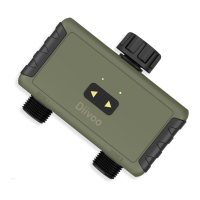
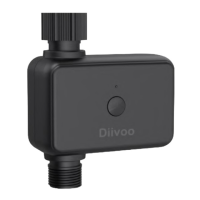
Hose Faucet Connection
Outlet
Fitting NH3/4”
Filter
Z1/P2~P3, Z2/P1~P3 : the same
as Z1/P1(start from step 2)
Question and Answer IconNeed help?

Do you have a question about the Diivoo WT-04 and is the answer not in the manual?

Summary

Program Logic

Set Current Time and Week

Configure the device's current time and day of the week.

Set Watering Program Details

Configure watering zones, programs, start times, duration, and days.

Set Additional Programs

Configure subsequent programs for different zones or schedules.

Product Appearance

Hose Faucet Connection and Outlets

Details on how the timer connects to hoses and its controlled outlets.

Control Buttons Overview

Overview of the buttons used for operating the timer.

Indicators Introduction

Display Screen Elements

Explanation of icons and information shown on the timer's LCD screen.

Status Indicators Description

Description of indicators for Children Lock, Rain Delay, and Battery.

Automatic Watering Program Setting

Set Current Week and Time

Instructions for setting the timer's current time and day of the week.

Configure Zone 1 and Program 1

Steps to set the first watering zone and its associated program.

Set Watering Start Time

Define the specific time of day when watering should begin.

Set Watering Duration

Specify how long each watering cycle should last.

Select Watering Days

Choose the specific days of the week for watering to occur.

Configure Additional Programs

Set up programs for other zones or program variations (P2, P3).

Operating Modes: Auto and Off

Switching between automatic operation and turning the timer off.

Multi-Function Features

Manual Watering Operation

Instructions for performing manual watering cycles and related notes.

Set Rain Delay

Temporarily suspend automatic watering programs due to rain.

Activate Children Lock

Enable a feature to prevent accidental changes to settings.

Battery Installation

Battery Replacement Procedure

Steps for opening the cover and inserting AA alkaline batteries.

Battery Usage Notes

Important considerations regarding battery type, power-on display, and memory.

Specifications

Technical Specifications

Details on thread size, pressure, temperature, duration, and waterproof rating.

Box Contents

List of items included in the product packaging.

Precautions

Temperature and Storage Precautions

Advice on operating temperatures and storing the timer to prevent damage.

Maintenance and Battery Care

Guidelines for filter cleaning, battery types, and replacement.

FAQ

Troubleshooting: Blank LCD Screen

Solutions for the LCD screen displaying nothing when batteries are installed.

Troubleshooting: Watering Issues

Common reasons why water may not come on at the preset time.

Troubleshooting: Leaks and Pressure

Addressing issues with hose connections, leaks, and low water pressure.

After-sales Service

Warranty Information

Details on the timer's one-year warranty and contact information.

Warranty Exclusions

Conditions and situations not covered by the product warranty.

Diivoo WT-04 Specifications

General IconGeneral
ModelWT-04
TypeDigital Timer
Accuracy±1 minute per month
DisplayLCD
Operating Temperature-10°C to 40°C
ProgramsUp to 20 On/Off settings
Battery BackupYes
Timer ModesRandom

Related product manuals