EasyManua.ls Logo

Diivoo WT-03W - User Manual

Diivoo WT-03W
12 pages
Print Icon
To Next Page IconTo Next Page
Loading...
USER MANUAL
WT-03W
Need Help?
Thank You
1. Warm Tips
Smart Water Timer with WiFi Hub
support@diivoosmart.com
Specification:
If you have any questions, please feel free to contact us first.
We are always here for you.
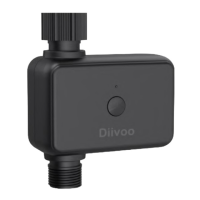
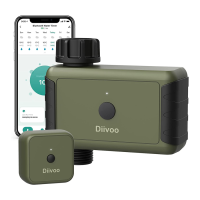
2. Meet the Diivoo Hose Faucet Timer
Hose Faucet Connection
ON/OFF Button
Fitting NH3/4”
LED Light
Outlet
50 without interference
7.25-116 Psi
40.1-113(4.5-45)
24H/48H/72H
IPX5
Water Timer, Wi-Fi Hub,
1/2" inlet adapter,
Threaded connector,
2 x Extra Rubber Washers,
Thread Seal Tape,
Instruction
Range
Working Water Pressure
Working Temperature
Rain Delay Time
Waterproof
Specification:
10%-90% RH (no condensation)
50 without interference
110–220V~50/60Hz
2.4GHz
IEEE 802.11b/g/n & Bluetooth
Smart Life
32 MAX
For Indoor Use Only
Working Humidity
Range
Input
WiFi Frequency
Protocol
APP
Total Number
Connected
Note
4. Initial Water Timer Setup
1. Remove the tray on the back of the timer by sliding
or pulling it out.
2. Insert two AA (1.5V) alkaline batteries and replace
the tray. Please do not insert rechargeable batteries
to avoid low voltage.
Connect the timer to an outdoor hose faucet.
Your timer is now ready to be used with any product
that can be attached to a standard hose faucet.
Do not place the timer in an underground valve
box or anywhere your Bluetooth signal will be
obstructed.
The water must remain on for the timer to work
properly.
1
3
Insert Two AA Batteries
2
Install the Timer
Turn on Your Water
Note:
Note:
a. Need to pull out forcefully
when installing the battery.
b. The Battery slot cannot be
inserted backwards, forcibly
inserting it will cause damage
to the battery slot.
Filter
3. Meet the Diivoo Wi-Fi Hub
Control Button
LED Light
Add the Water timer
4
Aer the gateway getting connected, then add the
timer on the gateway.
4.1) Press and hold the button on your timer around
5 seconds until the LED light rapidly flashing.
4.2)Tap "Add device" to add the timer in Gateway.
Select "Add new device ".
4.3) Waiting for connecting to be 100%. Edit the name
of your water timer completed.
The best range between the smart water timer and
wifi hub is within 49.2 in the open area.
Do not use your timer when the air temperature is
below 40(4.5), the timers should be removed
from the hose faucet and stored indoors to avoid
potential frozen damage.
Filter can trap dirt particles, please clean filter
regularly and replace if worn.
Do not mix alkaline, standard (carbon-zinc), or
rechargeable (nickel cadmium) batteries. Used up or
dead batteries must be removed from the timer and
disposed of properly.
Please replace batteries when the low battery indicator
appears the display. When replacing the power unit,
please make sure that the water timer is dry.
Aer long use, the rubber washer may fail, replace it
to avoid leakage.
To prevent leakage, make sure that the water timer is
tightly attached to the faucet and hose, add rubber
washer and thread seal tape if necessary.
5. Initial Smart Life App Setup
Scan the QR code and download the free Android or IOS
app, then install the APP. If you have already installed
the Smart Life APP, go to step 2.
a. Plug the Wi-Fi Hub into an indoor outlet.The
distance between the gateway and the water timer
should not exceed 50).
Setp 1:Turn on the phone's bluetooth and WiFi, tap
"Add device" or "+" to addthe smart device in app.
Select "Gateway Control " or "Industry Agriculture" >
add WiFi Hub.
Setp 2: Clik "Socket Gateway(BLE)" or "Irrigators (WI-Fi)".
Enter Password and connect with Wi-Fi. (Only 2.4G Wi-Fi
are supported). Waiting for connecting to be 100%. Edit
the name of your Hub completed.
Choose an indoor location for your hub near the router
andthe outside location of your timer and within range
of Wi-Fi. Avoid areas where the signal must travel
through more thanone wall, dirt, or thick steel barriers.
1
Download the Smart Life App
2
Power the Wi-Fi Hub & Timer
3
Pair the WI-FI Hub
Note:
Included in the Box
Question and Answer IconNeed help?

Do you have a question about the Diivoo WT-03W and is the answer not in the manual?

Summary

USER MANUAL WT-03 W

Need Help?

Contact support for assistance with the smart water timer and WiFi hub.

Warm Tips

Meet the Diivoo Hose Faucet Timer

Meet the Diivoo Wi-Fi Hub

Initial Water Timer Setup

Insert Two AA Batteries

Instructions for correctly installing two AA batteries into the water timer.

Install the Timer

Guidance on connecting the water timer to an outdoor hose faucet.

Turn on Your Water

Ensuring water supply is on for the water timer to function correctly.

Initial Smart Life App Setup

Download the Smart Life App

Steps to download and install the Smart Life application for device control.

Power the Wi-Fi Hub & Timer

Instructions for powering the Wi-Fi hub and connecting it to the timer.

Pair the WI-FI Hub

Guide to pairing the Wi-Fi hub with your smartphone via the Smart Life app.

Add the Water timer

Procedure to add the water timer to the gateway after Wi-Fi hub pairing.

Meet the Diivoo App Home Screen

Two irrigation modes

Explains the 'Normal Schedule' and 'Cycle/Soak' modes for watering.

Amazon Alexa and Google Assistant

Additional Water Timer Features

Manual Watering

Allows manual activation of watering cycles, independent of scheduled times.

Stop Watering

Enables immediate cessation of water flow at any time.

Rain Delay Function

Postpones scheduled watering for 24, 48, or 72 hours due to rain.

Troubleshooting

Bluetooth Water Timer Issues

Addresses common problems like timer not turning on/off and Bluetooth connection drops.

Water Timer Performance Issues

Explains reasons for low water output and failed connection attempts.

Support

Overview

This document describes the Diivoo Smart Water Timer with WiFi Hub, model WT-03W, a device designed for automated watering with smart control capabilities.

Function Description

The Diivoo Smart Water Timer with WiFi Hub (WT-03W) is an intelligent watering system that allows users to schedule and control their irrigation remotely via a smartphone app. It consists of a water timer that connects to an outdoor hose faucet and a Wi-Fi Hub that plugs into an indoor outlet. The system enables precise control over watering duration, frequency, and provides features like rain delay and manual watering. The Wi-Fi Hub acts as a bridge, connecting the water timer to the user's home Wi-Fi network and the Smart Life app, allowing for remote management and integration with smart home assistants like Amazon Alexa and Google Assistant.

Important Technical Specifications

Water Timer (WT-03W):

  • Range: 50ft without interference from the Wi-Fi Hub.
  • Working Water Pressure: 7.25-116 Psi.
  • Working Temperature: 40.1°F-113°F (4.5°C-45°C).
  • Rain Delay Time: 24H/48H/72H.
  • Waterproof Rating: IPX5.
  • Power Source: Two AA (1.5V) alkaline batteries (rechargeable batteries are not recommended to avoid low voltage).
  • Outlet Fitting: NH3/4".
  • Included in the Box: Water Timer, Wi-Fi Hub, 1/2" inlet adapter, threaded connector, 2 x extra rubber washers, thread seal tape, instruction manual.

Wi-Fi Hub:

  • Working Humidity: 10%-90% RH (no condensation).
  • Range: 50ft without interference from the water timer.
  • Input: 110-220V~50/60Hz.
  • WiFi Frequency: 2.4GHz (only 2.4G Wi-Fi networks are supported).
  • Protocol: IEEE 802.11b/g/n & Bluetooth.
  • APP: Smart Life.
  • Total Number Connected: 32 MAX (referring to the number of water timers that can be connected to one hub).
  • Note: For Indoor Use Only.

Usage Features

Initial Setup:

  1. Battery Installation: Two AA (1.5V) alkaline batteries are inserted into the water timer's tray. It's crucial to ensure correct polarity and avoid using rechargeable batteries.
  2. Timer Installation: The water timer connects to an outdoor hose faucet. The water supply must remain on for the timer to function.
  3. App Download: The Smart Life app is downloaded by scanning a QR code or from app stores.
  4. Wi-Fi Hub Power & Placement: The Wi-Fi Hub plugs into an indoor outlet. It should be placed within 50ft of the water timer and near the router, avoiding obstructions like walls, dirt, or thick steel barriers that could impede the Bluetooth or Wi-Fi signal.
  5. Wi-Fi Hub Pairing: The hub is paired with the Smart Life app by enabling Bluetooth and Wi-Fi on the phone, then adding a "Gateway Control" or "Industry Agriculture" device, specifically "Socket Gateway (BLE)" or "Irrigators (WI-Fi)". Users enter their 2.4GHz Wi-Fi password to connect.
  6. Water Timer Pairing: After the hub is connected, the water timer is added to the gateway. This involves pressing and holding the button on the timer for approximately 5 seconds until its LED light rapidly flashes, then tapping "Add device" in the app and selecting "Add new device".

Watering Modes:

  • Normal Schedule: Allows users to set a specific start time, irrigation duration, and select specific days of the week for watering.
  • Cycle/Soak: Designed for watering over a certain period with multiple cycles, allowing the soil time to soak. Users define a start time, end time, cycle duration (how long to water), and pause duration (time between cycles), along with the days of the week.

Additional Features:

  • Manual Watering: Users can manually activate watering without disturbing the programmed schedule. This is useful for testing equipment or extra watering. The default manual watering time is 10 minutes, adjustable via the app.
  • Stop Watering: Watering can be stopped at any time, whether manual or scheduled, by clicking the designated button in the app.
  • Rain Delay Function: This feature allows users to postpone watering for 24h, 48h, or 72h in anticipation of rain or when the ground is already wet.
  • Smart Home Integration: The device is compatible with Amazon Alexa and Google Assistant. Users can link their app account to these services and use voice commands to check battery levels or start/stop watering.

Maintenance Features

General Tips:

  • Optimal Range: Maintain a distance of less than 49.2ft in open areas between the smart water timer and the Wi-Fi Hub for best performance.
  • Temperature Considerations: Remove the timer from the hose faucet and store it indoors when air temperatures drop below 40°F (4.5°C) to prevent frozen damage.
  • Filter Cleaning: The built-in filter traps dirt particles and should be cleaned regularly. Replace the filter if it shows signs of wear.
  • Battery Management:
    • Do not mix battery types (alkaline, carbon-zinc, nickel cadmium).
    • Remove used or dead batteries promptly and dispose of them properly.
    • Replace batteries when the low battery indicator appears on the display. Ensure the water timer is dry when replacing batteries.
  • Leak Prevention:
    • After extended use, the rubber washer may fail; replace it to prevent leakage.
    • Ensure the water timer is tightly attached to the faucet and hose. Add an extra rubber washer and thread seal tape if necessary to prevent leaks.
  • Troubleshooting:
    • Timer not turning on/off: Check programming, water pressure, for debris in the valve, overlapping schedules, if manual watering is on, faulty valve, low batteries, or if the faucet is off.
    • Bluetooth dropping connection: The timer may be in sleep mode (wait 5-10 seconds for reconnection), refresh the app, or reconnect Bluetooth. Ensure no other mobile phones are connected. Keep the phone close to the device as Bluetooth distance is limited. Note that connection is not required after scheduling is set, as the device operates automatically.
    • Low water output: The timer may not work effectively with gravity-feed systems like rain barrels due to insufficient pressure.
    • Failed connection: Confirm the device is in connecting mode (indicator light flashing), the app operation matches the device's connecting mode, the Wi-Fi network is 2.4GHz, and the password is correct.

Warranty and Support:

  • The timer comes with a 1-year warranty from the date of purchase.
  • For questions or support, users can contact support@diivoosmart.com for a response within 24 hours.
  • The warranty does not cover problems arising from use for other purposes, improper use, use of non-Diivoo components, or damages caused by improper power supply or artificial damage.

Diivoo WT-03W Specifications

General IconGeneral
BrandDiivoo
ModelWT-03W
CategoryTimer
LanguageEnglish

Related product manuals