8
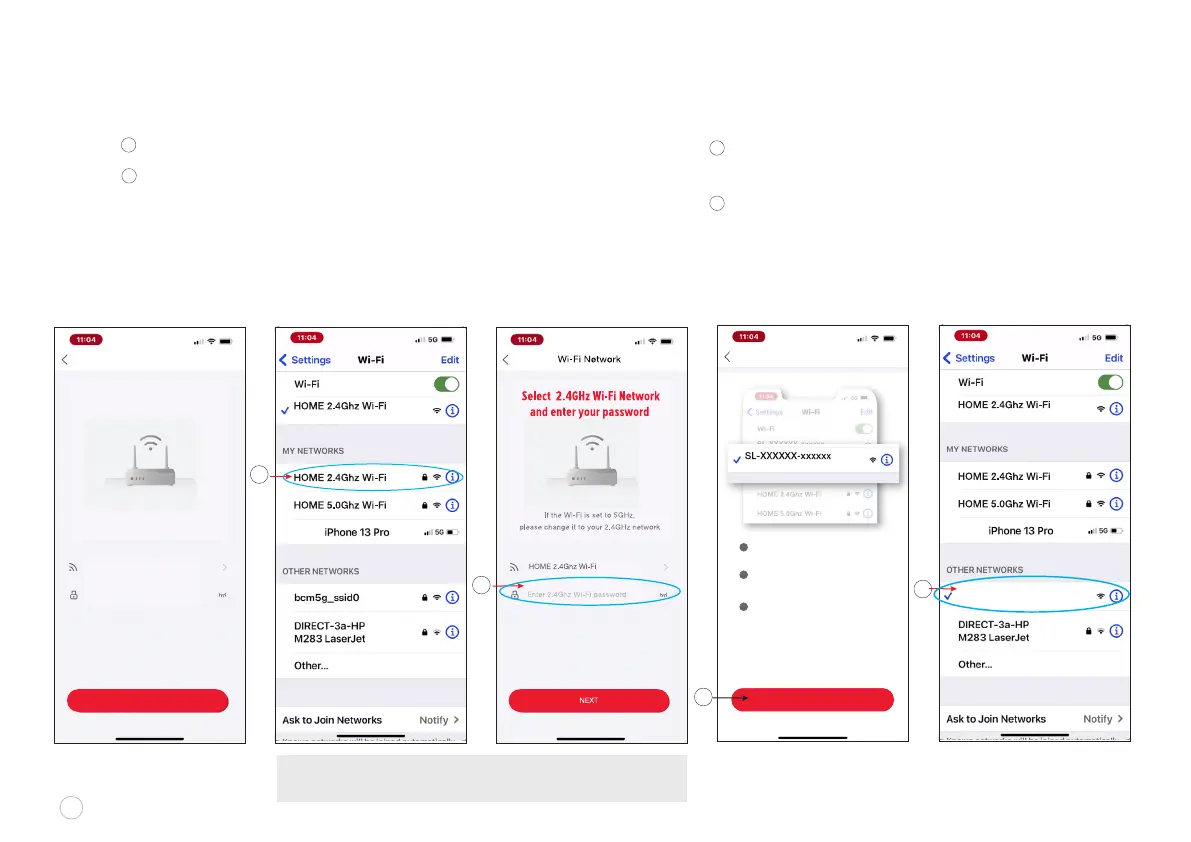
NETWORK SETUP continued
Click “GO TO SETTINGS” pictured below and the
interface of the screen switch to Wi-Fi selection
Select the Wi-Fi with the following pre-x sequence
followed by 6 unique characters "SL-EV3320-XXXXXX”
x
F
w
Connect to your home’s Wi-Fi Network
Type in your home Wi-Fi password and
click “NEXT” to start network conguration.
C
E
D
Go to SETTINGS
GO TO SETTINGS
Robot Wi-Fi Connection
Click GO TO SETTINGS: to conrm
Bluetooth and select Wi-Fi network
Connect Robot to Wi-Fi network using
SL-xxxx-xxx or SmartLife-xxxx
Return to Dirt Devil Clean app
1
2
3
HOME 2.4Ghz Wi-Fi
NEXT
HOME 2.4Ghz Wi-Fi
Wi-Fi Network
Enter 2.4Ghz Wi-Fi password
If the Wi-Fi is set to 5GHz,
please change it to your 2.4GHz network
Select 2.4GHz Wi-Fi Network
and enter your password
NOTE: In order to maximize the unit’s Wi-Fi range in your home,
please make sure to switch from 5Ghz to 2.4Ghz Wi-Fi network.
Choose your 2.4Ghz Wi-Fi
Type your home Wi-Fi password
D
C
E
F
SL-EV3320-xxxxxx



 To Next Page