EasyManua.ls Logo

Dirt Devil EV3320 - User Manual

Dirt Devil EV3320
20 pages
Print Icon
To Next Page IconTo Next Page
Loading...
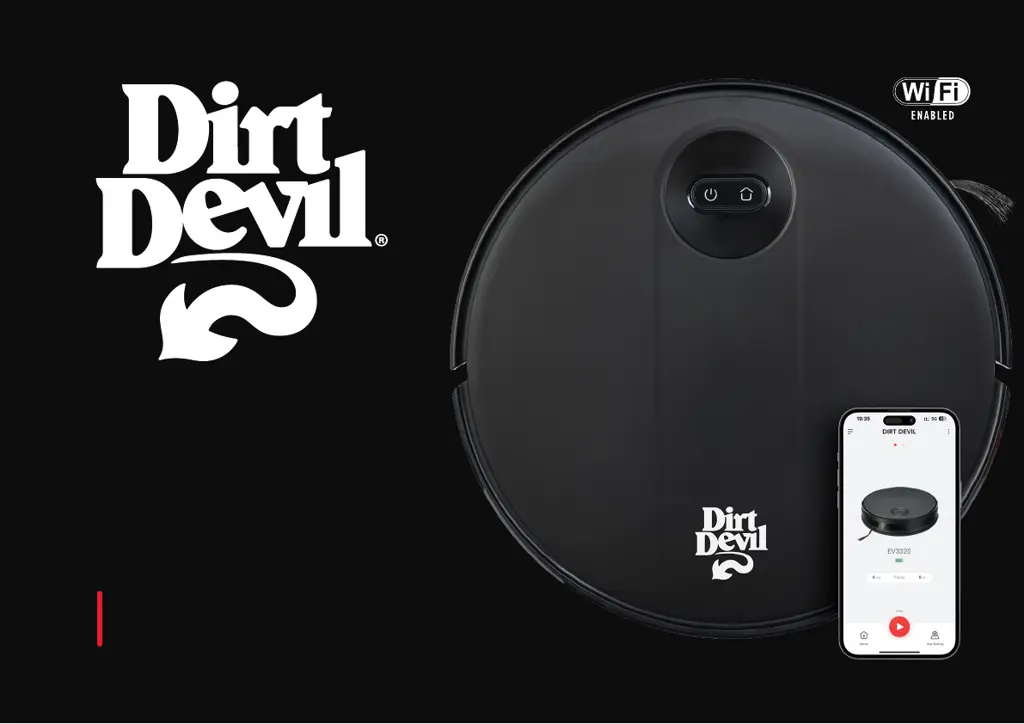
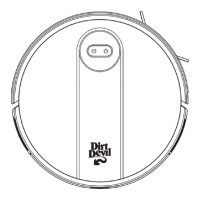
USER GUIDE
Model EV3320
Wi-Fi-Enabled Robot Vacuum
with Gyroscope Navigation Technology

Other manuals for Dirt Devil EV3320

Questions and Answers

  • T
    thomas61Aug 8, 2025
    How to fix weak suction on a Dirt Devil EV3320 Vacuum Cleaner?
    • B
      brownjenniferAug 8, 2025
      If your Dirt Devil Vacuum Cleaner has weak suction, try the following: * Check the suction inlet for any obstructions. * Empty the dustbin. * Clean the filters with water. * Make sure the filters are completely dry if they've gotten wet from water or other liquids on the floor before you reuse them.
  • J
    Jeanette ParksAug 15, 2025
    What to do if my Dirt Devil EV3320 Vacuum Cleaner suddenly stops?
    • B
      barbaranewtonAug 16, 2025
      If your Dirt Devil Vacuum Cleaner suddenly stops working, check whether it's stuck or blocked by something, or if the battery is too low. If the problem continues, turn it off, wait 3 seconds, and then restart it.
  • B
    Bonnie DavisAug 22, 2025
    Why won't my Dirt Devil EV3320 connect to Wi-Fi?
    • G
      George JonesAug 22, 2025
      There could be several reasons why your Dirt Devil Vacuum Cleaner isn't connecting to Wi-Fi. First, ensure your router is connected to the internet and contact your network operator to check for any network issues. Also, verify that the network name and password haven't been changed. If needed, reset the Wi-Fi connection. Finally, if the Wi-Fi connection has been reset or not set up before, you will need to establish a new Wi-Fi connection for the robot vacuum or reset the existing one.
  • A
    Andrew KingAug 31, 2025
    What to do if my Dirt Devil EV3320 won't charge?
    • R
      Rodney HarrisAug 31, 2025
      If your Dirt Devil Vacuum Cleaner isn't charging, check these things: 1. Make sure the charging dock is correctly connected to the power supply and that the indicator light is on. 2. When the vacuum connects to the dock, the indicator light should turn off. If it doesn't, and the vacuum doesn't respond, clean the charging pole piece on the vacuum and the charging piece on the dock with a dry cloth. Then, try again. If it still doesn't charge after these steps, no answer.

Summary

Important Safety Instructions

General Safety Precautions

Essential safety guidelines for using the electrical product to prevent shocks, fires, and injuries.

Important Safety Instructions Continued

Damage Prevention and Battery Safety

Guidelines to prevent damage and precautions for battery handling and disposal.

FCC and RF Compliance

Information regarding FCC rules, interference, and compliance for radio frequency energy.

Product Overview and Controls

In the Box Contents

Lists all items provided in the product packaging, including the robot vacuum and accessories.

Robot Vacuum Buttons and Indicators

Explains the operation of the robot vacuum's buttons and the meaning of its power indicator lights.

Charging Dock Indicator

Explains the meaning of the indicator light on the charging dock for power supply status.

Location of Controls

Robot Vacuum Components

Identifies and labels the various external and internal parts of the smart robot vacuum.

Charging Instructions

Dock Setup and Preparation

Steps for connecting the charging dock, placing it correctly, and preparing the robot before initial use.

Charging and Startup

Instructions for placing the robot on the dock for charging and the initial startup procedure.

Mobile App Setup

App Download and Installation

Steps to download and install the Dirt Devil Clean app on your mobile device.

Adding the Robot to the App

Guide to pairing the robot vacuum with the mobile app and accepting user agreements.

Initial App Account Setup

Account Creation and Verification

Steps for creating a new account, entering email, and verifying with a code.

Setting Up Security

Instructions for setting a password and passcode for the user account.

Network Setup

Initial Wi-Fi Configuration Requirements

Details on Wi-Fi router compatibility and network recommendations for setup.

Network Reset Procedure

Steps to reset the robot vacuum's network settings and initiate pairing mode.

Network Setup Continued

Connecting to Home Wi-Fi

Instructions for selecting the correct Wi-Fi network and entering the password for connection.

Network Setup Completion

Finalizing App Connection

Steps to switch back to the app, confirm connection, and proceed to robot naming.

Initial Run and Mapping

Information on preparing for the first run, creating a map, and starting cleaning.

Operating Steps

Power and Cleaning Modes

How to turn the robot on/off and start auto or spot cleaning modes.

Pausing and Charging

Instructions for pausing operation and manual/automatic recharging.

App Features and Modes

Suction and Control Options

Details on adjusting suction intensity, remote control, and scheduling cleaning.

Sleep Mode and System Reset

Information on the robot's sleep mode and how to perform a system reset.

Maintenance

Cleaning Key Components

Instructions for cleaning the dust bin, roller brush, and side brushes for optimal performance.

Maintenance and Specifications

Component Cleaning Procedures

Instructions for cleaning the universal wheel, robot sensors, and charging dock.

Technical Product Details

Key technical data including battery, power, dimensions, and weight.

Troubleshooting

Common Operational Issues

Solutions for problems like the machine not starting, stopping, or schedule failures.

Wi-Fi Connection Failures

Troubleshooting steps for issues connecting the robot vacuum to the Wi-Fi network.

Troubleshooting Continued

Additional Common Issues

Solutions for startup, charging, noise, cleaning ability, Wi-Fi, and timed cleaning problems.

Troubleshooting Sound Prompts

Interpreting Audio Alerts

Explains the meaning of various sound prompts and their corresponding issues.

Limited Warranty Information

Warranty Terms and Conditions

Details the 2-year limited warranty, exclusions, and disclaimers.

Important Warnings

Warning about chemical exposure and icons for safe usage.

Product Support and Recycling

Contact and Online Resources

Information on how to get assistance, find the digital user guide, and contact support.

Recycling and Disposal

Guidance on recycling the product and manufacturer information.

Dirt Devil EV3320 Specifications

General IconGeneral
BrandDirt Devil
ModelEV3320
CategoryVacuum Cleaner
LanguageEnglish

Related product manuals