EasyManua.ls Logo

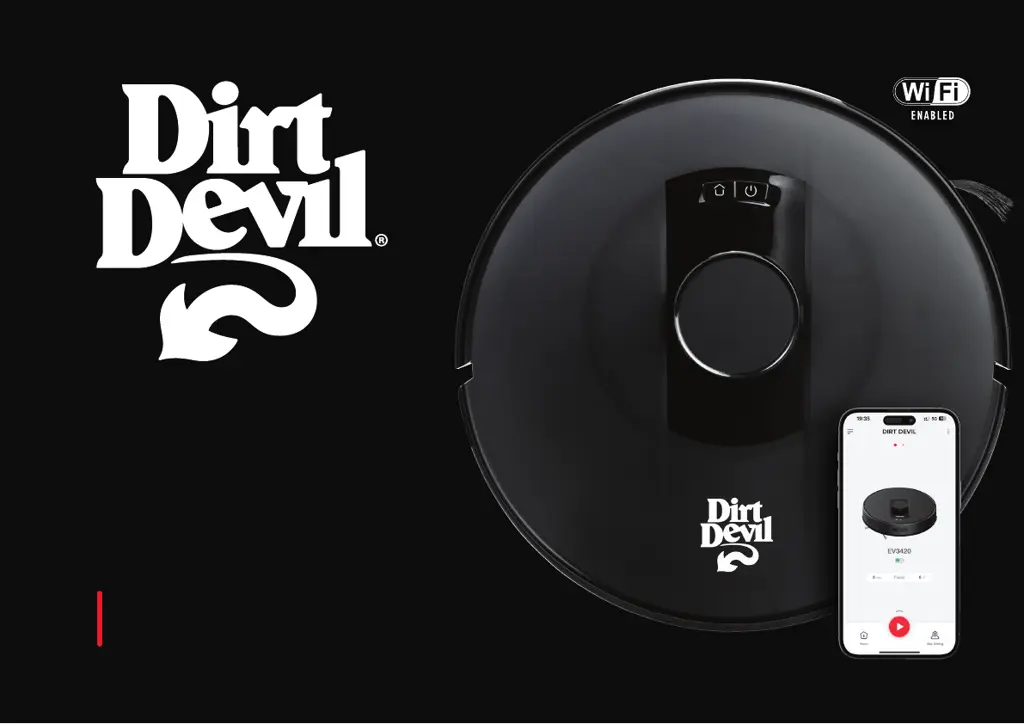
Dirt Devil EV3420 - User Manual

Dirt Devil EV3420
20 pages
Print Icon
To Next Page IconTo Next Page
Loading...
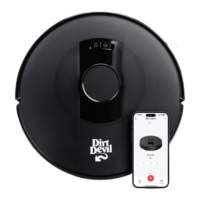
USER GUIDE
Model EV3420
Smart Robot Vacuum
with Lidar Technology

Other manuals for Dirt Devil EV3420

Questions and Answers

  • K
    Karen MyersAug 6, 2025
    How to fix a Wi-Fi connection failure on my Dirt Devil EV3420?
    • V
      vsmithAug 6, 2025
      If your Dirt Devil Vacuum Cleaner is connected to the router but not the network, ensure your router is connected to the internet or contact your network operator to check for network issues. If the vacuum can't connect to the wireless router, verify the network name and password are correct, and reset the Wi-Fi connection if needed. If the Wi-Fi connection has been reset or not set up, establish a new Wi-Fi connection for the robot vacuum or reset the Wi-Fi connection.
  • E
    eyoungAug 10, 2025
    What to do if my Dirt Devil Vacuum Cleaner cannot charge?
    • C
      Casey WilkersonAug 10, 2025
      First, check that the Dirt Devil Vacuum Cleaner's charging dock is correctly connected to the power supply and that the indicator light illuminates. When the vacuum cleaner is connected to the charging dock, the indicator light should turn off. If the light doesn't extinguish and the vacuum doesn't respond, clean the charging pole piece at the bottom of the vacuum and the charging piece of the charging dock with a dry cloth, and then try again.
  • P
    Paul CallahanAug 15, 2025
    What to do if my Dirt Devil EV3420 suddenly stops working?
    • D
      David RobinsonAug 15, 2025
      If your Dirt Devil Vacuum Cleaner suddenly stops working, check if it is stuck or blocked by obstacles, or if the battery is too low. If the problem persists, shut it down, wait for 3 seconds, and then restart it.
  • S
    Susan CarrollAug 20, 2025
    What to do if my Dirt Devil EV3420 cannot start?
    • G
      Gina AveryAug 20, 2025
      To start the Dirt Devil Vacuum Cleaner, ensure that the main switch of the robot vacuum is turned on and that the host is powered on. If the problem continues, reset the robot vacuum (see the "Operating Instructions / System Reset" section on page 10).
  • A
    Ann FitzgeraldAug 26, 2025
    Why is the suction too weak on my Dirt Devil EV3420 Vacuum Cleaner?
    • C
      Christopher AcostaAug 26, 2025
      If your Dirt Devil Vacuum Cleaner's suction is too weak, check the suction inlet for any obstructions. Also, empty the dust bin and clean the filters with water. If the filters are wet, let them dry naturally before use.
  • W
    wreyesAug 30, 2025
    How to make a sweep schedule for my Dirt Devil EV3420 Vacuum Cleaner?
    • D
      david23Aug 30, 2025
      To schedule a sweep on your Dirt Devil Vacuum Cleaner, ensure the robot vacuum has been powered on. Set the time and schedule the time for automatic sweep with the app, making sure the schedule time has been set correctly. Also, check whether the robot vacuum power is sufficient to start the sweep.

Summary

Important Safety Instructions

Additional Safety Guidelines

Damage Prevention Cautions

General cautions to prevent damage to the device and floors during operation.

Fire and Injury Warnings

Warnings regarding battery exposure to fluids and potential hazards.

Battery Disposal Procedures

Guidelines for safely removing and disposing of the built-in Lithium Ion battery.

In the Box Contents

Location of Controls

Charging Instructions

Mobile App Setup

Network Setup

Initial Wi-Fi Setup

Steps to connect the robot vacuum to your home Wi-Fi network.

Resetting Network

Instructions on how to reset the robot vacuum's network configuration.

Operating Steps

Power Switch Operation

How to turn the robot vacuum on, off, or force shutdown using the main switch.

Cleaning Modes

Instructions for starting AUTO SWEEP and SPOT CLEANING modes.

Pausing and Charging

How to pause the robot vacuum and initiate auto/manual recharge.

App Features Overview

Suction and Control Modes

App features for adjusting suction intensity and remotely controlling the robot.

Sleep Mode and System Reset

How the robot enters sleep mode and how to reset the system via the app.

Mapping and Navigation Features

Real-time mapping, map regeneration, and selective room cleaning via the app.

Advanced App Functionality

Zone and Room Management

Using app features for zone selection, no-go zones, and room editing.

Scheduling and Remote Control

Setting cleaning schedules and controlling the robot remotely via the app.

Cleaning History and Auto Boost

Viewing cleaning records and enabling automatic suction boost on carpets.

Maintenance Procedures

Cleaning the Dust Bin and Filter

Steps to empty the dust bin and clean the high-performance filter.

Cleaning Brushes

Instructions for cleaning the main roller brush and side brushes.

Component Cleaning and Specifications

Cleaning Wheels and Sensors

How to clean the universal wheel and robot sensors for optimal performance.

Charging Dock Maintenance

Instructions for cleaning the charging dock and its electrodes.

Technical Specifications and Service

Overview of product specs and special instructions for service technicians.

Troubleshooting Common Issues

General Operational Problems

Solutions for problems like not starting, stopping, scheduling, suction, and charging.

Wi-Fi Connection Failures

Troubleshooting steps for problems connecting the robot vacuum to Wi-Fi.

Cleaning Performance and Scheduling

Addressing issues with suction, noise, dirt leakage, and timed cleaning.

Troubleshooting Voice Prompts and Errors

Error Code Solutions

Explanations and solutions for various voice prompts and error codes encountered by the robot.

2-Year Limited Warranty

Dirt Devil EV3420 Specifications

General IconGeneral
BrandDirt Devil
ModelEV3420
CategoryVacuum Cleaner
LanguageEnglish

Related product manuals