14 15
The USB Type-C port (Gen4) may also be used to update the rmware on your micro.clock.
These rmware updates consist of improvements, bug xes, and additional features, and are
free to download from our web site disasterareadesigns.com.
Firmware updates require a Mac, Windows, or Linux computer with an available USB port and
a suitable USB Type-C cable.
Gen4 Update:
1. Download the rmware update le from our web site. It should have a .UF2 le
extension.
2. Unplug all cables from your micro.clock including power, USB, and MIDI.
3. Plug the USB cable into your computer.
4. Hold the footswitch on your micro.clock and connect the USB cable to the micro.clock.
5. You should see the display show UPDATE MODE, and you should also see a new
removable drive on your computer called RPI-RP2.
6. Drag the rmware .UF2 le to this drive, and wait for the rmware update to complete.
7. The micro.clock will reboot after the update has nished.
fIrMware updatedIsplay and sCreensaver
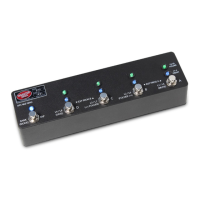
The micro.clock features an organic LED (OLED) display which shows tempo, preset name,
setup information, and more. It is also equipped with a multi-color LED in the encoder which
lights up the knob.
Use the LED COLOR option in the Setup Menu to customize the LED to your preference. It
defaults to blue but can also be red, green, yellow, violet, cyan, or white.
The organic LED display used on the micro.clock is susceptible to “burn-in” or dimming if left
on a static image for long periods. To help extend the life and appearance of your display, the
micro.clock oers a “screen saver” option, congured in the Setup Menu.
The screensaver will activate after ve minutes without user activity.
The display remains on and ready to respond, but will display some moving text to prevent
static images from burning in. The tempo LED will also continue to blink.
If you prefer to leave the display on at all times, you can also disable the screen saver in this
menu.


 To Next Page