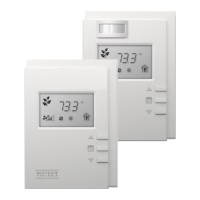
6 Allure UNITOUCH™
Icon Description
Tap the menu icon to access menu settings.
This is where the room name defined in EC-
gfx
Program or the ECLYPSE Web Interface is displayed.
Indicates whether Bluetooth connection is available.
Indicates the efficiency of the system based on the ECO-View™ leaf pattern.
Tap the home button to return to the rolling information screen.
Tap the lights icon to access lighting controls and lighting groups.
Tap the temperature icon to access temperature controls and humidity and CO
2
information.
Tap the fan icon to access fan controls.
Tap the sunblinds icon to access sunblind controls and sunblind groups.
Tap the custom actions icon to access any configured custom actions.
MIN / MAX
Tap the light bulb icons to instantly jump to the minimum or maximum intensities that are currently
configured.
Unoccupied/Occupied
Tap the occupancy icon to manually toggle between unoccupied or occupied mode.
Home Screen



 To Next Page