Version 2
Instructions beyond this point refer to new features found in version 2 of the sequencer
firmware. You can tell if you have v2 by watching the sequencer’s boot light show; after it lights
each row of LEDs sequentially, it will light the step 2 LED then the step 10 LED (for v2.0) before
the clock LED starts blinking. If it doesn’t light any LEDs during this time then you have v1
firmware.
Song/Sequence selection mode
Press and release both the OCTAVE UP and OCTAVE DOWN buttons at the same time. This
changes the note key display to SONG/SEQUENCE SELECT mode. Pressing this button
combination again takes you back to the normal note select mode.
Selecting a Sequence
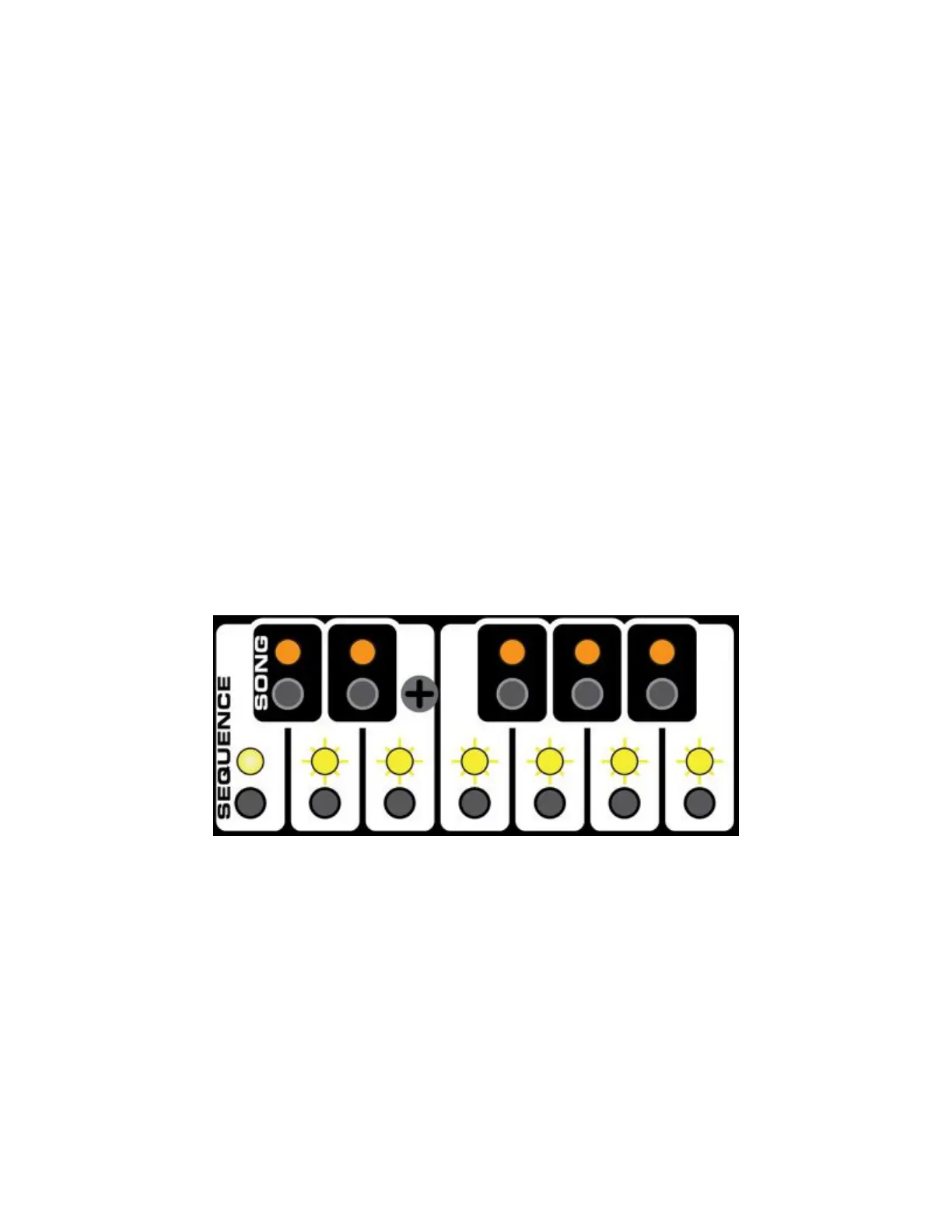
If the entire row of white keys is lit while displaying SONG/SEQUENCE SELECT, you are in
SEQUENCE mode. The selected sequence will play to the end then loop back to the beginning.
The sequencer has 7 sequence memories available for you to choose from. The steady LED
indicates the currently selected sequence. To select a different sequence, press the white note
key corresponding to the sequence you want to select. If the sequencer is running, the newly-
selected sequence LED will flash until the sequencer reaches the end of the current sequence
(or on the next clock; see CHANGE ON CLOCK mode), then it will switch to the new sequence.
Another way to select a sequence, even while the display is in another mode, is to hold down
the PROG/RESET button then press the desired sequence button. The display will automatically
change to SONG/SEQUENCE SELECT mode.


 To Next Page