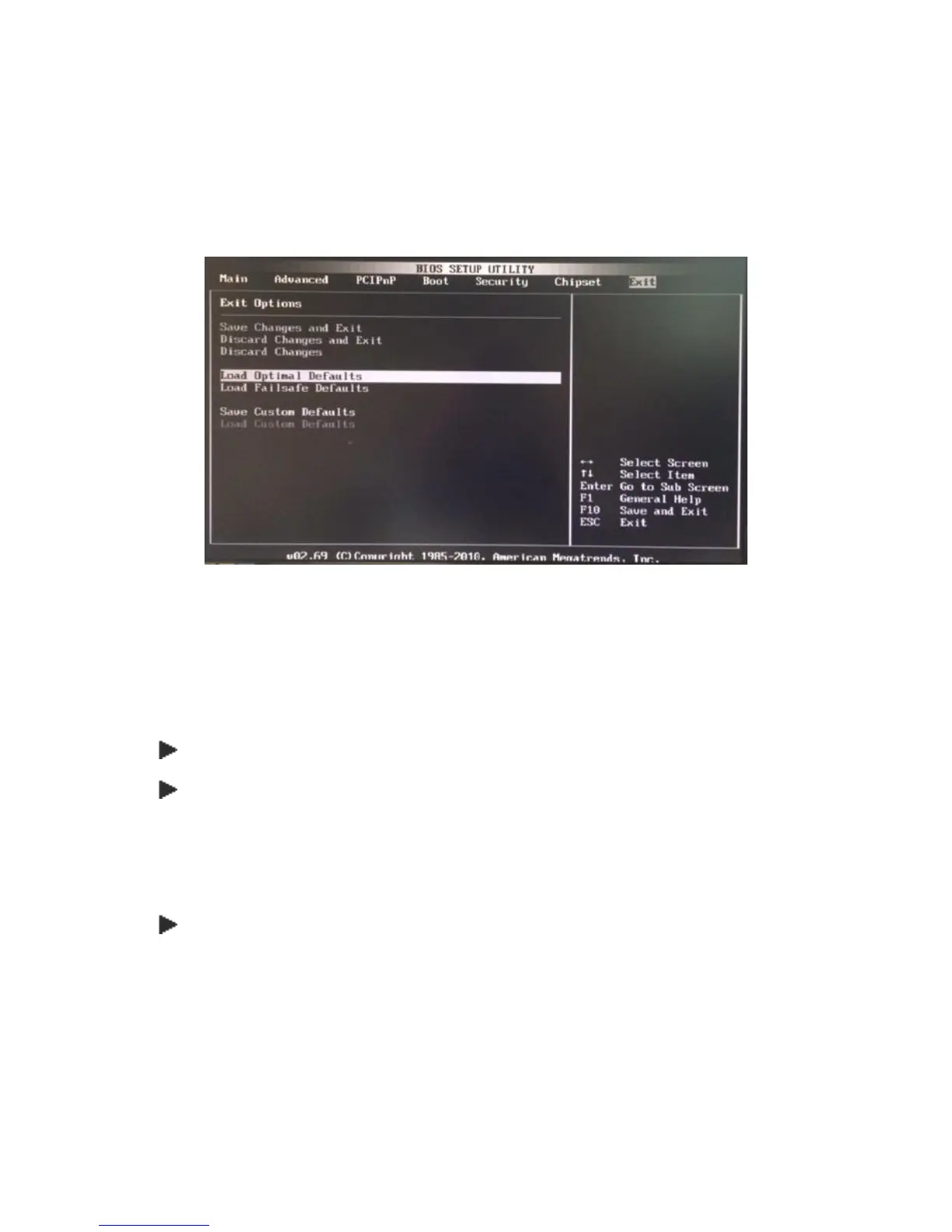
2. Go to “Exit” menu using the Direction keys <↑↓> and choose the option “Load Optimal
Defaults”, then press <Enter>. A message dialog appears as seen below, hit “Y” key and
presses <Enter> to save and recover to the factory setting.
“Load Optimal Defaults (Y/N)? Y”
(BIOS Setup menu “Exit”)
C. “Operating System Not Found” –
A message indicating that “Operating system not found” appear when
my VESA PC starts (Windows won’t start)
Enter your BIOS setup main menu by pressing <DEL> key, be sure that the C: drive is enable.
If Windows still does not start, follow these steps to initialize the BIOS:
1. Turn off the EBOX-3350MX Series.
2. Remove any peripheral devices connected to the EBOX-3350MX Series.
3. Restart the EBOX-3350MX Series.
4. Press <DEL> to enter BIOS Setup main menu window.
5. Follow the steps as written in item B. BIOS error message.
If you have just connected EBOX-3350MX Series to a CD/DVD or USB Drivers, remove these
peripherals.. And restart to confirm that the Windows operating system starts properly. If EBOX-
3350MX Series continues to display the message ”Operating system not found,” and Windows
does not start, please contact your nearest dealer for servicing.


 To Next Page