11
check coverage for your area.
2. You may also need to start a scan manually to update the list of
stations for one of the following reasons:
- New stations may become available from time to time.
- Stations closed or can no longer be received (In the station list,
invalid stations are indicated with a question mark “?” in front of
their name).
- If reception was not good for the original scan (for example the
antenna was not up), this may result in an empty or incomplete list
of available stations.
- If you have poor reception of some stations causing the audio to
break up, you may wish to list only stations with good signal
strength.
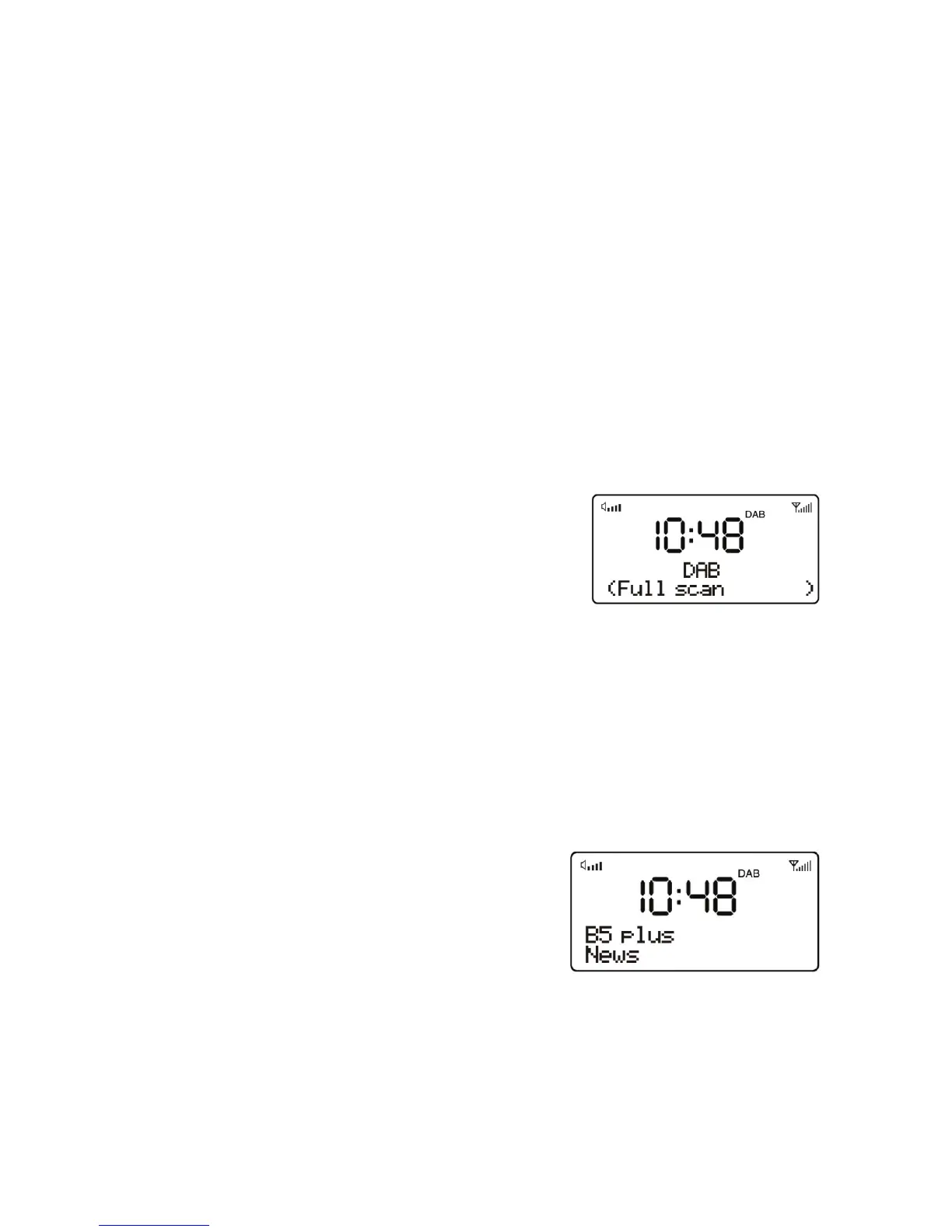
How to re-do a full scan
To re-do a full scan, you may short press the
MENU button to show the menu and then
press ENTER button to select Full Scan.
Manual Tune
As well as the normal method of scanning, you can also manually tune
to a particular channel/frequency. This can be useful for adjusting your
antenna to achieve the best possible reception and scanning a
particular channel to update the station list.
1. Press Menu button and then press UP to show the submenu:
Manual tune, press the ENTER button to enter.
2. Press DOWN or UP to display a
particular channel/frequency, press
ENTER button to tune to that
channel/frequency. The display shows
a live indication of the received signal
strength on the selected frequency. Adjustments to your antenna
will be manifested in the received signal strength displayed.
Note: The slightly larger rectangle indicates the audio quality threshold
– if the signal strength, as indicated by the solid rectangles, falls below
this threshold the audio quality will deteriorate.


 To Next Page