INTERNET
SERVICE
Configuring
‘My
Stuff’
Registering
an
account
on
Reciva’s
website
1.
Open
the
website,
http://www.reciva.com,
from
your
internet
browser.
2.
Click
on
the
‘My
Account’
link
and
follw
the
on-screen
instructions
to
register an
account.
Please
note,
during
the
registration
process,
a
validation
code
will be
sent
to
you
via
email.
Please
enter
this
code
when
prompted
to
do
so.
3.
After
logging
into
your
account,
you
will
be
able
to
edit
your
information
for
‘My Stations’,’My
streams’,
’My
Detail’
and
“My
Radios”
from
the
‘My
Account’ section.
4.
Yo u
can
now
add
your
Internet
Radio
to
your
account
on
the
website
by accessing
the
‘My
radios’
link.
From
the
‘My
Radios’
section,
you
will
need
to enter
in
your
radio’s
eight-digit
serial
number,
which
can
be
found
from
the
‘Configure>
Ve r si o n ’
menu
on
the
radio,
and
you
will
also
need
to
enter
in
your radio’s
registration
code-which
can
be
found
from
the
‘Configure>
Register’ menu
on
the
radio.
Configuring
‘My
stations’
1.
It’s
possible
to
search
for
radio
stations
that
are
available
in
Reciva’s
stations’ database
from
Reciva’s
Website.
When
ever
stations
are
searched
for
on
the website,
then
will
be
displayed
in
a
list
of
search
results
together
with
a
link
to ‘Add
to
my
stations’.
2.
Clicking
on
the
‘Add
to
my
stations’
link,
will
add
the
station
to
your
account’s ‘My
stations’
list.
This
list
can
be
edited
by
clicking
on
‘My
stations’
under
the ‘My
account’
section
on
the
website.
3.
Once
you
have
internet
station
available
in
you
‘My
stations’
list,
you
may
play these
stations
from
your
Internet
Radio.
These
stations
will
be
available
on your
radio
from
the
menu
item:’
Stations>My
Stu ff >
My
stations’.
Please
note
, the
stations
will
only
be
available
to
your
radio
once
your
radio
has downloaded
a
new
stations’
list.
To
cause
the
radio
to
download
a
new stations’
list
immediately,
please
remove
and
reconnect
the
power
to
your radio.
Configuring
‘My
Streams’
1.
once
logged
into
your
Reciva
website
account,
you
can
add
your
own
internet radio
streams
to
the
‘My
streams’
section,
which
is
listed
under
the
‘
My account’
section
2.
Clicking
on’
My
streams’
sill
prompt
you
to
enter
the
station’s
name
and
its media
stream
URL.
The
media
stream
URL
should
be
a
link
to
a
website’s actual
audio
stream.
If
you
have
any
doubt
about
locating
the
media
stream URL
from
a
webpage,
then
please
refer
to
the
FA Qs
section
on
Reciva’s website,
http://www.reciva.com
3.
Once
you
have
Internet
radio
streams
available
in
you
‘My
streams’
list,
you may
play
these
stations
from
your
internet
radio.
These
station
will
be available
on
your
radio
from
the
menu
item:’
Stations
>My
stuff>
My
streams’.
Please
note,
the
streams
will
only
be
available
to
your
radio
once
your
radio has
downloaded
a
new
station’
list.
To
cause
the
radio
to
download
a
new stations’
list
immediately,
please
remove
and
reconnect
the
power
to
your radio.
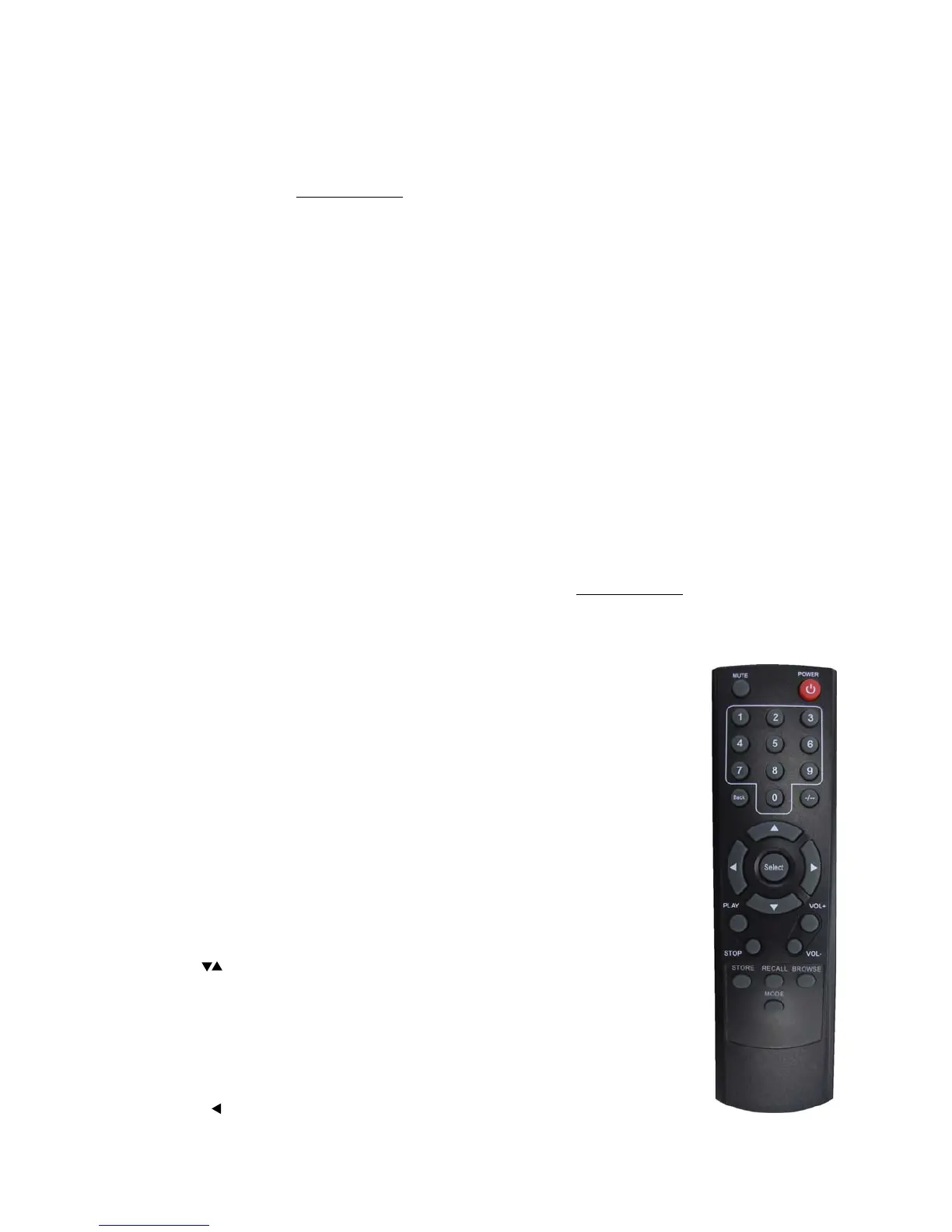
Remoter
controller:
1. Power: <Press to switch the internet radio ON/OFF>
2. Mute: < Press to mute the voice of Earphone only>
3. Reply: <Reserved for future services>
4. 0---9: <Numeric buttons for Store and Recall functions>
5. Store: <Use to store 99 radio stations>
6. Recall: <Use to Play up the pre-setting stations>
7. --/- : <Select the numeric bits>
8. Select: <Press to select a displayed option>. Under FM mode, long press this button to
Start auto scanning mode of the FM stations
9. Back: <Press to go back to the previous display>
10. + VOL -: <Use to adjust the volume>
11. UP\DOWN
:
Use to manual scan down for FM stations, and use to change the option
to show on the display>
12. Browse: <Press to view the name of the track currently playing and then turn the TUNE to
see the list of tracks waiting in the play queue>
13. Play/Pause: <Press to play/pause playback>
14. Stop: <Press to stop playback, with a track name displayed, press and hold to delete the
track>
15. : <Press to start playback at the previous track>


 To Next Page
 Loading...