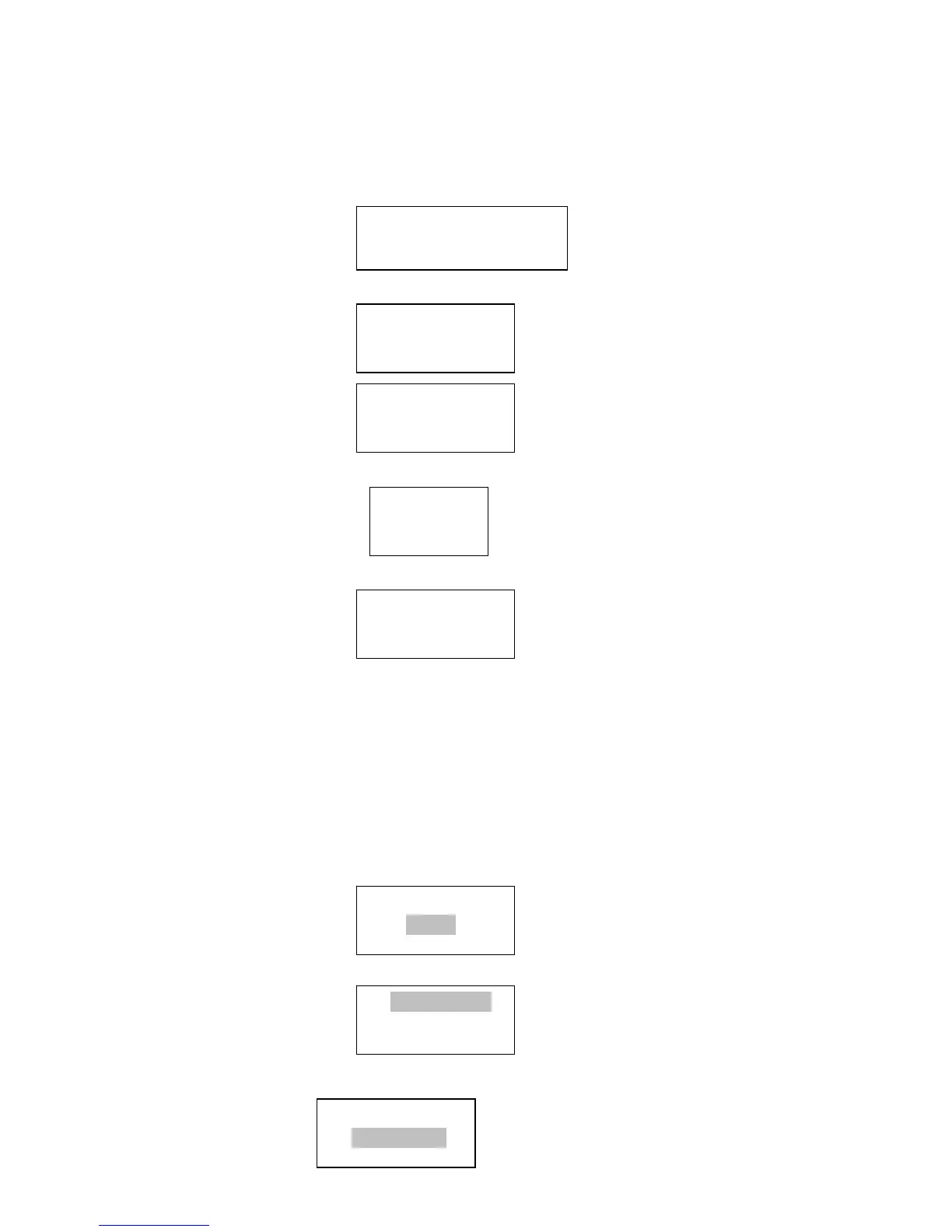
After
3 seconds
the
display
goes
into
the
code entry screen.
If the display does not automatically go into the code entry mode, press the TUNE/SELECT button. To enter the code,
use the TUNE/SELECT to select each character of the code, push down the TUNE/ SELECT button to confirm each
character.
3. Make
sure
the
character
you
want
is
shown
in
the
centre
of
the
display
to
be
able to
select
it.
4. If you complete the key then you can use “END” to confirm. The display shows “Connecting to network” as the radio
connects to the network.
5. If the connecting is OK, it will show you
6. After the station update, it will display the following menu :
Changing
the
volume – for Earphone only
Note: The volume control on the unit is just for adjusting the volume for the earphone.
You
can
change
the
volume
by
turning
the
TUNE
clockwise
to
increase
the
volume
and
anticlockwise
to
decrease
the
volume.
The
display
will
show
the
volume bar.
You
cannot
change
the
volume
when
you
are
in
a
menu
or
when
the
radio
is
connecting
to
a
station.
To change the volume for the external speakers, you need to use the volume control from the external speakers.
Step 2-How to set your radio
In the main menu, you can find
<Settings>
then you can do your radio basic settings as
<Network configuration>
Press “Select” to do the setting, adjust the TUNE button to your desired option. You can find some sub-menus in it and one
of them you can see
<Wired/Wireless>
<END <> A BCDEF >
Connecting to
Network
Connecting to
Linksys
Internet Radio
My Stuff
Alarm Clock
Settings
Network Config
Version
Edit Config
Wired/Wireless
Station Update
From Reciva


 To Next Page