Using Uconnect™ Access Features
Getting Started with Apps
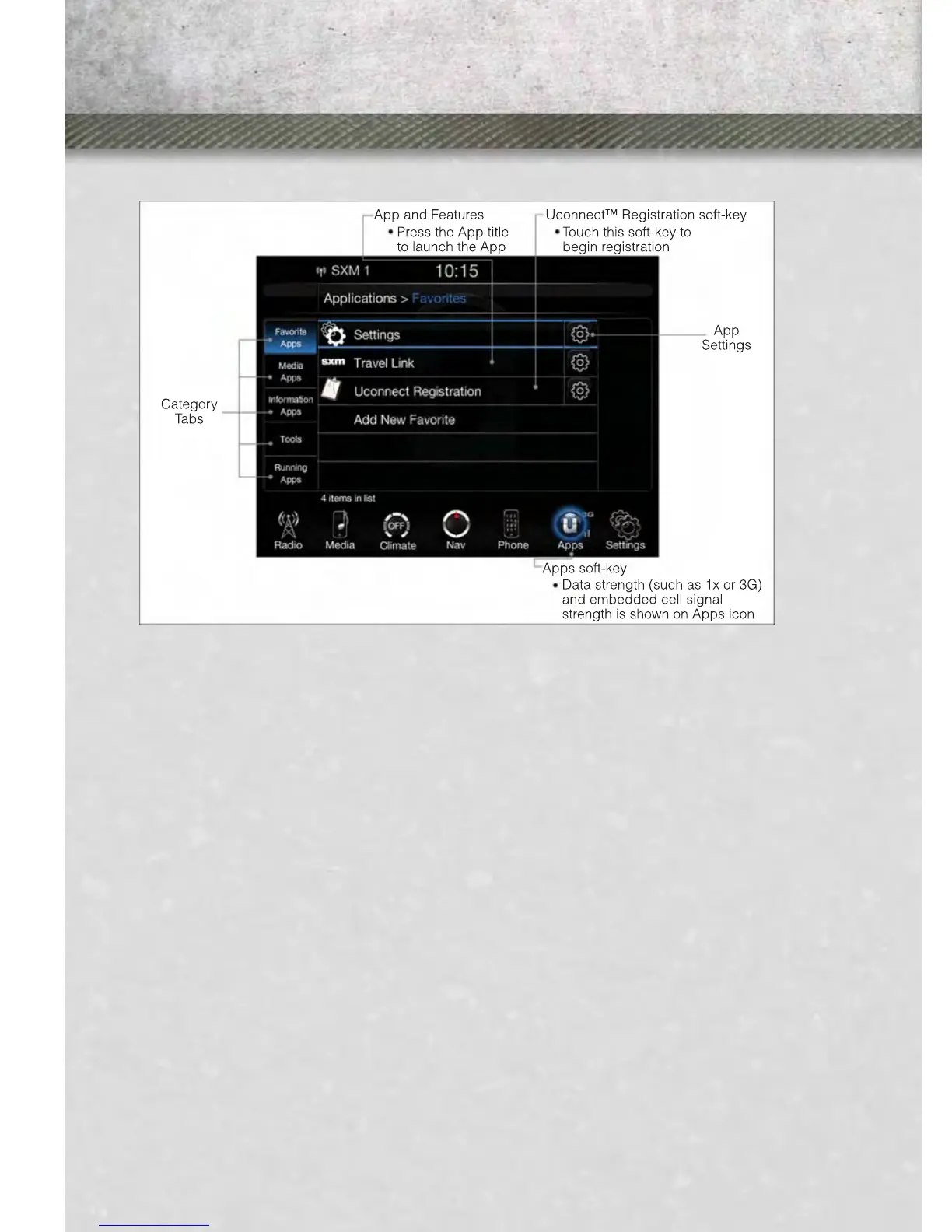
Get started with your Uconnect™ Access apps by pressing the Apps soft-key on the
bottom of your radio screen. Available apps and features are grouped by 5 tabs on the
left of the screen.
• Favorite Apps – this is the default screen when you first press the Apps soft-key,
and is a good place to put the apps you use most frequently. To make an App a
“favorite”, press the settings soft-key to the right of the app, and select “Make a
favorite”.
• Media Apps, Information Apps, and Tools – Sorts your Uconnect™ Access apps
(if equipped) into three categories, depending on the type of app.
• Running Apps – press this tab to see which apps are currently running.
Purchasing or Cancelling an App
From your Uconnect™ Access Account, you can easily purchase or cancel Applica-
tions or subscriptions. Simply log-in to your Uconnect™ Access Account and visit
your Uconnect™ Store.
Reinstalling an App
You can easily correct any App-related issues by resetting the App. Simply log-in to
your Uconnect™ Access Account and visit the Uconnect™ Store, click on My Apps,
click on Settings, and then choose Reset/Reinstall. In minutes your App will be
reinstalled and ready to go.
ELECTRONICS
44














 To Next Page