AUTO ACCOMPANIMENT
There are 100 kinds of automatic accompaniment, composed of percussion rhythm and instrumental accompaniment, representing a
variety of different musical styles, and these styles are basically determined bythe rhythm
Rhythm selection
Press [START/STOP] key to start rhythm accompaniment, and press [Music/ Rhythm] key to switch to rhythm
selection state, and the indicator light flashes. The screen synchronously displays as shown on the right. Press
[+] or [-] key to switch to the rhythm you need (Refer to page 12 for the tempo list). Press the [TEMPO] button,
then press the [+] [-] button to adjust the tempo of the current tempo, and press the [START / STOP] button
again to stop the tempo accompaniment.
Note: Long press [A/SY START] [B/SY STOP] key to select whether to enable or disable the A/SY START
function. When the A/SY START function is on, press any key or a valid chord. A/SY START rhythm; When the
BISY STOP function is on, the rhythm is released as the chord
Chord separation point for natural accompaniment
001
Meter 8/1
the naturalaccompanimentand chordseparationpointsdividethe keyboardintotwo areas.The left sideof the separationpoint is the
accompaniment area. The right is the melody area. The preset separation point is the A key (A group key) and this separation point can
be changed; Press the [FUN/TRANS ] button several times until the "Chord Split Point" appears on the screen. The default separation
point now shows the number "25" (25 refers to the number from the left to the right of the keyboard contains black keys, up to 25, that is
the A group of large keys). Press the [+][-] key at this time to change the keyboard chord separation point.
Auto accompaniment mode
There are three auto accompaniment modes to choose from: one-finger chord, multi-fingerchord, full keyboard mode
Single chord I Fingered chords
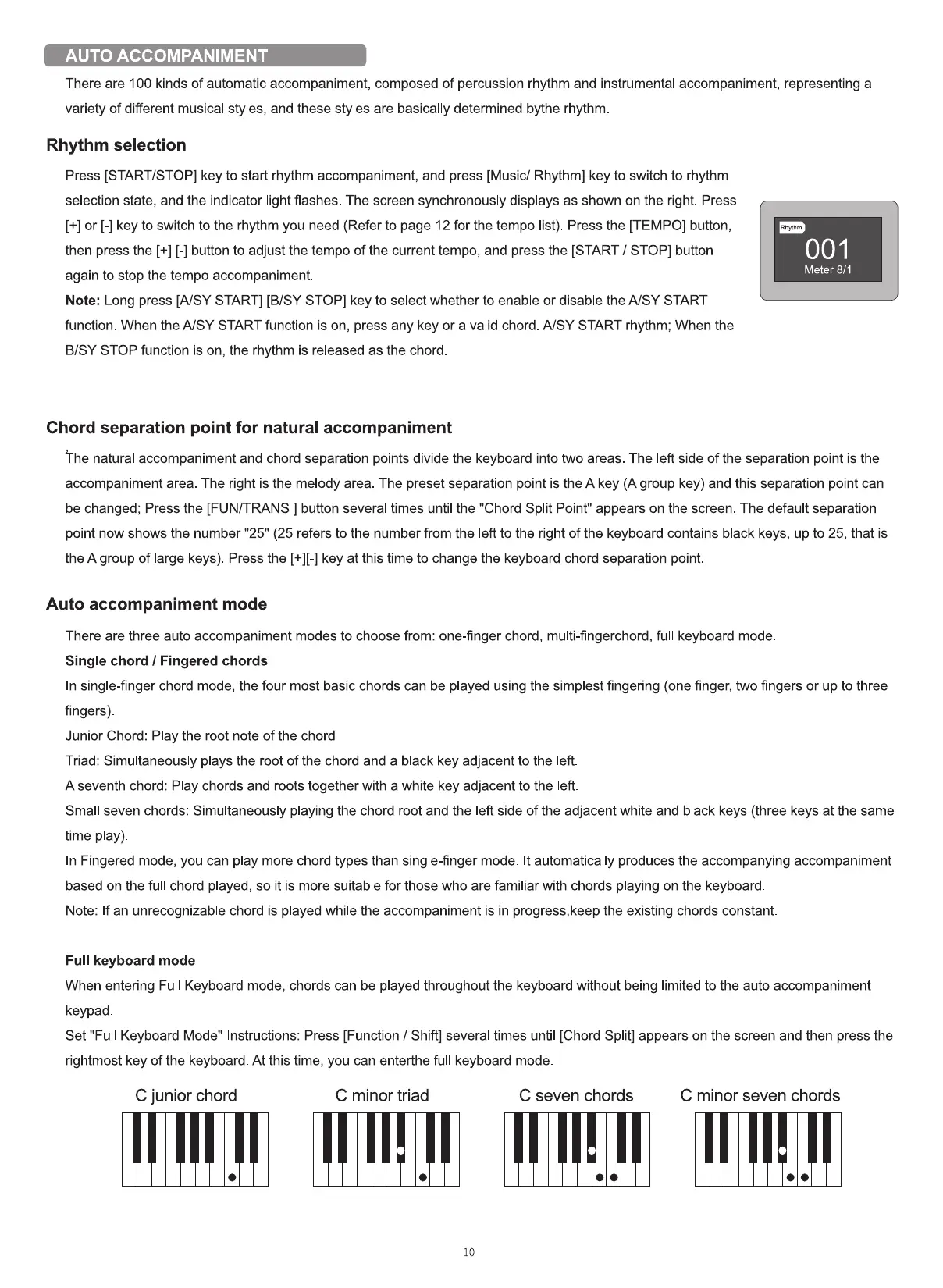
In single-finger chord mode, the four most basic chords can be played using the simplest fingering (one finger, two fingers or up to three
fingers)
Junior Chord: Play the root note of the chord
Triad: Simultaneously plays the root of the chord and a black key adjacent to the left.
A seventh chord: Play chords and roots together with a white key adjacent to the left.
Small seven chords: Simultaneously playing the chord root and the left side of the adjacent white and black keys (three keys at the same
time play).
In Fingered mode, you can play more chord types than single-finger mode. It automatically produces the accompanying accompaniment
based on the full chord played, so it is more suitable for those who are familiar with chords playing on the keyboard.
Note: If an unrecognizable chord is played while the accompaniment is in progress,keep the existing chords constant.
Full keyboard mode
When entering Full Keyboard mode, chords can be played throughout the keyboard without being limited to the auto accompaniment
keypad
Set "Full Keyboard Mode" Instructions: Press [Function / Shift] several times until [Chord Split] appears on the screen and then press the
rightmost key of the keyboard. At this time, you can enterthe full keyboard mode.
C junior chord
C minor triad
10
C seven chords C minor seven chords


 To Next Page
 Loading...