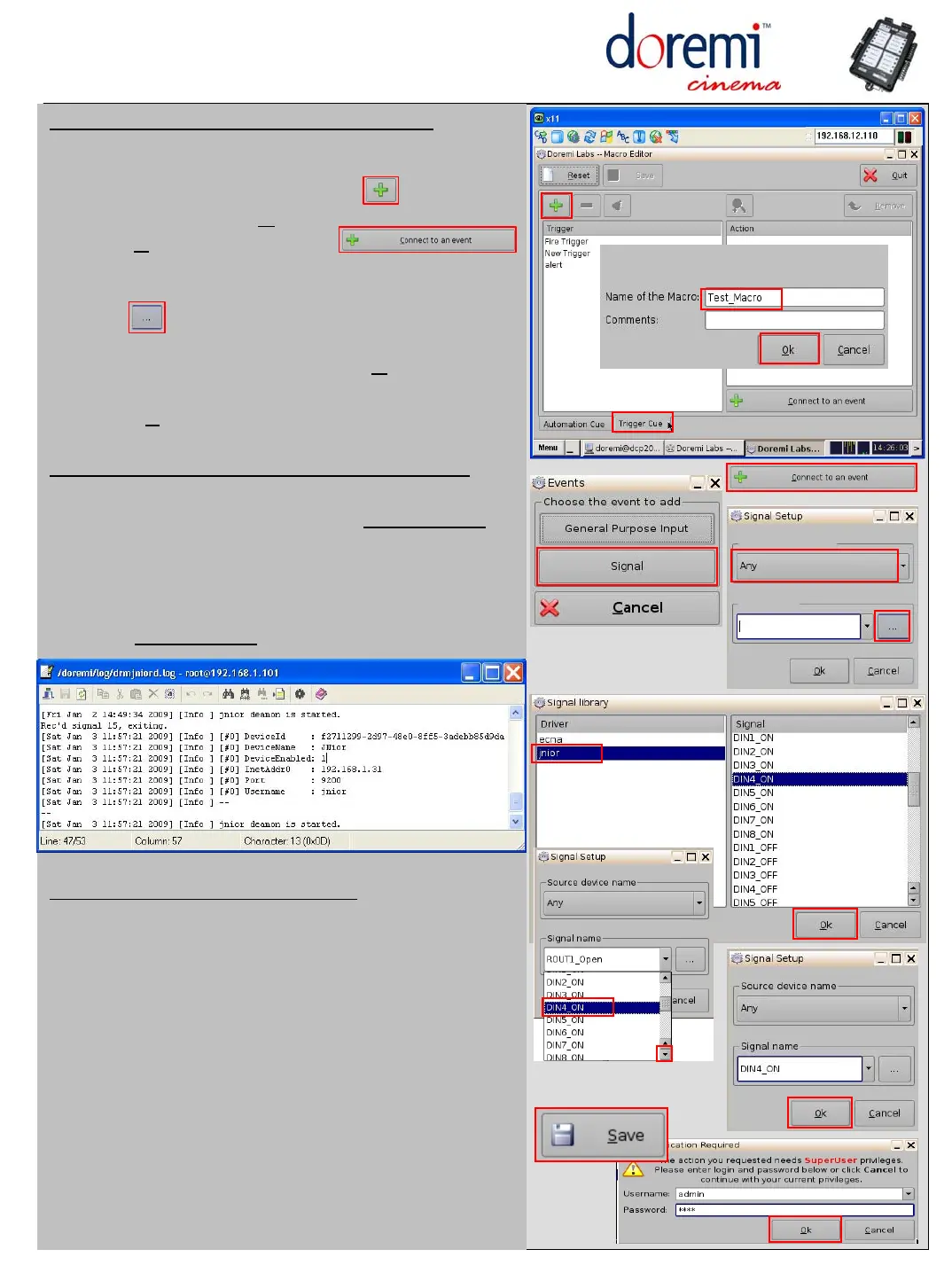
Configure the GPI actions related to jnior
1) In the Macro Editor select "Trigger Cue" tab at
the bottom.
2) Create a new cue, click on the
3) Name the macro & O
K
4) Click “Connect to an Event”
5) Select “Signal”
6) Leave “Any” in the “Source device name”
7) Click to open the library of actions
8) Select “jnior” from the left, then the required
action “e.g. DIN4_ON” & O
K
9) Confirm “Any” and the “Signal name” is correct
10) Click “S
ave” (default password is 1234)
Check the DCP2000 is register to the JNIOR
b) Open a terminal session Menu/system/Terminal
c) Check the log files /doremi/log/drmjniord.log
Type: tail /doremi/log/drmjniod.log <enter>
d) If device is properly registered, you will get an
entry as indicate below
e) Or generate a details log file and view
drmjniord.log
Test cues with content playback!
1) Start cinelister “Menu->Doremi Labs Inc-Cinelister”
2) Create a new show
2) Insert any content in the show
3) Attach a GPO macros as created earlier
5) Attach a trigger cue based on the JNOIR
6) Select the action to associate with this trigger
TogglePlayPause is a macro that
toggles between play / pause!
Note: Set mode to 'Loop' if video content is short.
8) Start the playback
9) Check if the expected Macros and Trigger
Cues behaviors happened.
Setup DCP2000 for JNIOR 310
GPI Triggers (Inputs)



 To Previous Page