The DOREMIDI MIDI to DMX BOX (MTD-1024) is a versatile controller designed to convert MIDI messages into DMX messages, enabling the control of DMX lighting devices through MIDI instruments or software. It supports various MIDI message types, including Note, Control Change (CC), and Aftertouch, and offers extensive configuration options for mapping MIDI values to DMX channels.
Function Description:
The MTD-1024 acts as a bridge between the MIDI and DMX protocols. It receives MIDI messages from a connected instrument or computer and translates them into corresponding DMX values, which are then output to DMX lighting fixtures. This allows users to integrate DMX lighting into MIDI-based performances or control DMX scenes using MIDI commands. The device supports up to 1024 DMX channels, with each DMX output port handling 512 channels.
Important Technical Specifications:
- Model: MTD-1024
- Dimensions (L x W x H): 88 x 79 x 52 mm
- Weight: 180g
- Supply Voltage: 5VDC
- Supply Current: 1A
- USB MIDI Compatibility: Standard USB MIDI device, compliant with USB class, plug and play.
- MIDI IN Compatibility: Built-in high-speed optical isolator, compatible with all MIDI five-pin output interfaces.
- DMX Channel Support: Supports 1024 channel configuration.
- DMX OUT1: 1-512 channels
- DMX OUT2: 513-1024 channels
- Display: OLED display screen for showing working status.
- Controls: Knob with button function for rotation and click-based configuration.
Usage Features:
- Power Supply: The MTD-1024 is powered via its USB port, requiring a 5VDC/1A input.
- Connectivity:
- MIDI Instrument Connection: Connect the MIDI IN port of the MTD-1024 to the MIDI OUT port of a five-pin MIDI instrument using a MIDI cable.
- Computer/Mobile Phone Connection: The USB DEVICE port can be connected to a computer or mobile phone (with OTG function and an appropriate OTG converter) to receive MIDI messages from software. This connection also provides power to the device.
- DMX Device Connection: Connect DMX OUT1 and DMX OUT2 to the DMX IN ports of DMX devices using 3-pin XLR cables.
- Configuration:
- On-Device Configuration: The device features a knob with a button function for on-device configuration. Users can click the knob to select parameters such as Serial Number (SN), DMX Channel (DMX), MIDI Status (Sta), MIDI Controller/Note Number (Ctl), MIDI Channel (CH), and Enable switch (En). Rotating the knob adjusts the parameter values.
- MIDI to DMX Mapping: After configuration, a received MIDI message value (0-127) will output a DMX value (0-255), with the DMX value being approximately twice the MIDI value (DMX value = MIDI value x 2).
- Serial Number (SN): Displays and configures the current serial number (1-1024). New serial numbers are added after an existing one is configured.
- DMX Channel (DMX): Configures the DMX channel (1-1024). DMX OUT1 handles channels 1-512, and DMX OUT2 handles 513-1024.
- MIDI Status (Sta): Configures the MIDI status byte (Note, AT, CC).
- Note: MIDI Notes.
- CC: MIDI Continuous Controller.
- AT: MIDI After Touch.
- MIDI Controller/Note Number (Ctl): Configures MIDI controller or note numbers (0-127). If Sta is Note/AT, Ctl is the note number; if Sta is CC, Ctl is the controller number.
- MIDI Channel (CH): Configures MIDI channels for MIDI messages (All, 1-16, default All). "All" responds to messages from all MIDI channels.
- Enable Switch (En): Configures to enable (1) or disable (0) the parameters of the serial number.
- Upload/Download Configuration Parameters (via Software):
- Preparation: Requires a Windows 7 or above system and the "AccessPort.exe" software (downloadable from www.doremidi.cn). Connect the MTD-1024's USB Device port to the computer.
- COM Port Configuration: Open "AccessPort.exe", select "Monitor→Ports→COMxx" and choose the correct COM port (e.g., USBSER001).
- General Settings: In the "Options" menu, select "General," configure COM port parameters (e.g., Port: COM59, Baud Rate: 115200, Parity Bit: NONE, Data Bit: 8, Stop Bit: 1, Buffer Size: 8192), and click "OK."
- Upload: Enter "upload request" in the software, click "Send," and the device will send its configuration data, ending with "...end of data." This data can then be saved as a .txt file.
- Download: To download configuration parameters, select "Transfer File→Select File→Send" in the software. After successfully sending the file, the device will display "download success."
Maintenance Features:
- Delete One Configuration: Select a serial number, then press and hold the knob for 2 seconds to clear its configuration content.
- Clear All Configuration (Factory Reset): Select the last blank serial number, press and hold the knob for 2 seconds. The device will prompt for a factory reset, allowing the user to select "Yes" or "No."
- Firmware Upgrade: Press and hold the knob, then power on the product to enter upgrade mode. Users should refer to official website notifications for firmware updates.
- Troubleshooting: The manual provides solutions for common issues such as USB device connection problems (phone OTG function, MIDI drivers), MIDI IN not working (correct port connection), and AccessPort.exe not finding the COM port (USB connection, different USB/COM ports, USB COM driver installation).
- Precautions:
- The product contains a circuit board.
- Avoid rain or immersion in water to prevent malfunction.
- Do not heat, press, or damage internal components.
- Non-professional maintenance personnel should not disassemble the product.
- Disassembly or damage due to improper use voids the warranty.
- Customer Support: If issues cannot be resolved, users are advised to contact customer service via email at info@doremidi.cn.

 Need help?
 General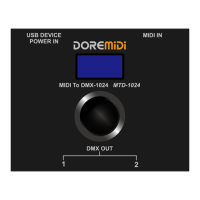

 To Next Page
