English
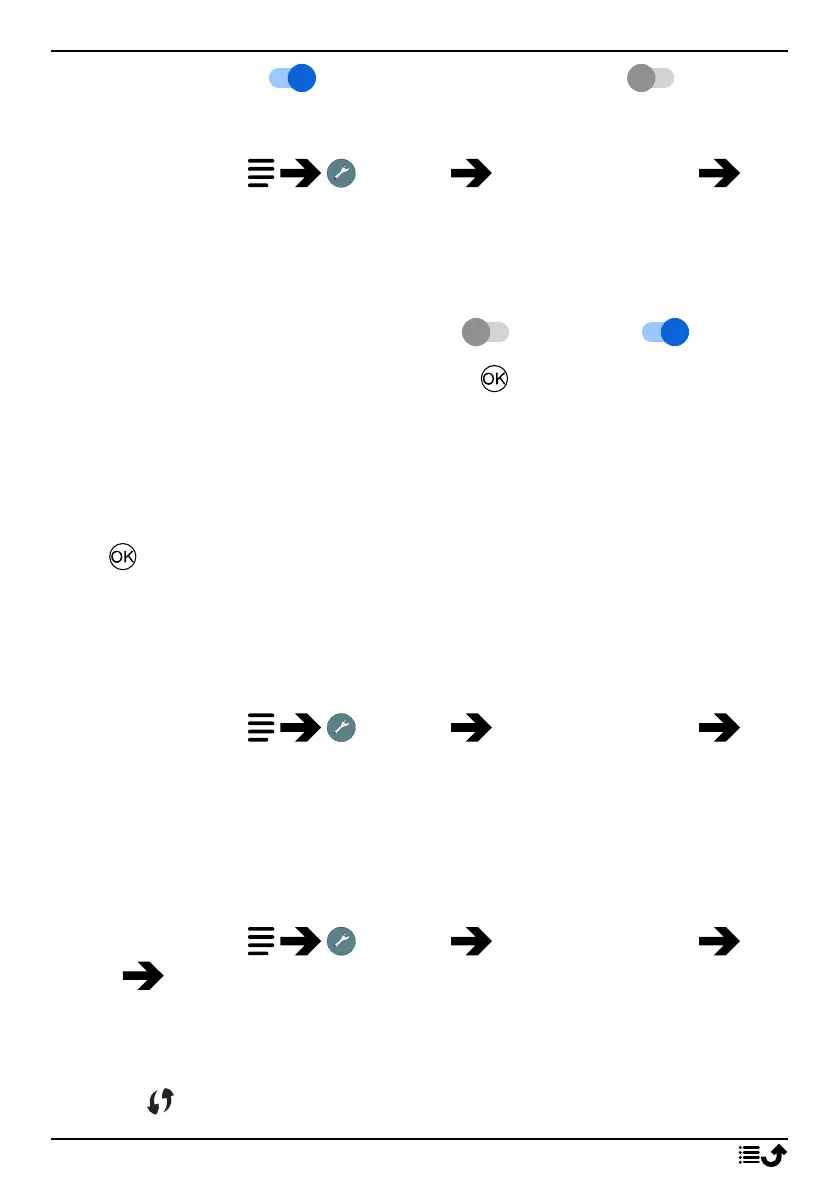
2. Set the switch to to activate it. Set the switch to to
deactivate.
Connect to available networks
1. Press and hold Settings Network & Internet Wi-
Fi.
2. If Wi-Fi is activated a list of available Wi-Fi networks will be displayed
after a moment.
Note! If nothing is displayed although you know that there should be
available networks, set the switch to off and then on again.
3. Select your wanted network and press and enter the Password.
Note! Check Show password to see it in clear text.
4. Press Advanced options if you need specific settings.
5. Press Connect to connect.
A connected Wi-Fi network is displayed in the top of the list. Select it and
press for connection details. Press Forget if it’s an unwanted network,
to disconnect from it and stop connecting to it automatically.
Connect to a network manually
You can also choose Add network to manually configure your network.
This is usually done if the wireless network or SSID is hidden.
1. Press and hold Settings Network & Internet Wi-
Fi.
2. Press Add network to connect to a network with hidden SSID (Service
Set Identifier).
3. Enter the requested information needed to be able to connect. Press
Save.
Wi-Fi preferences
1. Press and hold Settings Network & Internet Wi-
Fi Wi-Fi preferences:
• Install certificates to install and manage security certificates.
• WPS Push Button: First press the Wi-Fi Protected Setup button
on your router. It may be called WPS or marked with this symbol
.
25



 To Next Page