English
Side volume keys
• During a call the volume keys adjusts the call volume.
• From standby the volume keys adjust the ringtone volume.
• To adjust the volume level for music and videos.
Soft keys
Android smart phones like your Doro 8031, as well as most Android appli-
cations, feature common icons. Many icons that you see on-screen are
actually buttons on the touchscreen. If you don’t see the text, images or
information that you want, try to touch the screen or to tap an icon for a
pick list or to reach another menu.
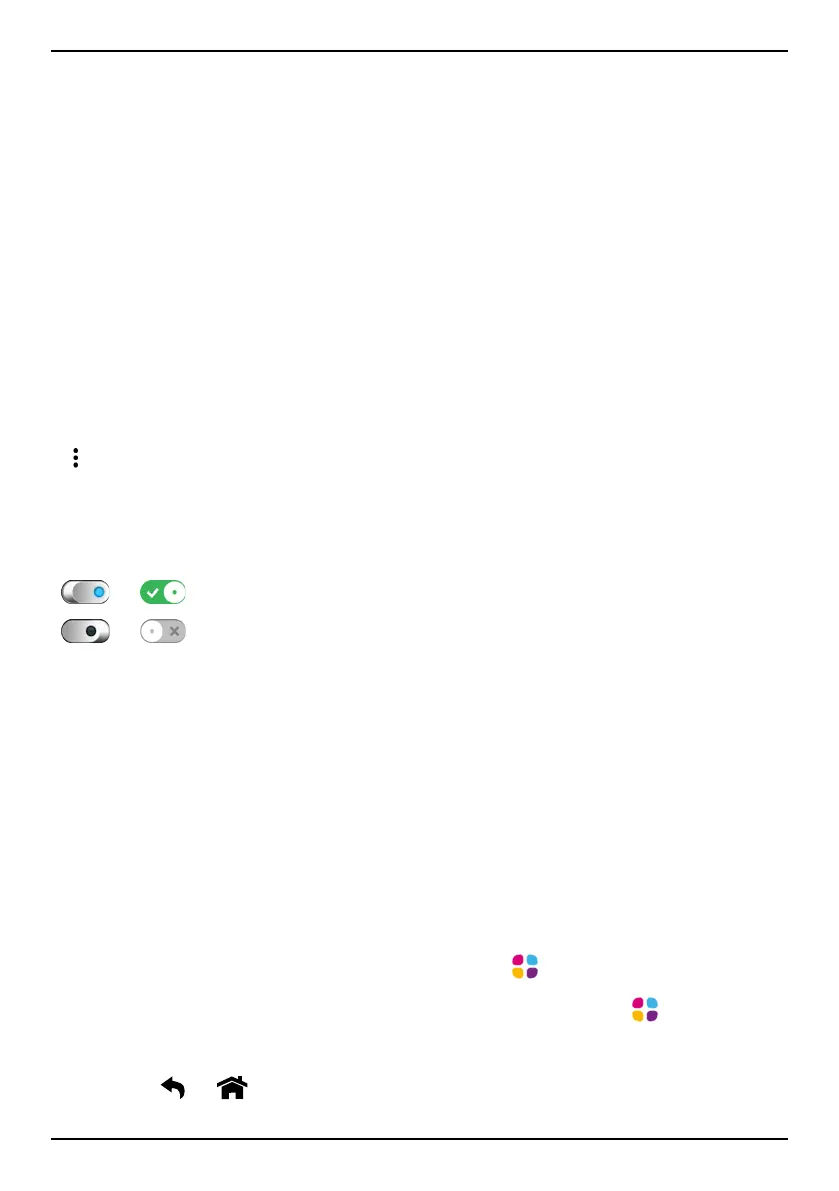
To access further options
more options (available in the action bar or in apps).
I want to more options (available in the action bar or in apps).
To enable and disable features and functions
or
enabled functions.
or
disabled functions.
My applications screen
Application is another word for program or software, a common way to
shorten the term application is App. The application screen contains the
applications that come pre-installed on your Doro 8031 and any other
apps that you choose to install. The applications screen extends beyond
the regular screen width, so you need to swipe left or right to view all con-
tent. The number tabs at the bottom displays the current screen of the
applications, you can also tap a number tab to select that screen.
Open the application screen
• From the Home screen, tap the shortcut
My apps.
• Or from the Home screen, swipe to the right to open
My apps.
Close the application screen
• Press
or .
13



 To Next Page