EasyManua.ls Logo

Doro DFC-0130 - User Manual

Doro DFC-0130
2 pages
Print Icon
To Next Page IconTo Next Page
Loading...
www.doro.com
Insert the SIM cards and the SD card.
Remove the baery if it is already installed.
A. Insert the rst SIM card by gently sliding it
into the SIM1 card slot.
B. Insert the second SIM card by gently sliding
it into the SIM2 card slot.
Note! If you are using only one SIM card, we
recommend using SIM1.
C.

Locate the SD card holder. The
device works with or without a SD card
GB
A
C
B
B
SIM
SIM
Enter text
Press a numerical key repeatedly unl the
desired character is shown. Wait a few
seconds before entering the next character.
Press
*
for a list of special characters.
Select the desired character with /
and press
OK
to enter it.
Use
+
/
-
or
/ to move the cursor
within the text.
Press
#
to cycle upper case, lower case and
numerals.
Press and hold
#
to change wring
language.

In some languages you can use the input
method which uses a diconary to suggest
words.
1. Press
Menu
â

â

â

.
2. Select
On
to enable, or

to disable.
3. Press
OK
to conrm.

The default language is determined by the SIM
card.
4. PHONEBOOK
The Phonebook can store 100 entries with 3
phone numbers in each entry.
Add contact
1. Press
Menu
â
Phonebook
â
-New contact-
â
Add
.
2. Enter a

for the contact, see Enter
text. Delete with

.
3. Use / to select

,

or

, and enter the phone
number(s) including the area code.
4. When done, press

.

In the event of a trauma, it is crical to have
this informaon as early as possible to increase
the chances of survival. Add ICE contact to
improve your own safety. First responders
can access addional informaon such as
medicaon and next of kin from your phone in
case of an emergency. All elds are oponal,
but the more informaon provided the beer.
Doro 2400
Quick Start GuideQuick Start Guide
1. Earpiece
2. Display
3. Le selecon buon
4. Call buon
5. Speed dials
6. Voicemail
7. Internaonal prex/
symbols
8. Microphone
9. Silent /
Input method
10. Camera shortcut/
Take a picture
11. Message shortcut
12. End call /

13. Right selecon
buon
14. Scroll buons
15. Phone indicators
16. Flash/torch
17. Camera
18. Loudspeaker
19. Assistance buon
20. Headset socket
21. Charging socket
22. Volume control
23. Charging cradle
connectors
1. GET STARTED


Be careful not to damage your ngernails when
you remove the baery cover. Do not bend or
twist the baery cover excessively as it may be
damaged.
Note! Make sure that the card’s contacts are
facing downwards and that the cut o corner
is as shown. Take care not to scratch or bend
the contacts on the cards. This device accepts
micro SIM cards (3FF) and microSD card.

Insert the baery by sliding it into the baery
compartment with the contacts facing
downwards to the right. Replace the baery
cover.

CAUTION
Only use baeries, charger and accessories
that have been approved for use with
this parcular model. Connecng other
accessories may be dangerous and may
invalidate the phone’s type approval and
guarantee.
When the baery is running low, is
displayed and a warning signal is heard.
Connect the mains adapter to the wall
socket and to the charging socket
y
.
It is recommended to remove the
protecve plasc lm from the display to
enhance the visibility.
2. GET TO KNOW YOUR PHONE

1. Press and hold the red buon on the
phone to turn it on/o. Conrm with
Yes
to
power o.
2. If the SIM card is valid but protected with a
PIN code (Personal Idencaon Number),
PIN
is displayed. Enter the PIN code and
press
OK
. Delete with

.
Note! If PIN and PUK codes were not provided
with your SIM card, please contact your
service provider.

shows the number of PIN aempts
le. When no more aempts remain,
PIN

is displayed. The SIM card must now
be unlocked with the PUK code (Personal
Unblocking Key).
1. Enter the PUK code and conrm with
OK
.
2. Enter a new PIN code and conrm with
OK
.
3. Re-enter the new PIN code and conrm
with
OK
.
Start-up wizard
When starng the telephone for the rst me,
you can use the start-up wizard to set some
basic sengs.
You can run the start-up wizard later if
you want.

The arrow (â) indicates next acon in step-by-
step instrucons. To conrm an acon, press
OK
. To select an item, scroll or highlight the
item using / and then press
OK
.
3. CALLS

1. Enter the phone number including the area
code. Delete with

.
2. Press to dial. Press
Abort
to cancel
the call.
3. Press to end the call.
Note! For internaonal calls, always use
+
before the country code for best operaon.
Press
*
twice for the internaonal prex
+
.

1. Press

to open the phonebook.
2. Use / to scroll through the
phonebook, or quick search by pressing the
key corresponding to the rst leer of the
name.
3. Press

â

alternavely, press
to dial the selected entry, or press
Back
to return to standby.

1. Open the ip and press to answer, or
press

to switch o the ring signal and
then
Reject/
close the ip to reject the call
(busy signal).
Alternately, press to reject the call
directly.
2. Press /close the ip to end the call.

Use
+
/
-
or / to adjust the sound
volume during a call. The volume level is
indicated on the display.

Silent is a xed prole with keypad tone,
message tone and ring tone disabled, while
vibraon, tasks and alarm are unchanged.
Press and hold
#
to acvate and to
deacvate silent.

During a call the so keys ( ) give access to
addional funcons.

Use
A
B
,
0
and
2
9
to speed dial an entry
from standby.
Press and hold the corresponding buon to
dial.

1. Press
Menu
â

â
Phonebook
â

.
2. Select
A
â
Add
and select an entry from
the phonebook.
3. Press
OK
to conrm.
4. Repeat to add speed dial entries for buons
B
,
0
,
2
9
.

As long as the phone is switched on, it is always
possible to place an SOS call by entering the
main local emergency number for your present
locaon followed by .

Received, missed, and dialled calls are saved in
a combined call log. 20 calls of each type can
be stored in the log. For mulple calls related
to the same number, only the most recent call
is saved.
1. Press .
2. Use / to scroll through the call log.
=

=

=

3. Press to dial, or

.
1. Press
Menu
â
Phonebook
â
ICE
.
2. Use / to scroll the list of entries.
3. Press
Edit
to add or edit informaon in each
entry. Delete with

.
4. Press

when done.

Press
Menu
â
ICE
.
5. ASSISTANCE BUTTON
The assistance buon allows easy access to
contact your predened help numbers should
you need help. Make sure that the assistance
funcon is acvated before use.

1. When help is needed, press and hold the
assistance buon for 3 seconds, or press it
twice within 1 second.
The assistance call begins aer a delay of
5 seconds. In this me you can prevent a
possible false alarm by pressing .
2. An assistance text message (SMS) is sent
to all recipients.The rst recipient in the list
is dialled. If the call is not answered within
25 seconds, the next number is dialled.
Dialling is repeated 3 mes or unl the call is
answered, or unl is pressed.
CAUTION
When an assistance call is acvated the phone
is pre-set to handsfree mode. Do not hold
the device near your ear when the handsfree
mode is in use, because the volume may be
extremely loud.

Press
Menu
â

â
Assistance
.
6. MESSAGES

1. Press shortcut buon , or press
Menu
â

â
Create new
â
SMS.
2. Write your message, see Enter text, then
press
To
.
3. Select a recipient from
Phonebook
.
Alternavely, select

to add
recipient manually and press
Done
.
4. Select
Add
to add more recipients.
You can modify the recipients by selecng
one and press

â
Edit
/

/

.
5. When done, press
Send
.

Both you and the recipient must have sub-
scripons that support picture message. The
sengs for picture message are supplied by
your service provider and can be sent to you
automacally via text message.
1. Press shortcut buon ,
or press
Menu
â

â
Create new
â
MMS
.
2. Write your message, see Enter text.
3. Press

â


to select a le.
Take picture
to use the camera to take a
picture.
Note! To keep best picture quality, send only
one picture per message.
You can also
Add sound
,

and

MMS
using the

menu.
4. Press

â
Add subject
and enter your
subject, then press
Done
.
5. Press

â
To
and select recipient
from
Phonebook
.
Alternavely, select

to add
recipient manually and press
Done
.
6. Press
Add
to add more recipients.
7. Press
Send
to send.

Press
Menu
â

â

.
7. 
1. Press shortcut buon .
Alternavely press
Menu
â

2. Press to take the photo.
3. Press

or press
Back
to take a new
photo (if you do not make any selecon the
picture is saved).

Press
Menu
â

â

.
English
Note!
All illustraons are for illustrave
purposes only and may not accurately depict
the actual device. The items supplied with your
phone might vary depending on the soware
and accessories available in your region or
oered by your service provider. You can
obtain addional accessories from your local
Doro dealer. The supplied accessories provide
the best performance with your phone.
21
17
22
1
2
3
7
4
5
6
8
13
12
11
9
15
10
14
20
18
19
16
23

Question and Answer IconNeed help?

Do you have a question about the Doro DFC-0130 and is the answer not in the manual?

Summary

Getting Started

SIM Card, Memory Card, and Battery

Instructions for inserting SIM and SD cards, and the battery.

Charging the Phone

Guide on connecting the charger and charging the device.

Understanding Your Phone

Turning the Phone On and Off

Steps to power the device on and off, including PIN entry.

Start-up Wizard

Describes the initial setup wizard for basic settings.

Navigation and Input

Explains step-by-step instructions, text entry, and predictive text.

Language, Time, and Date Settings

Notes on changing language, time, and date settings.

Making and Receiving Calls

Making Calls

Instructions on how to dial a phone number and end a call.

Calling from Phonebook and Speed Dial

Guide to calling contacts stored in the phonebook and using speed dial.

Receiving Calls

Steps to answer or reject an incoming call, and volume control.

Silent Mode and Call Options

How to activate silent mode and use soft keys for call functions.

SOS Calls

How to make an emergency call from the device.

Phonebook and Contacts

Adding Contacts

Steps to add new contacts with phone numbers to the phonebook.

ICE (In Case of Emergency)

Adding emergency contact information to the phone.

Assistance Button

Making an Assistance Call

How to activate the assistance button for help.

Assistance Settings

Accessing assistance settings via the menu.

Messages

Text Messages (SMS)

Steps to compose and send SMS messages.

Picture Messages (MMS)

How to send MMS messages with pictures.

Message Settings

Accessing message settings via the menu.

Camera

Taking Photos

Instructions on how to use the camera to take pictures.

Camera Settings

Accessing camera settings via the menu.

Important Information

Safety and Usage

Notes on safe use, emergency calls, and vehicle usage.

Battery and Charging Safety

Information on battery installation, charging, and safety precautions.

Network and SIM Card Information

Details about network services, SIM card compatibility, and PIN/PUK codes.

Phone Functions and Settings

Details on function access, settings, and phonebook management.

Care and Maintenance

Guidelines for cleaning, handling, and protecting the device.

Health and Environmental Precautions

Information on SAR values, hearing safety, and disposal.

Correct Disposal of Your Product

Instructions on how to properly dispose of the device and batteries.

Parts of the Unit

Information about metal objects and their effect on device performance.

Implanted Medical Devices

Recommendations for users with implanted medical devices.

RF Exposure Information

Details on Specific Absorption Rate (SAR) and exposure guidelines.

Declaration of Conformity

Statement regarding compliance with radio equipment directives.

Ecodesign

Information related to energy efficiency and environmental design.

Overview

The Doros 2400 Quick Start Guide describes a mobile phone designed for ease of use, particularly for seniors. It emphasizes simplicity, accessibility, and safety features.

Function Description

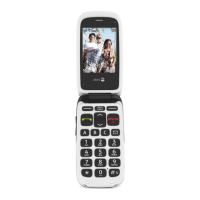
The Doro 2400 is a clamshell mobile phone primarily designed for making and receiving calls and text messages. It features a large, easy-to-read display and a simplified keypad with large, well-spaced buttons. The phone includes a dedicated assistance button for emergencies, a camera for taking photos, and a flashlight. It also offers basic organizational tools like an alarm clock and calendar. The phone is designed to be user-friendly, with intuitive menus and clear instructions for common tasks.

Usage Features

Basic Operation:

  • Power On/Off: The phone is turned on by pressing and holding the red button. To turn it off, press and hold the red button, then confirm by pressing OK.
  • Making Calls: To make a call, enter the phone number and press the green call button. To end a call, press the red button.
  • Receiving Calls: To answer a call, press the green button. To reject a call, press the red button.
  • Volume Control: The side buttons are used to adjust the call volume during a call or the ringer volume when idle.
  • Silent Mode: The phone can be set to silent mode by pressing and holding the '#' button, which disables ringtone and keypad tones.
  • Call Options: During a call, the soft keys provide access to additional functions.
  • Speed Dial: The keys 0 and 2-9 can be assigned as speed dial numbers. Press and hold the corresponding button to dial.

Text Messaging:

  • Create and Send Text Messages: Messages can be created and sent through the "Messages" menu. The phone supports creating new SMS, replying to existing messages, and deleting messages.
  • Predictive Text: This feature helps in writing messages faster by suggesting words. It can be enabled or disabled in the phone settings.

Camera:

  • Taking Photos: The phone has a camera to capture images. Photos can be viewed, sent, or set as wallpaper.
  • Picture Messages: Photos can be attached to messages and sent as picture messages (MMS).

Assistance Button:

  • Emergency Calls: The dedicated assistance button on the back of the phone allows users to contact predefined help numbers quickly in case of an emergency. When activated, the phone automatically calls and sends an SMS to the programmed numbers.
  • Assistance Call Behavior: The phone will attempt to call the first number on the list for a set duration. If unanswered, it will call the next number. This cycle repeats three times.
  • Assistance Text Message: An SMS is sent to all numbers on the assistance list when the button is pressed.

Phonebook:

  • Storing Contacts: The phonebook allows users to store names and phone numbers. Contacts can be added, edited, and deleted.

Alarm Clock:

  • Setting Alarms: The phone includes an alarm clock function. Alarms can be set, enabled, or disabled.

Flashlight:

  • Activating Flashlight: The flashlight can be turned on or off through the phone's menu.

SIM Card and SD Card:

  • Inserting Cards: The phone requires a SIM card for network connectivity and an SD card for additional storage. Instructions are provided for inserting these cards correctly.

Security Features:

  • PIN Code: The phone supports PIN codes for SIM card security. Users can enable, disable, or change the PIN.
  • PUK Code: If the PIN code is entered incorrectly multiple times, the SIM card will be blocked, requiring a PUK code to unlock it.

Sound & Display Settings:

  • Tone Setup: Ringtones, message tones, and other sounds can be customized.
  • Display Setup: Text size and brightness can be adjusted for better readability.

Call Log:

  • Viewing Call History: The phone keeps a log of received, missed, and dialed calls.

Additional Features:

  • Bluetooth: The phone supports Bluetooth for connecting to other compatible devices such as headsets.
  • Calculator: A basic calculator is included.
  • Calendar: A calendar function is available.

Maintenance Features

Battery Management:

  • Inserting and Removing Battery: Instructions are provided for safely inserting and removing the battery.
  • Charging: The phone comes with a charger. It is important to use only the charger approved for this model. The battery icon on the display indicates the charging status.
  • Battery Life: The guide provides tips for optimizing battery life, such as reducing display brightness and turning off unnecessary features.

Cleaning and Care:

  • General Care: The phone should be kept dry and protected from extreme temperatures.
  • Cleaning: The phone should be cleaned with a soft, slightly damp cloth. Avoid using harsh chemicals.

Troubleshooting:

  • Common Issues: The guide includes a troubleshooting section for common problems like the phone not turning on, battery not charging, or network issues.
  • SIM Card Errors: Instructions are provided for resolving SIM card-related errors.
  • Memory Card Errors: Guidance is given for issues related to the memory card.

Resetting Settings:

  • Reset Phone Settings: The phone's settings can be reset to their default values. This can be useful for resolving software-related issues.
  • Reset All: This option resets all phone settings and deletes all user data, including contacts and messages.

Safety Information:

  • Hearing Protection: Warnings are provided regarding excessive sound levels and the use of headphones.
  • Driving Safety: Advice on using the phone safely while driving.
  • Medical Devices: Information on potential interference with medical devices like pacemakers.
  • Explosive Environments: Warnings about using the phone in areas with potentially explosive atmospheres.
  • SAR Information: Details about the Specific Absorption Rate (SAR) values and guidelines for safe exposure to radio waves.

Disposal and Recycling:

  • Environmental Responsibility: Information on the proper disposal of electronic waste and batteries to protect the environment. The guide encourages recycling and not disposing of the phone with household waste.
  • WEEE Directive: Compliance with the WEEE directive for electronic waste.

Warranty and Support:

  • Warranty Information: Details about the product warranty.
  • Customer Support: Information on where to find additional support and documentation.

Doro DFC-0130 Specifications

General IconGeneral
2G NetworkGSM 900/1800
SIMMini-SIM
PhonebookYes
Call recordsYes
LoudspeakerYes
MessagingSMS
RadioFM radio
GamesYes
ClockYes
AlarmYes
Internal Memory4 MB
CameraNo
BluetoothNo
FlashlightYes
SOS ButtonYes
Display resolution128 x 160 pixels (~116 ppi density)
Alert typesVibration, Polyphonic
Battery typeRemovable Li-Ion

Related product manuals