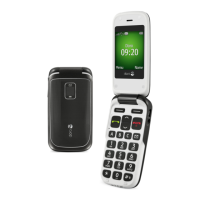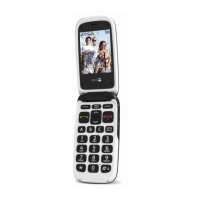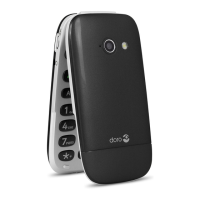
What to do if my Doro PHONEEASY 612 fails to place or receive calls?
- EEric JohnsonSep 10, 2025
If your Doro Cell Phone is failing to place or receive calls, deactivate call barring. If this does not solve the problem, contact your service provider.
What to do if my Doro PHONEEASY 612 fails to place or receive calls?
If your Doro Cell Phone is failing to place or receive calls, deactivate call barring. If this does not solve the problem, contact your service provider.
What to do if my Doro Cell Phone fails to add a contact?
If you are failing to add a contact on your Doro Cell Phone, delete contacts to free up memory.
What to do if my Doro PHONEEASY 612 Cell Phone won't switch on?
If your Doro Cell Phone won't switch on, it could be due to a low battery. Connect the power adapter and charge the battery for 3 hours. Note that full battery capacity is reached after the battery has been charged 3–4 times. Alternatively, the battery might be incorrectly installed, so check the installation of the battery.
Why can't I add a contact on my Doro Cell Phone?
If you are unable to add a contact on your Doro Cell Phone, the phonebook memory might be full. Delete contacts to free up memory.
Why does my Doro PHONEEASY 612 battery fail to charge?
If your Doro Cell Phone battery isn't charging, several factors could be at play. The battery or charger might be damaged, so check them for any visible issues. Ensure that you are charging the battery within the temperature range of 0 °C and 40 °C. Also, verify that the charger is correctly connected to both the phone and the power socket.
What to do if my Doro Cell Phone standby time decreases?
If the standby time of your Doro Cell Phone is decreasing, it could be due to a low battery charge capacity, consider installing a new battery. Another cause might be that you are too far from the base station, causing the phone to constantly search for a signal, which consumes battery power. Try to find a place with a stronger signal, or temporarily turn off the phone.
Why can't I place or receive calls on my Doro PHONEEASY 612 Cell Phone?
If you are unable to place or receive calls on your Doro Cell Phone, call barring might be activated. Deactivate call barring.
How to resolve echo or noise on a Doro PHONEEASY 612 call?
If you are experiencing echo or noise on your Doro Cell Phone, hang up and redial. This may switch to another network relay.
Why does the standby time decrease on my Doro Cell Phone?
If the standby time of your Doro Cell Phone is decreasing, it may be due to low battery charge capacity, so install a new battery. Also, if you are too far from the base station, the phone constantly searches for a signal, which consumes battery power. Find a place with a stronger signal, or temporarily turn off the phone.
Why is the signal weak on my Doro Cell Phone?
A weak signal on your Doro Cell Phone can occur if you are too far from the base station, so try again from another location. Network congestion can also cause this issue, so try calling at a later time.
Step-by-step guide for inserting SIM, memory cards, and battery.
Describes the meaning of the LED light status on the phone.
Guide on turning the phone on/off and initial setup.
Instructions for dialling numbers and making calls.
Explains how to input text using the keypad, including predictive text.
Details available functions during a call via selection buttons.
How to configure and use the dedicated assistance button for emergencies.
Steps to add new contacts with name, number, and picture.
Guide to composing and sending SMS messages.
How to view and redial past calls.
Options for taking photos and managing them.
Safe procedure for disconnecting the USB cable after file transfer.
Basic phone settings like time, date, language, and owner number.
Customizing audio settings for hearing aid compatibility or noisy environments.
How to change the phone's display background.
Managing voice messages and setting up voicemail.
Restricting certain types of outgoing or incoming calls.
Configuring memory status, storage, and SMS centre number.
Managing MMS memory status and storage options.
Adding contacts to be called by the assistance button.
Enabling or disabling Bluetooth connectivity.
Protecting the SIM card with a PIN code.
Changing PIN, PIN2, and Phone code passwords.
Adding and managing tasks in the calendar.
Adjusting sound effects and volume for games.
Solutions for issues with the phone not turning on.
Guidelines for using the phone in different environments and radiation compliance.
Details about the product's warranty period and terms.
Information on device compatibility with hearing aids.
| Display diagonal | - \ |
|---|---|
| Display resolution | 320 x 240 pixels |
| Flash card support | Yes |
| Compatible memory cards | MicroSD (TransFlash) |
| Rear camera resolution (numeric) | 2 MP |
| WAP | - |
| Data network | GPRS, GSM |
| SIM card type | MiniSIM |
| SIM card capability | Single SIM |
| 2G bands (primary SIM) | 900, 1800, 1900 MHz |
| Mobile network generation | 2G |
| Form factor | Clamshell |
| Phonebook capacity | 300 entries |
| Personal info management (PIM) | Alarm clock, Calculator, Calendar, Events reminder, Games, Notes |
| Bluetooth version | 3.0+HS |
| Headphone connectivity | 2.5 mm |
| Multimedia Messaging Service (MMS) | Multimedia Messaging Service (MMS) is a standard way to send messages that include multimedia content to and from a mobile phone over a cellular network |
| Ringer type | Polyphonic |
| Cables included | AC, USB |
| Talk time (2G) | 12 h |
| Battery capacity | 800 mAh |
| Standby time (2G) | 533 h |
| Subscription type | No subscription |
| Type | Senior phone |
| Product color | Purple |
| Head SAR (EU) | 0.733 W/kg |
| Depth | 20 mm |
|---|---|
| Width | 52 mm |
| Height | 101 mm |
| Weight | 103 g |