EasyManua.ls Logo

Doro PhoneEasy 607 - User Manual

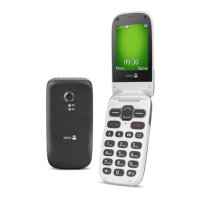
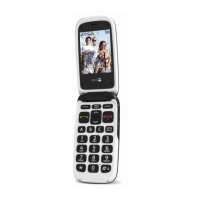
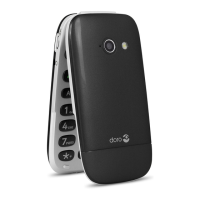
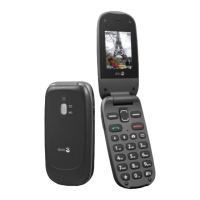
Doro PhoneEasy 607
63 pages
Print Icon
To Next Page IconTo Next Page
Loading...
DoroPhoneEasy
®
607
English

Questions and Answers

  • A
    austin82Aug 16, 2025
    How to fix a Doro PhoneEasy 607 that cannot be switched on?
    • A
      Andrew TateAug 16, 2025
      If your Doro Cell Phone won't switch on, it could be due to a low battery. Connect the power adapter and charge the battery for 3 hours. Note that full battery capacity is reached after the battery has been charged 3–4 times. Alternatively, the battery might be incorrectly installed, so check its installation.
  • T
    Tracey MarquezAug 19, 2025
    Why can't I add a contact on my Doro Cell Phone?
    • D
      Dr. Kevin SosaAug 19, 2025
      If you are unable to add a contact on your Doro Cell Phone, it is likely that the phonebook memory is full. Delete contacts to free up memory.
  • G
    Glenn GregoryAug 22, 2025
    What to do if my Doro PhoneEasy 607 is failing to charge?
    • M
      Michael BoltonAug 22, 2025
      If your Doro Cell Phone battery isn't charging, there are a few potential reasons. First, the battery or charger might be damaged, so check them for any visible issues. Second, ensure that you are charging the battery in temperatures between 0 °C and 40 °C. Finally, verify that the charger is correctly connected to both the phone and the power socket.
  • H
    hnealAug 25, 2025
    How to fix SIM card error on Doro PhoneEasy 607?
    • A
      Anna GrahamAug 26, 2025
      If you're encountering a SIM card error on your Doro Cell Phone, first check the condition of the SIM card for any damage. If it appears fine, ensure the SIM card is correctly installed by removing it and reinstalling it. Also, try wiping the contact surfaces of the SIM card with a clean cloth, as it might be dirty or damp.
  • F
    fsmithAug 28, 2025
    Why is the signal weak on my Doro PhoneEasy 607?
    • A
      angelagrahamAug 28, 2025
      If your Doro Cell Phone has a weak signal, it could be due to being too far from the base station. Try moving to another location to see if the signal improves. Network congestion could also be the cause, so try calling again at a later time.
  • K
    Kimberly LyonsAug 31, 2025
    Why does standby time decrease on my Doro PhoneEasy 607 Cell Phone?
    • O
      obullockAug 31, 2025
      If the standby time of your Doro Cell Phone is decreasing, it may be due to a low battery charge capacity, consider installing a new battery. Another possibility is that you are too far from the base station, causing the phone to constantly search for a signal, which consumes battery power. Find a place with a stronger signal, or temporarily turn off the phone.
  • E
    Erica MorrisonSep 3, 2025
    What to do if my Doro PhoneEasy 607 Cell Phone fails to send or download MMS?
    • P
      pettyrebeccaSep 3, 2025
      If your Doro Cell Phone fails to send or download MMS messages, it could be due to the phone memory being full. Delete received MMS messages. Alternatively, it could be due to an incorrect MMS profile being selected; for some service providers, the MMS profile has to be selected manually.
  • O
    oliverjesseSep 6, 2025
    What to do if my Doro PhoneEasy 607 is failing to place or receive calls?
    • E
      Emily HurleySep 6, 2025
      If your Doro Cell Phone is failing to place or receive calls, check if call barring is activated and deactivate it. If this does not solve the problem, contact your service provider.
  • C
    Carrie SheppardSep 8, 2025
    Why is there echo or noise on my Doro PhoneEasy 607 calls?
    • B
      brandon39Sep 9, 2025
      If you are experiencing echo or noise on your Doro Cell Phone, it may be a regional problem from a bad network relay. Hang up and redial; this may switch you to another network relay.
  • Q
    qreyesSep 12, 2025
    What to do if my Doro PhoneEasy 607 PIN code is not accepted?
    • D
      Donna KiddSep 12, 2025
      If your Doro Cell Phone is not accepting the PIN code, it may be because the wrong PIN code was entered too many times. Enter the PUK code to change the PIN code, or contact your service provider.

Summary

Installation

Installing SIM, Memory Card, and Battery

Instructions for inserting SIM and memory cards and the battery into the phone.

Charging the Phone

Phone Operation Basics

Activating the Phone

Guide to turning the phone on/off, PIN/PUK code entry, and initial setup.

Phone Settings and Call Management

Call Handling Procedures

Instructions for initiating, receiving, and managing phone calls.

Call Management Features

Call Options Menu

Accessing call functions like hold, end, new call, phonebook, and mute.

Call Information and Modes

SOS Call Procedure

Making emergency calls and network requirements.

Assistance Button Functionality

Activating Assistance Calls

How to trigger the assistance call via button press and delay.

Assistance SMS and Dialing Sequence

Details on the SMS alert and sequential dialing process for assistance.

Phonebook Management

Creating a Phonebook Entry

Steps to add new contacts with names and phone numbers.

Contact Information Management

Creating ICE Entry (In Case of Emergency)

Adding emergency contact information for medical or trauma situations.

Managing Phonebook Entries

Options for viewing, editing, calling, sending SMS, and deleting contacts.

Advanced Contact Features

ICE Configuration Details

Detailed steps for configuring ICE information such as name, birth, and medical details.

Messaging Overview

Creating and Sending SMS

Steps to compose and send text messages (SMS) to recipients.

Multimedia Messaging

Sending Voice Messages

How to record and send voice messages using MMS technology.

Creating and Sending MMS

Steps for composing and sending multimedia messages with text and media.

Message Actions and Call Log

Call Log and Retrieval

Accessing and retrieving call history including received, dialled, and missed calls.

Camera Functions

Taking Photos

Instructions for capturing images using the phone's camera.

Camera Options and Adjustments

Settings for sending photos, deleting, using as wallpaper, and zoom.

Phone Settings

General Settings Overview

Introduction to general phone settings like time, date, and language.

Time and Date Configuration

Setting the current time, date, and their display formats.

Network and Function Management

Network Setup and Search

Configuring network selection, mode, and searching for available networks.

Sound Configuration Details

Call Handling and Voice Mail

Advanced Call Services

SMS Settings and Features

MMS Settings and Profile

MMS Profile Configuration

Activating or adding MMS profiles for service providers.

Assistance Button SMS and Confirmation

Confirming Assistance Calls with 0

Setting up confirmation via '0' for assistance call recipients.

Bluetooth Connectivity

Enabling and Disabling Bluetooth

Turning Bluetooth function on or off.

Bluetooth Device Management

Security and Remote Configuration

System Reset and Organizer

Alarm Functionality

Setting and managing single or repeated alarms.

Calculator and FM Radio

Remote Assistance Function Commands

Troubleshooting Common Issues

Phone Power and Charging Problems

Solutions for phone not switching on or failing to charge.

Battery and Standby Time Issues

Addressing low battery capacity and decreased standby time.

Call Connection and PIN Errors

Resolving issues with placing/receiving calls and incorrect PIN entry.

Troubleshooting Network and SIM Errors

SIM Card and Network Connection Issues

Resolving SIM card errors, network connection failures, and weak signals.

MMS and Contact Addition Failures

Troubleshooting MMS sending/downloading and contact addition problems.

Safety and Health Precautions

General Safety and Network Costs

Important safety warnings and information on network services and costs.

Operating Environment and Medical Devices

Guidelines for using the phone near medical equipment and pacemakers.

Specific Safety Warnings

Explosion Risk Areas and Li-ion Battery

Warnings for using the phone in explosive environments and handling the battery.

Hearing Protection Guidelines

Advice on protecting hearing from loud sounds and headset usage.

Emergency Use and Vehicle Safety

Emergency Call Procedures

Important information regarding making emergency calls and connection reliability.

Vehicle Safety Precautions

Warnings about using the phone in vehicles, near airbags, and during flights.

Care, Warranty, and Specifications

Care and Maintenance Guidelines

Instructions for cleaning, protecting, and maintaining the phone.

Product Warranty Information

Details on the product guarantee period and conditions.

Product Details and Compliance

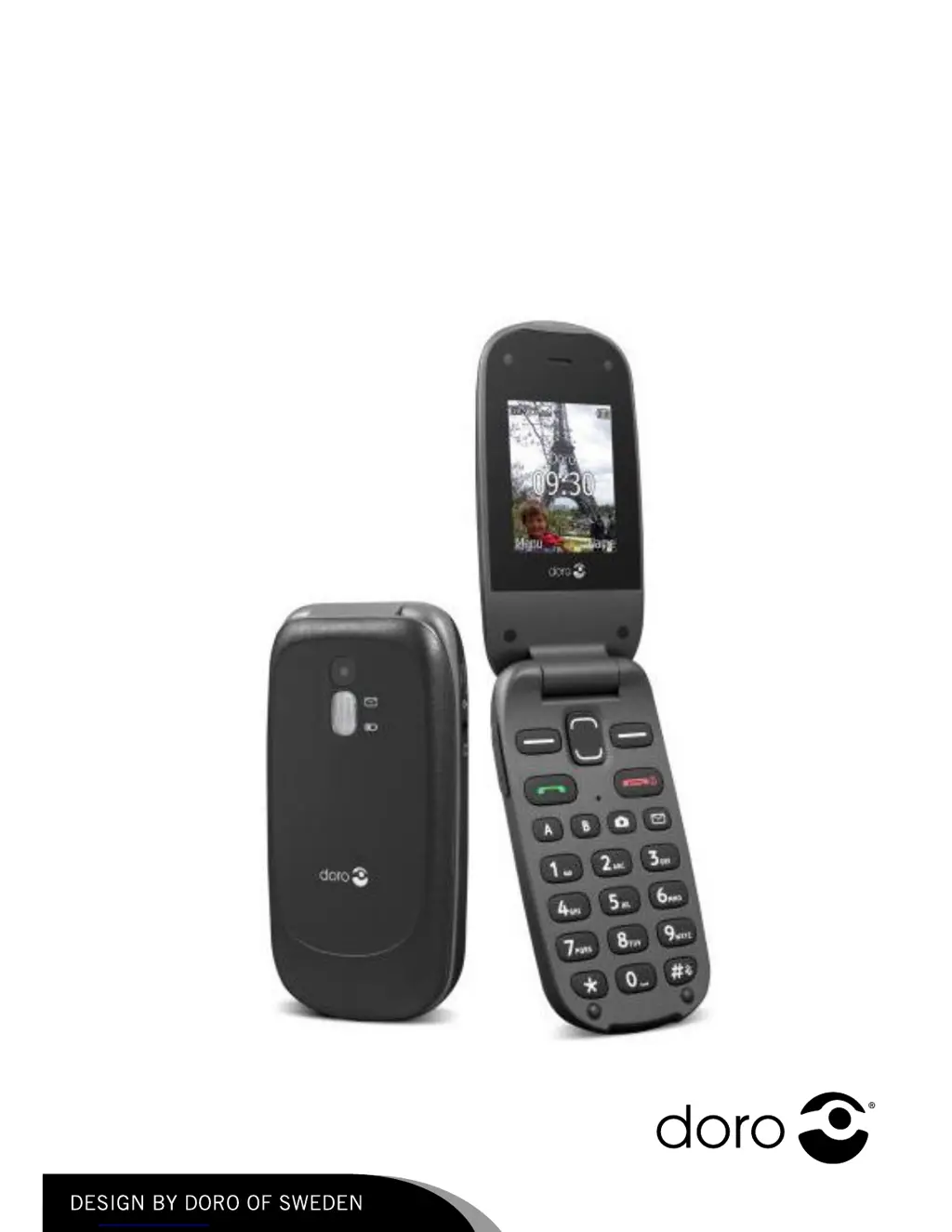
Doro PhoneEasy 607 Specifications

General IconGeneral
TechnologyGSM
2G bandsGSM 900 / 1800 / 1900
GPRSClass 10
SIMMini-SIM
Display TypeTFT, 256K colors
Display Size2.4 inches
Resolution240 x 320 pixels
PhonebookYes
Call recordsYes
LoudspeakerYes
3.5mm jackNo
Camera2 MP
RadioFM radio
USBmicroUSB 2.0
GamesYes
JavaNo
Stand-byUp to 400 h
Alert typesVibration
Memory Card slotmicroSD, up to 32 GB
MessagingSMS, MMS
BatteryRemovable Li-Ion 800 mAh battery

Related product manuals