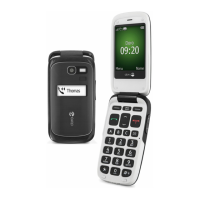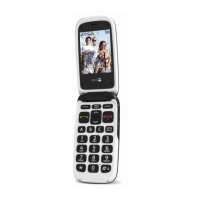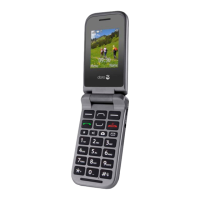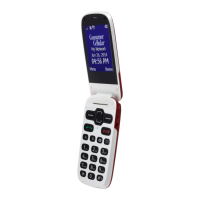
EasyManua.ls Logo

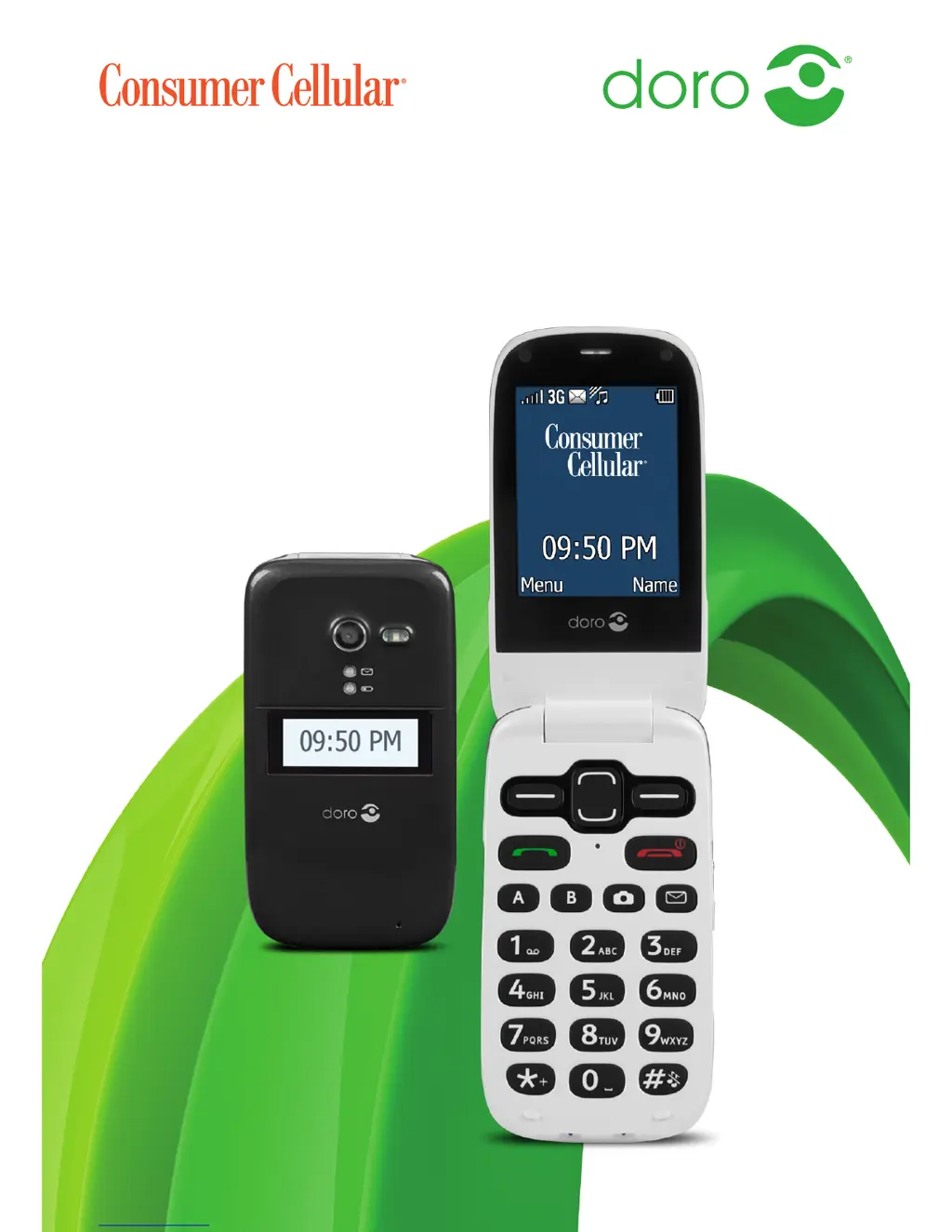
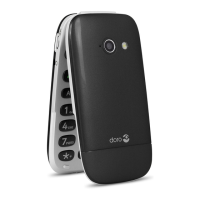
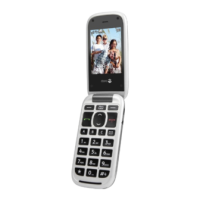
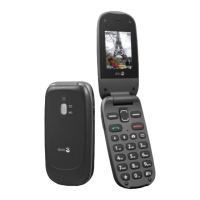
Doro PhoneEasy 626 - User Manual

Doro PhoneEasy 626
64 pages
Print Icon
To Next Page IconTo Next Page
Loading...
Doro PhoneEasy
®
626
English (US)

Table of Contents

Questions and Answers

  • J
    Johnny GuerraAug 14, 2025
    How to fix Doro PhoneEasy 626 Cell Phone that cannot be switched on?
    • F
      fletcherchadAug 15, 2025
      If your Doro Cell Phone cannot be switched on, there are a couple of potential reasons. First, the battery charge may be low. To resolve this, connect the power adapter and charge the battery for 3 hours. Alternatively, the battery may be incorrectly installed; in this case, check the installation of the battery.
  • D
    Dawn NelsonAug 18, 2025
    Why can't I add a contact on my Doro PhoneEasy 626 Cell Phone?
    • E
      Eric ReeseAug 18, 2025
      If you are unable to add a contact to your Doro Cell Phone, it is likely because the phonebook memory is full. Delete contacts to free up memory.
  • D
    dfryAug 21, 2025
    What to do if my Doro Cell Phone shows a SIM card error?
    • L
      Linda MartinAug 21, 2025
      If your Doro Cell Phone displays a SIM card error, there could be a few reasons. The SIM card might be damaged; in that case, contact your service provider. Another possibility is that the SIM card is incorrectly installed; you should check the installation, remove the card, and reinstall it. Finally, the SIM card could be dirty or damp, so wipe the contact surfaces of the SIM card with a clean cloth.
  • P
    Patricia WattsAug 25, 2025
    Why does standby time decrease on my Doro PhoneEasy 626?
    • S
      Stephen WilliamsonAug 26, 2025
      If the standby time of your Doro Cell Phone is decreasing, it could be due to a low battery charge capacity, in which case you should install a new battery. Alternatively, if you are too far from a base station, the phone might be constantly searching for a signal, which consumes battery power. Try to find a place with a stronger signal, or temporarily turn off the phone.
  • Y
    yeatonAug 28, 2025
    Why is my Doro Cell Phone failing to charge?
    • J
      Jason BishopAug 28, 2025
      If your Doro Cell Phone is failing to charge, it may be due to a damaged battery or charger, so check both. It could also be that the charger is incorrectly connected to the phone or power socket; ensure that the charger connections are properly secured.
  • H
    heidi45Aug 31, 2025
    What to do if my Doro PhoneEasy 626 Cell Phone fails to place or receive calls?
    • P
      Patricia ChanSep 1, 2025
      If you are experiencing a failure to place or receive calls on your Doro Cell Phone, it might be because call barring is activated. Deactivate call barring to resolve this. If the problem persists, contact your service provider.
  • M
    Mr. Christopher RussoSep 3, 2025
    What to do if my Doro PhoneEasy 626 Cell Phone says PIN code not accepted?
    • J
      Jennifer ReyesSep 3, 2025
      If your Doro Cell Phone is displaying 'PIN code not accepted', it means that the wrong PIN code has been entered too many times. You can enter the PUK code to change the PIN code, or contact your service provider.
  • C
    Crystal TrujilloSep 7, 2025
    Why is the signal weak on my Doro PhoneEasy 626 Cell Phone?
    • E
      Evan WilliamsSep 7, 2025
      If you are experiencing a weak signal on your Doro Cell Phone, it could be because you are too far from a base station. Try again from another location. Alternatively, there may be network congestion, so try calling at a later time.
  • J
    John TylerSep 12, 2025
    Why do I hear echo or noise on my Doro Cell Phone calls?
    • B
      Brian CarlsonSep 12, 2025
      If you are hearing an echo or noise on your Doro Cell Phone, it could be a regional problem from a bad network relay. Hang up and redial; this may switch you to another network relay.

Summary

Device Components

Device Components and Controls

Overview of physical parts, buttons, ports, and indicators.

Getting Started

SIM, Memory Card, and Battery Installation

Instructions for inserting SIM, memory cards, and battery.

Charging the Phone

Guide on how to charge the device's battery.

Phone Basics and Navigation

Assistive Functions and Indicators

Explains accessibility icons and phone status lights.

Powering On;Off and Initial Setup

Steps to turn the phone on/off, PIN entry, and startup wizard.

Navigating the Phone Interface

Using arrow buttons, selection buttons, and returning to standby.

Text Input and Editing

Typing text manually, using symbols, and moving the cursor.

Volume, Silent Mode, and Input Modes

Switching text input modes and adjusting call volume.

Phone Settings

Time, Date, and Language Settings

Configuring time, date format, and phone language.

Security and Access Control

Managing SIM lock, phone lock, and call barring features.

Call Management

Making and Receiving Calls

How to make, receive, and view call details.

Call Options and Speed Dial

Features like hold, mute, speed dial, and conference calls.

Call Logs and Settings

SOS calls, call logs, call time, and answer modes.

Advanced Call Features

Caller ID and call waiting functionality.

Call Management Options

Call forwarding, barring, and fixed dial services.

Phonebook Management

Adding and Managing Contacts

Adding new contacts, editing, and organizing the phonebook.

Phonebook Features

Contact storage, pictures, voicemail, and top 10 contacts.

Emergency Contacts and ICE

Storing emergency contact and medical information.

Messaging and Alerts

Creating and Sending SMS

Composing and sending text messages to recipients.

Picture Messaging and Inbox

Sending MMS and managing message folders.

Emergency Alerts System

Receiving and configuring WEA alerts.

Camera and Multimedia

Taking Photos with the Camera

Instructions for capturing still images using the phone's camera.

Camera and Video Adjustments

Settings for photo quality, zoom, and video recording.

Picture Gallery and Camera Settings

Browsing photos/videos and adjusting camera settings.

Connectivity Features

Bluetooth Connectivity Setup

Activating and managing Bluetooth connectivity.

Bluetooth Device Management

Pairing, managing devices, and audio paths.

Connecting to a Computer via USB

Transferring files between phone and computer.

Sound and Display Settings

Audio Setup and Sound Preferences

Adjusting audio settings for hearing aids and general sound.

Ringtones and Volume Control

Setting ringtones, volumes, and silent mode.

Alerts and Display Appearance

Configuring alert types, wallpapers, and text size.

Idle Display and Theme Customization

Adjusting idle screen display and phone themes.

Backlight and Brightness Adjustments

Controlling LCD backlight delay and screen brightness.

File Management and Extra Features

File Manager Operations

Opening, deleting, moving, and renaming files.

FM Radio Functionality

Tuning, saving stations, and using the FM radio.

FM Radio Controls

Adjusting volume, saving frequencies, and editing channel lists.

Flashlight and Calculator

Using the flashlight and performing calculations.

Games and Organizer Features

Playing phone games and managing alarms/calendar.

Organizer Functions

Setting daily reminders and creating notes.

Master Reset and System Recovery

Performing master resets to restore phone settings.

System Information and Symbols

Understanding phone status icons and main system symbols.

Remote Configuration and Control

Setting Up Remote Access

Activating remote configuration and managing allowed contacts.

Sending Remote Commands

Instructions for sending text commands for phone control.

Remote Phonebook and Assistance Setup

Saving contacts and setting up assistance remotely.

Troubleshooting Your Phone

Power and Charging Problems

Solutions for phone not switching on or charging failures.

Call, PIN, and SIM Card Errors

Solutions for call issues, incorrect PINs, and SIM card problems.

Safety, Compliance, and Legal Information

General Safety and Environment

Warnings about small parts, AC adapter, and operating environment.

Medical and Pacemaker Safety

Precautions for use near medical equipment and pacemakers.

Hazardous Environments and Driving Safety

Safety in explosive areas and driving precautions.

Emergency Calls and Vehicle Use

Guidelines for emergency calls and use in vehicles.

Device Compliance and Usage Guidelines

Information on radio frequency exposure and TTY support.

Legal Disclaimers and Notices

Disclaimer, FCC, and Canada notices.

Care, Maintenance, and Warranty

How to care for the device and warranty terms.

Copyright and Support Information

Legal notices regarding copyrighted material and trademarks.

Support and Technical Specifications

How to get help and technical details of the phone.

Doro PhoneEasy 626 Specifications

General IconGeneral
BrandDoro
ModelPhoneEasy 626
CategoryCell Phone
LanguageEnglish

Related product manuals