EasyManua.ls Logo

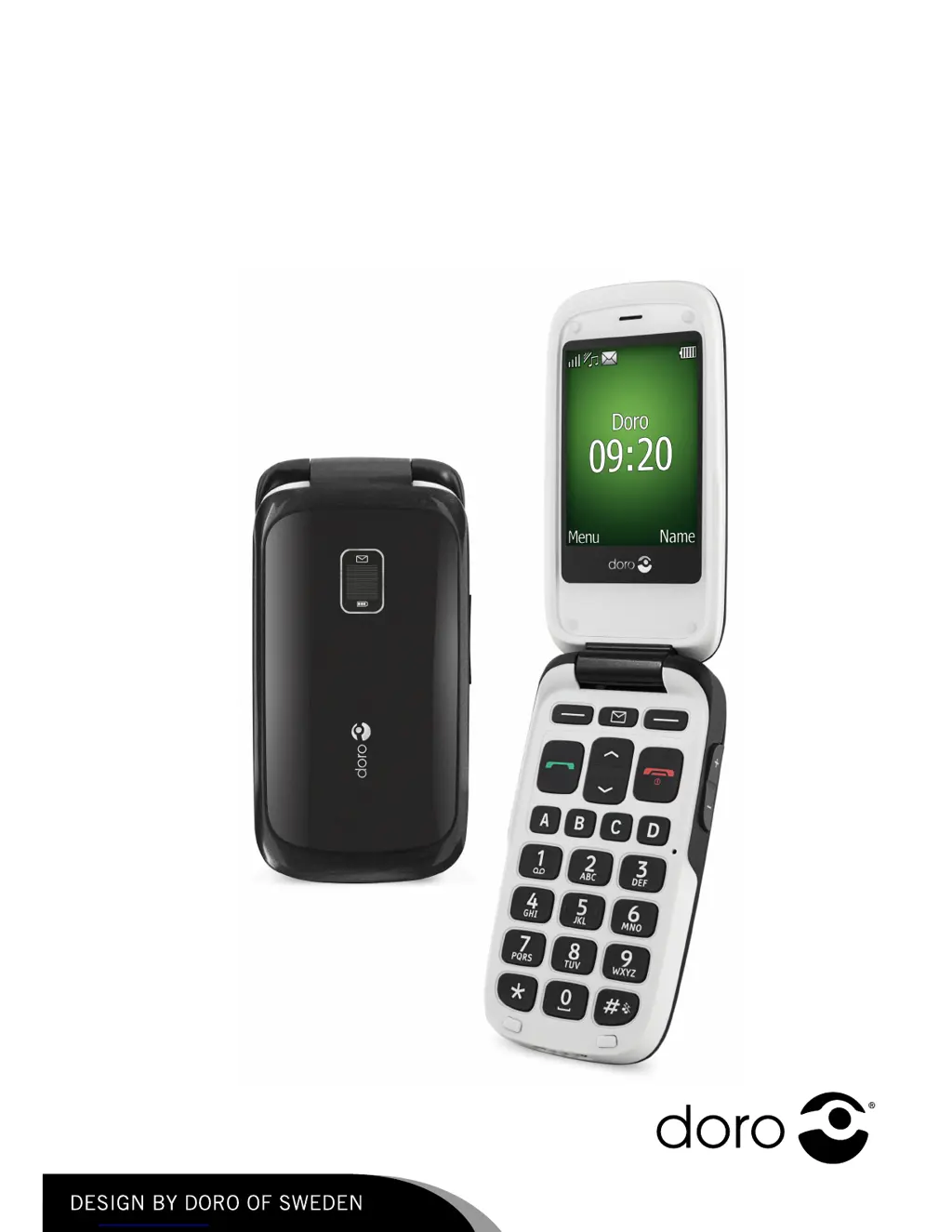
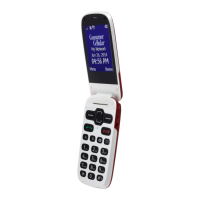
Doro PHONEEASY 614 - User Manual

Doro PHONEEASY 614
64 pages
Print Icon
To Next Page IconTo Next Page
Loading...
DoroPhoneEasy
®
614
English

Questions and Answers

  • M
    Mr. Michael Bryant DDSAug 15, 2025
    How to fix a Doro PHONEEASY 614 Cell Phone that won't turn on?
    • P
      Patrick Rodriguez PhDAug 15, 2025
      If your Doro Cell Phone cannot be switched on, ensure that the battery is adequately charged by connecting the power adapter and charging the battery for 3 hours. Also, verify that the battery is correctly installed.
  • L
    Laurie MeadowsAug 18, 2025
    What to do if my Doro PHONEEASY 614 Cell Phone doesn't accept the PIN code?
    • C
      crystal30Aug 19, 2025
      If your Doro Cell Phone doesn't accept the PIN code, enter the PUK code to change the PIN code, or contact your service provider.
  • A
    arnoldcarlaAug 22, 2025
    What to do if my Doro PHONEEASY 614 fails to add a contact?
    • D
      Derek PhillipsAug 22, 2025
      If you are failing to add a contact on your Doro Cell Phone, delete contacts to free up memory.
  • C
    Cassandra GreenAug 25, 2025
    What to do if my Doro PHONEEASY 614 battery is not charging?
    • L
      Lori DunnAug 26, 2025
      If your Doro Cell Phone fails to charge, first check the charger connections to both the phone and the power socket to ensure they are properly connected. Also, the battery should only be charged in temperatures between 0 °C and 40 °C, so improve the charging environment. If the problem persists, examine the battery and charger for any signs of damage.
  • P
    pricejuliaAug 28, 2025
    What to do if my Doro PHONEEASY 614 Cell Phone shows a SIM card error?
    • N
      Nicholas LeeAug 28, 2025
      A SIM card error on your Doro Cell Phone may be due to several reasons. First, check the installation of the SIM card by removing it and reinstalling it. Also, wipe the contact surfaces of the SIM card with a clean cloth. If the SIM card is damaged, contact your service provider.
  • S
    Stephanie AlexanderAug 30, 2025
    Why is the signal weak on my Doro PHONEEASY 614?
    • J
      jasmine74Aug 30, 2025
      A weak signal on your Doro Cell Phone can occur if you are too far from the base station, so try again from another location. Network congestion can also cause this issue, so try calling at a later time.
  • K
    Karen PettySep 2, 2025
    Why does the standby time decrease on my Doro PHONEEASY 614?
    • M
      Matthew ParkerSep 2, 2025
      If the standby time of your Doro Cell Phone is decreasing, it may be due to low battery charge capacity, so install a new battery. Also, if you are too far from the base station, the phone constantly searches for a signal, which consumes battery power. Find a place with a stronger signal, or temporarily turn off the phone.
  • L
    lsanchezSep 5, 2025
    What to do if my Doro PHONEEASY 614 Cell Phone fails to place or receive calls?
    • F
      Frederick ManningSep 5, 2025
      If your Doro Cell Phone is failing to place or receive calls, deactivate call barring. If this does not solve the problem, contact your service provider.
  • M
    molly69Sep 8, 2025
    How to resolve echo or noise on a Doro PHONEEASY 614 call?
    • C
      Cynthia RiveraSep 9, 2025
      If you are experiencing echo or noise on your Doro Cell Phone, hang up and redial. This may switch to another network relay.
  • T
    Timothy SmithSep 12, 2025
    What to do if my Doro PHONEEASY 614 fails to connect to network?
    • R
      Randall CarpenterSep 12, 2025
      If your Doro Cell Phone fails to connect to the network, contact your service provider.

Summary

Installation

Installing the SIM card, memory card and the battery

Instructions for inserting SIM and memory cards and the battery into the phone.

Charging

Charging the battery

Steps and indicators for charging the phone's battery.

Operation

Activating the phone

Steps to turn the phone on/off and handle SIM card status messages and PIN codes.

Entering text

Guide to typing characters using numerical keys and special character options.

SOS calls

How to make an SOS call using the emergency number.

Making a call

Steps for dialling a phone number, including international calls.

Emergency key +

Instructions for using the dedicated Emergency key for quick access to help contacts.

Making a call from the phonebook

How to find and call contacts stored in the phonebook.

Receiving a call

Instructions on how to answer or reject incoming calls, with or without opening the flip.

Phonebook

Creating a phonebook entry

Step-by-step guide to adding new contacts with names and numbers.

Managing phonebook entries

Options for viewing, editing, deleting, and copying phonebook entries.

Messages

Creating and sending SMS

Guide to composing and sending text messages, including recipient management.

Call log

Retrieving and dialling

How to view call history (received, dialled, missed) and redial numbers.

Settings

General

Configuration options for time, date, language, and network settings.

Display

Customizing screen appearance, including wallpaper and text size.

Network setup

Configuration for automatic or manual network selection and searching.

Sound

Configuration for ringtones, volumes, alert types, and extra tones.

Calls

Speed dial

Setting up and using speed dial numbers for quick calling.

Call setup

Settings for caller ID, call waiting, call divert, and call barring.

SMS

Emergency +

Activation

Enabling the emergency function via normal, quick, or disabled modes.

Numbers list

Adding and managing emergency contact numbers.

SMS

Configuring the text message sent when the emergency key is pressed.

Confirm with 0

Setting up a confirmation step for emergency calls.

Connectivity

Bluetooth

Managing Bluetooth connection, visibility, pairing, and audio path settings.

Security

SIM lock

Activating or deactivating the SIM card PIN code lock.

Phone lock

Setting or disabling the phone's lock code.

Additional functions

Alarm

Setting and managing single or repeated alarms.

Instructions for the REMOTE USER

Setting the emergency function

Commands for activating and configuring the emergency function.

Troubleshooting

Phone cannot be switched on

Solutions for issues preventing the phone from powering on.

Failure to place or receive calls

Troubleshooting call connection issues like call barring.

Failure to charge the battery

Steps to resolve problems with battery charging.

PIN code not accepted

What to do if the PIN code is entered incorrectly too many times.

SIM card error

Solutions for SIM card related errors like damage or incorrect installation.

Failure to connect to network

Troubleshooting network connection problems.

Safety instructions

Operating environment

Guidelines for safe phone use in various environments and proximity to the body.

Medical units

Precautions regarding interference with medical equipment.

Pacemakers

Recommendations for pacemaker users to avoid interference.

Care and maintenance

Warranty

Doro PHONEEASY 614 Specifications

General IconGeneral
BrandDoro
ModelPHONEEASY 614
CategoryCell Phone
LanguageEnglish

Related product manuals