6
The VariZapper 2.0
3.4 My PDs
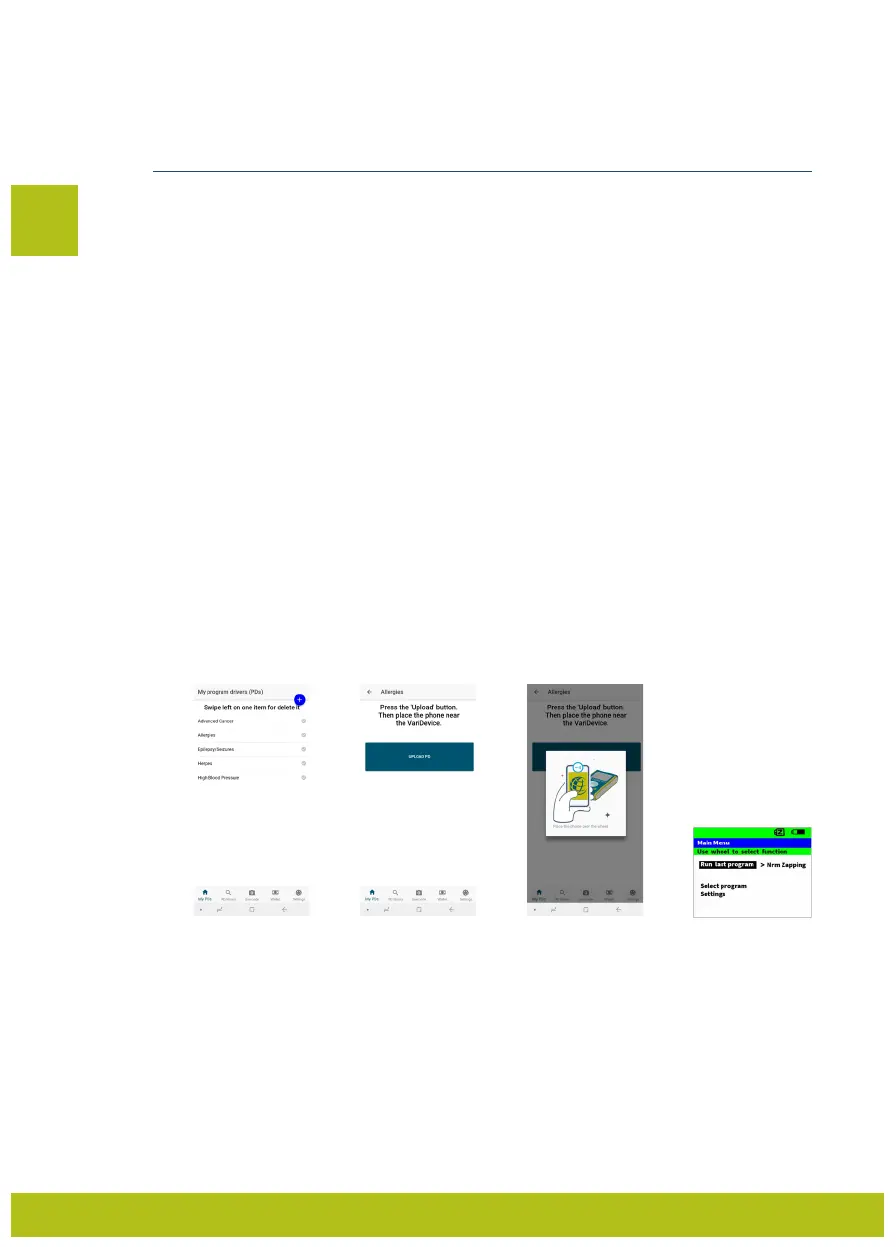
Under My PDs you can see the list of all your paid or uploaded Program Drivers (Fig. E). Uploaded
Programs could be from a person who has a VariGamma frequency generator, who has defined a
specific program for you and transferred it to your App.
3.5 Upload Programs to your VariZapper 2.0
To Upload the Program to your Zapper:
1) Choose the Program you want to upload to your VariZapper 2.0 under “My PDs”.
2) Press “UPLOAD PD” in the App (Fig. F). A prompt to hold your phone over your VariZapper unit
appears on the screen (Fig. G)
3) Wait for 3 seconds;
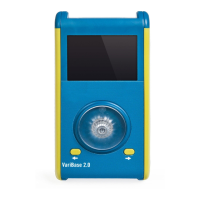
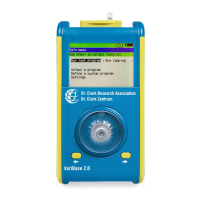
4) Hold the Phone over the Turnwheel of your VariZapper 2.0 when it is in the Main Menu screen (Fig. H).
The Program Driver is now uploaded, and both the App and the VariZapper 2.0 show a confirmation on
their screen.
Two things are important for a smooth upload of Programs, because the range of NFC is very small:
First, it is important that you hold the smartphone HORIZONTALLY directly over the Turnwheel of the
VariZapper 2.0. Secondly, make sure the center of the NFC antenna of your smartphone is right over
the VariZapper 2.0’s antenna. The center of the VariZapper 2.0’s antenna is the middle of the Turnwheel.
Most cell phones’ NFC antenna is towards the middle of the smartphone device. In some smartphones,
it is towards the top of the device. If you have trouble uploading Programs to your VariZapper 2.0, the
informaiton about the location of the NFC antenna on your smartphone is usually easily found through
a quick internet search such as “Samsung Galaxy 9 NFC antenna location”. See e.g. here for such a
search result:
https://forums.androidcentral.com/samsung-galaxy-s5/468435-where-nfc-located.html
Also, you can find a short video tutorial about uploading Programs to the VariZapper 2.0 on Youtube
here: www.youtu.be/xxxxxxxxx
EN
Fig. E Fig. F Fig. G Fig. H


 To Next Page