3. Binding Your Frame via Email
You and your friends can also bind your email accounts to the frame, so that you
can share photos to the frame via email.
① Send an email with the subject “bd + Frame ID” to the frame's unique email
address (the one you created when you bound your frame for the first time).
For example, if your Frame ID is 123456, send an email with the subject
“bd123456” to the frame's unique email address.
② Wait for seconds, you will receive a confirmation email from the OurPhoto team,
and your email account is successfully bound to the frame. You can also find the
bound email accounts in the User Management interface.
UPLOADING PHOTOS AND VIDEOS
1. Uploading Photos and Videos via the App
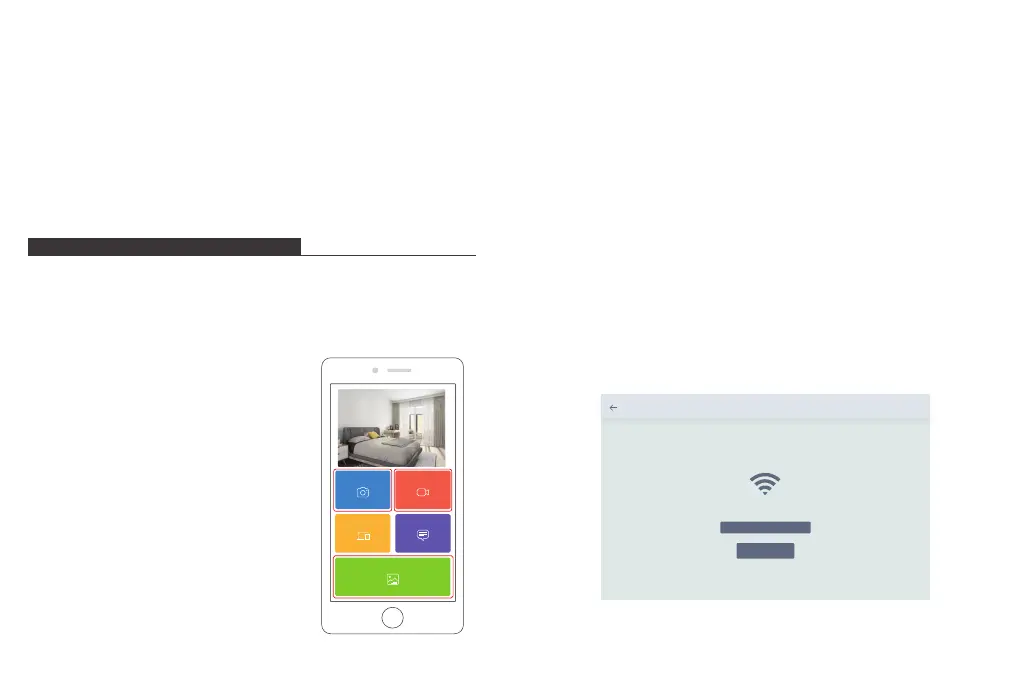
① Open the OurPhoto app and log in to your account. Make sure you have bound
your account to your frame before.
② Click Media to upload your photos or videos on your mobile device. Select the
photos or videos you would like to upload and choose the frame you would like
to send to. Click the right arrow icon to confirm.
③ Click Photo or Video to take new photos or videos
and choose the frame you would like to send to.
Click the right arrow icon to confirm.
④ The photo frame will receive the photos or videos
in seconds, you can check the photo or video
library on the frame.
Note:
• If the frame didn’t receive the photos or videos,
please reboot the product or check the Wifi
network.
• Each video clip is limited to 30 seconds or 100MB.
• The app supports sending Full Image to the frame.
Please make sure your app version is 1.1.94 (iOS)/
1.0.4 (Android) or above.
Devices
Messages
Video
Photo
Media
Note: The above screenshot is for reference, please update to the latest firmware
version later.
Settings
WLAN Name: “Wifi 001”
Enter the following address into your FTP client:
ftp://XXX.XXX.X.XXX:XXXX
II Start
9 10
• The OurPhoto app only provides 10GB free data traffic for uploading photos and
videos, please go to the OurPhoto website and top up the data traffic if needed.
• Top-up link: https://well.bsimb.cn/recharge/index
2. Uploading Photos via Email
Send an email with photos attached to the email address of the frame. Your photos
will be received in seconds, you can check the photo or video library on the frame.
Note: Videos cannot be uploaded via email.
3. Uploading Photos and Videos via a Computer
① Make sure your frame and computer are on the same Wifi network.
② On your frame, enter the PC Control interface, go to Settings → PC Control. Click
the Start button, you will find an FTP address on the screen.
③ On your computer, open File Explorer. In the File Explorer, enter the FTP address
in the address bar.
④ Then you can drag and drop the photo and video files on the computer that you
would like to transfer to the frame folder showed up.
⑤ Click Stop on the frame to end PC connecting and uploading.
⑥ Your photos or videos will be received in seconds, you can check the photo or
video library on the frame.


 To Next Page